The Businesses in ChatGPT program is in beta, so steps and eligibility may change. Last checked November 11, 2026.
TL;DR: To claim your business in ChatGPT, open Business Hub, find your listing, verify that you represent the business, and wait for OpenAI's review. Each location is claimed separately, and OpenAI has not documented a bulk tool or API for claiming profiles.
Customers used to find businesses through Google Search, Google Business Profile, Yelp, social media, and online directories. Increasingly, they ask ChatGPT. On November 10, 2026, OpenAI introduced business profiles through ChatGPT Business Hub, giving businesses a way to claim and manage how they appear there.
This guide walks through the claim step by step, with screenshots from a real claim. It also covers eligibility, cost, how to handle multiple locations, and what OpenAI has and has not documented about APIs and bulk tools.
If you want the strategy behind these steps, read our companion post on what ChatGPT business profiles change for multi-location brands.
What is a ChatGPT business profile?
A ChatGPT business profile lets an eligible business establish a verified presence inside ChatGPT. It is similar in concept to a Google Business Profile (GBP), but built for an AI-driven discovery experience.
When people ask ChatGPT questions like these, business information can help it understand and surface relevant businesses:
- Find the best Italian restaurant near me.
- Which hotels in Joshua Tree have private pools?
- Recommend a reliable plumber in Fremont.
- Find a family-friendly vacation rental near Dollywood.
- Suggest a pediatric dentist nearby.
A profile lets you provide consistent details about your business. It does not guarantee that ChatGPT will recommend you, and OpenAI says ChatGPT keeps making its own independent recommendations.
Which businesses can claim a profile?
OpenAI says eligibility depends on factors including industry, location, and its verification and integrity checks, so not every business can claim a profile. Businesses that may be eligible include:
- Local businesses: restaurants and cafes, salons and spas, gyms and fitness studios, retail stores, auto repair shops, plumbers, electricians, and contractors.
- Hospitality and travel: hotels and resorts, vacation rental operators, tour operators, and travel agencies.
- Professional services: real estate agencies, consulting firms, accounting and legal firms, and marketing agencies.
- Technology and commerce: SaaS companies, ecommerce businesses, manufacturers, and distributors.
Local stores and restaurants can currently claim only an existing U.S. listing, while eligible online businesses may be able to add a new one. Business Agent eligibility is narrower still: agents are limited for now to eligible U.S. ecommerce and online service businesses.
Is it free?
OpenAI has not announced a fee for claiming a business, and you do not need an Ads account or a ChatGPT Enterprise agreement to claim an eligible one. Advertising is a separate paid product, and pricing may change as the beta develops.
| Capability | At launch |
| Claiming a business profile | No fee announced |
| Business verification | No fee announced |
| Managing business information | No fee announced |
| Business insights | Included for eligible, verified businesses |
| Product feed submission | No separate fee announced |
| Business Agent | No separate fee announced |
| Advertising | Separate paid offering |
How to claim a single business location?
For a business with one location, the process is straightforward. The screenshots below come from a real claim we completed for Birdeye in Business Hub on November 11, 2026.
Step 1: Open Business Hub
Sign in to ChatGPT (or create an account if you do not have one) and open Business Hub from the sidebar.
Step 2: Search for your business and select your listing
Type your business name, select the matching listing, and check the address. If your business does not appear and you run an eligible online business, you may see an option to create it, as shown at the top of the results. Note the line at the bottom: continuing means you accept OpenAI’s Businesses in ChatGPT Terms, so review them first.
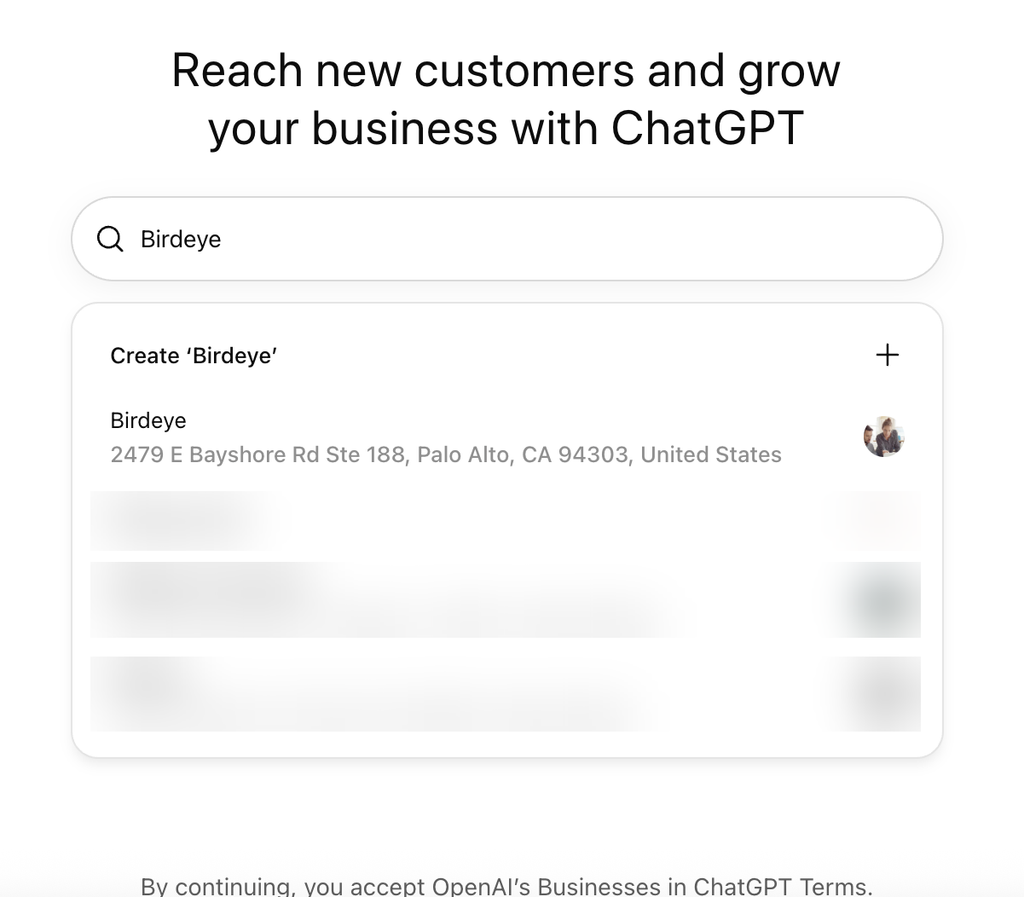
Search for your business and select the matching listing.
Step 3: Start the claim and confirm your account
ChatGPT explains what claiming gives you: tracking how often your business is mentioned, keeping your business information up to date, and the option to set up a business agent. It also reminds you that you will need to verify that you are authorized to represent the business.
Select Get started.
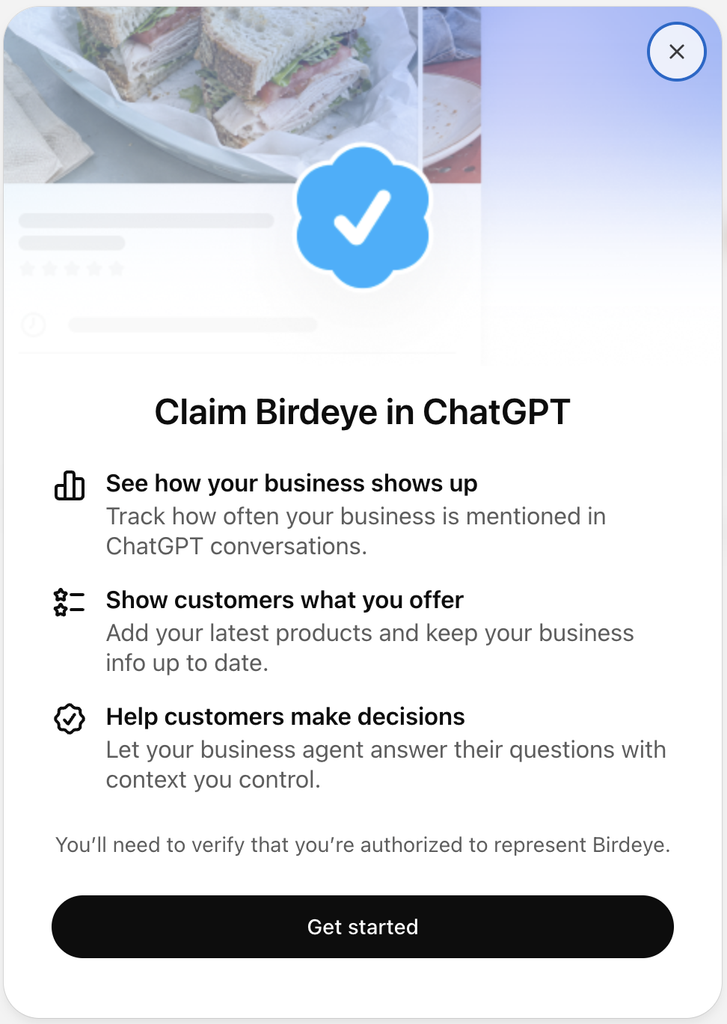
Review what claiming includes, then select Get started.
Next, confirm the ChatGPT account you will use to manage the profile. This is the login you signed in with, and it appears as an email address on the screen. If you do not have a ChatGPT account yet, create one first, because Business Hub requires you to be signed in. Use an account your company controls rather than a personal one, because later team invitations can depend on it.
Select Continue.
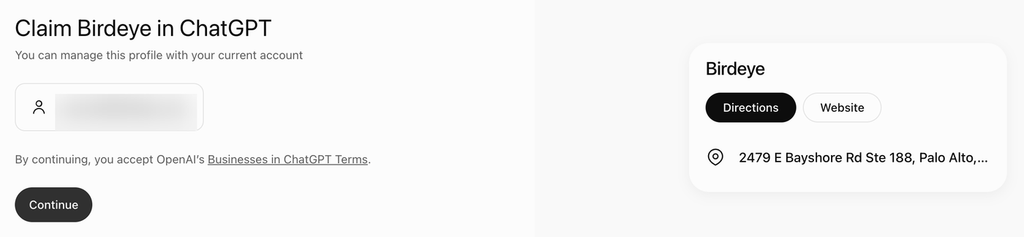
Confirm the ChatGPT account that will manage the profile.
Step 4: Choose how to verify your claim
Business Hub shows the verification options available to your business. In our test, Birdeye was offered a business phone number (a code by text or phone call) and a website domain (verify that you control the domain using DNS or your website). OpenAI’s guidance also lists business email and Shopify for some businesses.
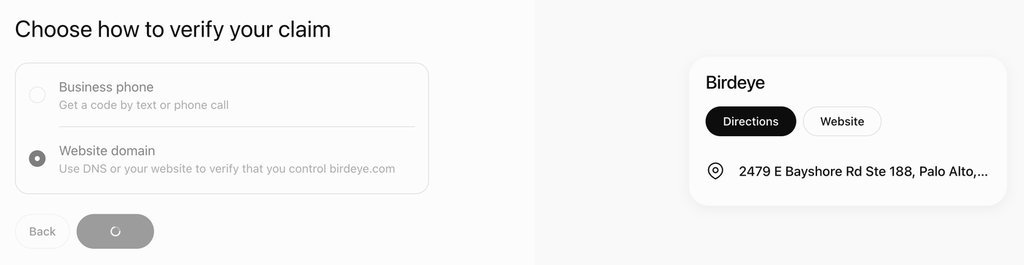
Choose a verification method.
To verify by website domain: Business Hub shows a TXT record with a type, a name or host, and a value. Add it to your domain’s DNS settings through your domain provider, then return and select Verify domain. Changes can take time to appear, and the record expires after 24 hours, so complete this promptly.
If someone else manages your DNS, send them the record. If you have verified a site in Google Search Console, this will feel familiar, because it uses a similar DNS method.
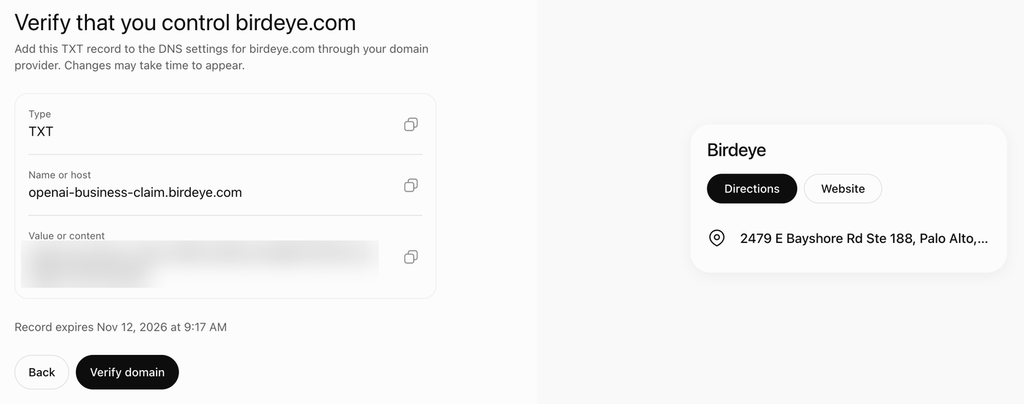
Add the TXT record to your DNS settings, then select Verify domain.
To verify by phone: Business Hub sends a code by text or phone call to your business number, and you enter it to continue. Use a direct line rather than an extension.
Step 5: Wait for OpenAI’s review
After you verify, your claim goes into review. Business Hub shows three stages: claim received, review in progress, and decision reached. OpenAI emails the account you used with its decision or to ask for more information, and you can withdraw your claim at any time during the review. In our test, approval came a little over two hours after we started, but timing may vary.
Step 6: Confirm your claim
Once approved, Business Hub shows that you have claimed your business. From here, you can review your business agent if you are eligible, manage your business (view insights, add products, and keep your information up to date), start advertising with ChatGPT Ads, or upgrade to a ChatGPT Business plan.
Advertising and the ChatGPT Business plan are separate offers, and you can skip both. Note the pre-checked box to receive marketing emails from OpenAI, and uncheck it if you do not want them. Your profile now shows a verified badge next to the business name, along with details such as category, hours, address, and phone number.
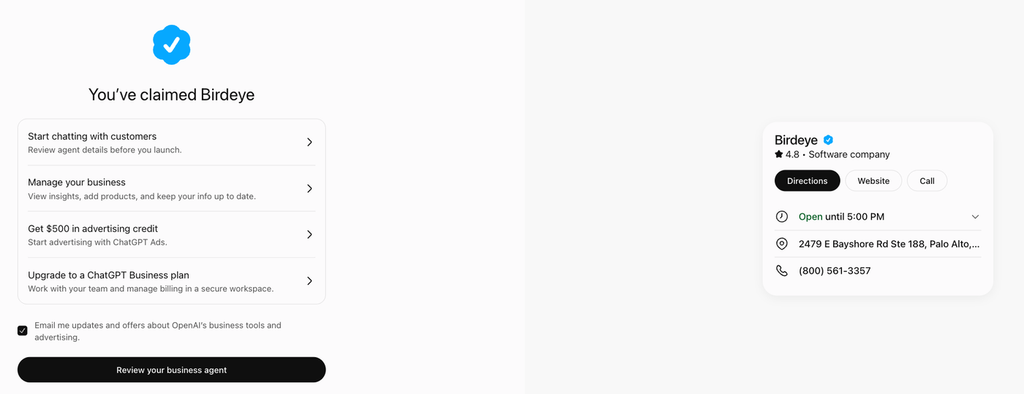
Your claimed profile, with a verified badge and next-step options.
One more requirement: OpenAI’s help center says you must also complete identity verification with Persona before you can publish changes to your business information, view insights, or create an eligible business agent. Submitting information to Persona is not the same as approval, and those features stay unavailable until it is approved.
Step 7: Complete and maintain your business information
This is our checklist of details worth keeping consistent across your website and listings. It is not a list from OpenAI, and which fields you can edit in Business Hub depends on your business type, so check the options you see.
| Information | Example |
| Business name | ABC Coffee |
| Business category | Coffee shop |
| Address | 123 Main Street |
| Phone number | Business contact number |
| Website | www.abccoffee.com |
| Business description | Specialty coffee and breakfast |
| Operating hours | Monday to Sunday |
| Logo | Official brand logo |
| Photos | Storefront and product images |
| Products and services | Coffee, breakfast, catering |
| Policies | Delivery and return policies, where applicable |
OpenAI reviews changes before they publish, and updates can take time to appear. ChatGPT can also draw on other sources, so update the same details on your website and major listings. Revisit your profile whenever hours, services, or links change. A complete and accurate profile helps create a consistent business presence.
How to manage multiple business locations
Consider a restaurant chain with 250 locations across the United States. Managing every location by hand gets inefficient quickly, and today there is no way around doing it location by location: each brand and each location is claimed separately, and central management is not available yet. Start with the brand, then work through locations in order of revenue or search demand.
A simple data structure helps. Keep one master record per location under your parent brand, and track every claim in one place:
| Location ID | Business name | City | State | Claim status | Verification method | Owner |
| ABC001 | ABC Coffee | Fremont | CA | Pending review | Business phone | Regional manager |
| ABC002 | ABC Coffee | San Jose | CA | Claimed | Website domain | Marketing |
| ABC003 | ABC Coffee | Austin | TX | Not started | Business phone | Regional manager |
| ABC004 | ABC Coffee | Dallas | TX | Not started | Business phone | Regional manager |
Each location should maintain its own details:
- Unique address
- Local phone number
- Location-specific operating hours
- Local services and offerings
- Photos
- Website or location landing page
- Location-specific policies, where applicable
The parent brand should keep brand-level details consistent: the brand description, logo, brand guidelines, and standard service descriptions.
A recommended multi-location approach
- Centralized business database. Maintain a master database of all locations and their information.
- Location-level management. Let individual locations update local details without changing the parent brand’s identity.
- Product data, not profile data. If you sell products, a product feed (including a CSV upload) shares product details, prices, and availability. It does not create, claim, or update business profiles. See product feed integrations below.
- Verification management. Keep ownership and verification records for every eligible location.
- Monitoring and reporting. Track visibility, profile completeness, website traffic, and other available performance insights.
Important limitation: bulk profile management

As of November 2026, OpenAI has not publicly documented a general-purpose API, or a CSV upload, for creating, claiming, or updating business profiles in bulk. Each brand and each location is claimed separately, and claiming the main brand does not claim its locations. If your brand uses a managed claim process, individual location profiles stay locked by default, and OpenAI says to ask your OpenAI account contact about the supported claim path. We will update this guide as OpenAI adds bulk tools.
Product feed integrations
If you sell products, you can connect a product feed in Business Hub, including a Shopify feed, to share prices and availability. You can upload a CSV product feed or link to a hosted feed file, and either must follow the required fields in OpenAI’s product feed specification. Feeds cover product data only, not business profiles, and connecting one does not publish an agent or guarantee that ChatGPT recommends your products.
What to do after you claim your profile
A ChatGPT business profile complements your Google Business Profile and other listings. It does not replace them, and it works best when the rest of your digital presence agrees with it. Five practical steps:
- Standardize business information. Make sure business names, addresses, phone numbers (NAP), hours, and websites are accurate everywhere.
- Improve website content. Clearly explain your products, services, locations, pricing, and policies.
- Create location-specific pages. Make it easy for AI systems and customers to understand what each location offers.
- Maintain structured product and service information. Use supported feeds and structured data where appropriate.
- Monitor AI discovery. Track which business categories, services, and customer questions generate visibility.
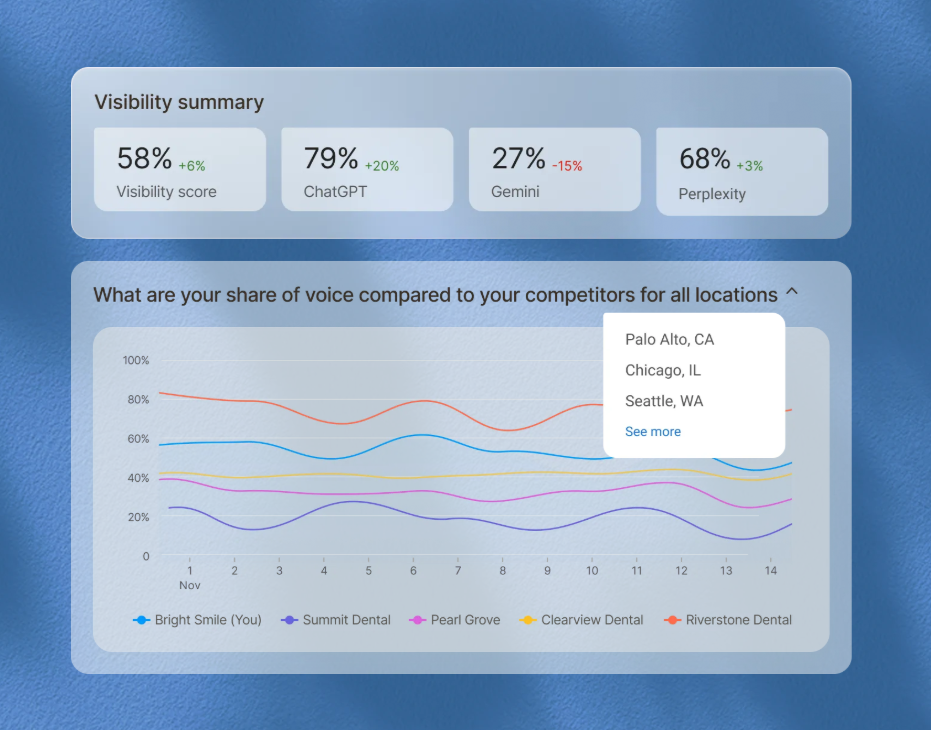
The question for businesses is no longer just whether customers can find them on Google. It is whether AI assistants can understand a business well enough to recommend it. Birdeye AI Search shows which of your locations appear in AI answers and which do not.
Product capabilities, eligibility, integrations, and pricing may change as OpenAI expands the Business Hub beta. Check OpenAI’s official documentation before implementing integrations.
About the Author

Ruchika Batra
Originally published