A Bing business listing is a free online profile that displays your business name, address, phone number, hours, and other key details directly in Bing search results and Bing Maps.
Summary
With over 140 million daily active users and deep integration with Microsoft Copilot and ChatGPT-powered search, Bing has become a discovery channel no local business can afford to ignore in 2026. While Google dominates overall search volume, Bing reaches a distinct, high-intent audience on Windows devices, Microsoft Edge, and AI-driven platforms that actively pull from Bing Places data to surface local business recommendations. Setting up and optimizing your Bing local listing puts your business in front of those searchers at exactly the moment they need your services.
This blog covers everything you need to create, claim, and optimize your Bing Business Profile from scratch. You will also learn how to manage multi-location listings with Birdeye, compare Bing Places for Business against Google Business Profile, and keep your listing feeding AI-powered search results in 2026.
Table of contents
- What is Bing Places for Business?
- Why list your business on Bing in 2026
- How to list your business on Bing: Step-by-step
- What is the Recommendation Tool, and how do you use it?
- How do you manage multi-location and chain listings on Bing?
- How does Bing Places for Business compare to Google Business Profile?
- How does a Bing Listing feed AI Search results on Copilot and ChatGPT?
- How do you monitor and update your Bing listing?
- FAQs about Bing business listings
- Manage your Bing Business listing with Birdeye
What is Bing Places for Business?
Bing Places for Business is a free tool from Microsoft that lets business owners create, claim, and manage how their business appears across Bing search results and Bing Maps. You can access it at bing.com/forbusiness. Any business, from a single-location shop to a chain with thousands of locations, can use it at no cost.
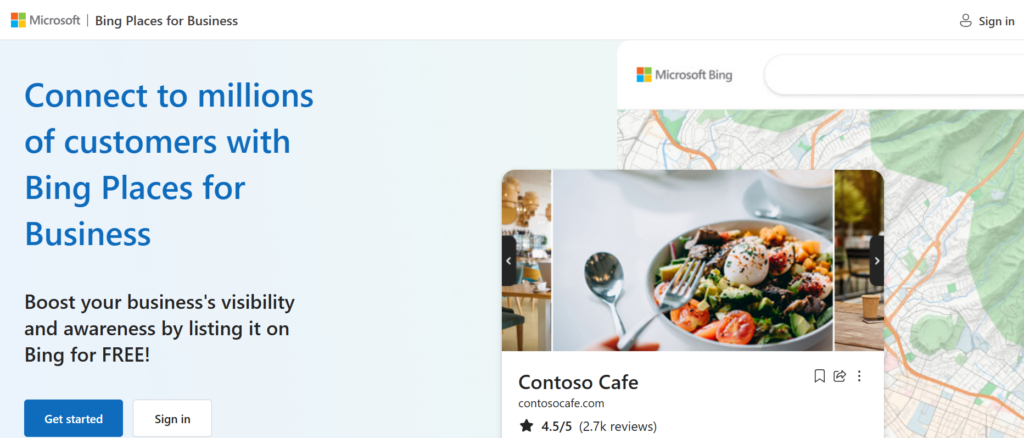
card.
Bing Places for Business lets you:
- Add or claim your business name, address, phone number, and website
- Upload photos and set accurate business hours
- Choose the right business categories
- Manage your bing local listing across multiple locations
- Monitor how your listing performs against nearby competitors
Bing Places for Business pulls additional information directly from the web and syndicates reviews from third-party platforms, including TripAdvisor, Yelp, and Facebook, so your Bing Business Profile stays richer and more current than platforms that rely on manual input alone.
Note: If you already use the older bingplaces.com URL, Microsoft now redirects existing users to the updated bing.com/forbusiness portal, which launched in October 2025 with a redesigned dashboard and new optimization features.
Why list your business on Bing in 2026
Many businesses treat Bing as an afterthought, and that is a costly mistake. According to a recentreport, Bing now has more than 1 billion monthly active users, driven by its integration with Windows, Microsoft Edge, Copilot, and growing adoption of AI-powered search experiences. The official bing.com/forbusiness page confirms that Bing Places for Business hosts over 3 million listed businesses across 190+ countries.
Bing holds roughly 4 to 5% of global search market share, and on U.S. desktops, that figure climbs significantly higher, meaning a meaningful share of American searches happen entirely outside of Google. A business without a bing local listing loses that audience completely.
Beyond the numbers, three developments make it especially important to list your business on Bing in 2026.
1. Your Bing listing now feeds Microsoft Copilot and ChatGPT
Microsoft Copilot uses Bing’s index to answer local search queries. When a user asks Copilot “find a plumber near me open on Saturday,” the response pulls business names, addresses, phone numbers, and hours directly from Bing Places data. ChatGPT also uses Bing-grounded answers for real-time local queries. Businesses with a complete, verified bing business listing are the ones that appear in those AI-generated answers. Businesses without one remain invisible in this fast-growing search channel.
2. You face less competition than on Google Business Profile
The Bing for Business platform remains significantly less crowded than Google Business Profile. Millions of businesses invest heavily in optimizing their Google presence, yet the same level of attention rarely goes toward Bing. That lower competition gives well-optimized Bing business listings a better chance of ranking prominently in local results and surfacing in AI-generated recommendations.
3. Bing syndicates reviews from TripAdvisor, Yelp, and Facebook automatically
Unlike Google Business Profile, which relies on its own proprietary review system, Bing pulls ratings and reviews from TripAdvisor, Yelp, and Facebook automatically. Your Bing Business Profile benefits from the social proof you have already built on other platforms, without any extra effort required.
Additional reasons to list your business on Bing:
- It is completely free. Creating and managing bing business costs nothing.
- You appear in Bing Maps. Your listing surfaces in both Bing search results and Bing Maps, putting your business in front of customers who search for directions or nearby services.
- You gain performance insights. The Bing Places dashboard tracks how often your listing appears in search results and how it compares against similar businesses in your zip code.
- You can extend reach with advertising. Businesses that want more exposure can pair their organic Bing local listing with Microsoft Advertising to increase visibility further
How to list your business on Bing: Step-by-step
Listing your business on Bing takes only a few minutes and costs nothing. Follow these steps to get your Bing business listing live on Bing search results and Bing Maps.
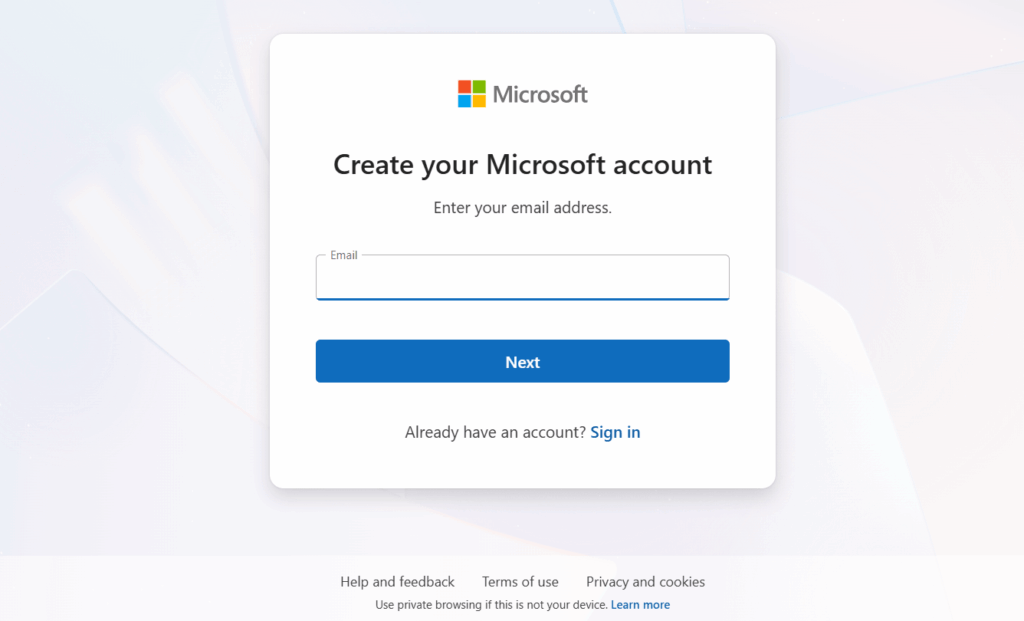
Step 1: Sign in at bing.com/forbusiness
Go to bing.com/forbusiness, which is the new home for Bing for business since October 2025. Microsoft moved the entire listing experience from the old bingplaces.com domain to this new address. If you previously used bingplaces.com, your account and listings will be redirected to the new portal the next time you log in with your existing credentials.
You need a Microsoft account to get started. If you do not already have one, create one for free at account.microsoft.com before proceeding.
Step 2: Check if your listing is already claimed
Once you sign in, search for your business name in the dashboard. Bing already pulls business data from across the web, so a listing for your business may already exist.
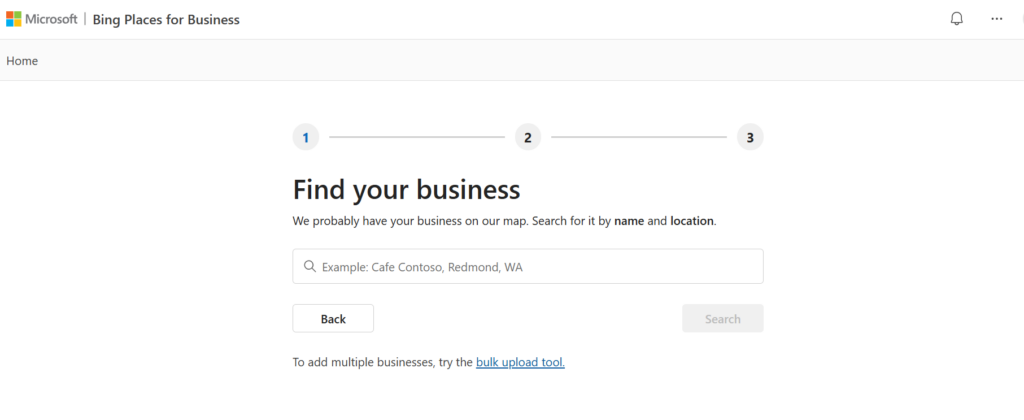
If you see your business name with a note that says “This listing has already been claimed,” another user manages it. You will need to request access in that case. If no claim exists, you can move on to Step 3 and claim or create your Bing local listing directly.
Step 3: Claim or add your business
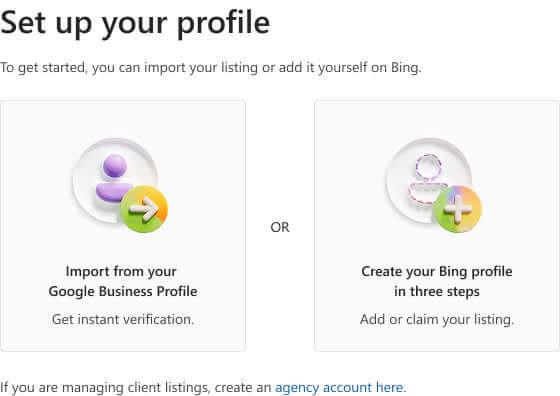
Bing gives you two ways to set up your Bing business listing:
Option A: Import from Google Business Profile
If your business already has a verified Google Business Profile, this is the fastest route. The updated import flow, announced by Microsoft in October 2025 on the official Bing blog, is faster and more reliable than the previous version. It preserves key business attributes, including your business name, hours, and contact details automatically. Grant Bing access to your Google account, and the import completes in minutes.
Option B: Add your Business Manually
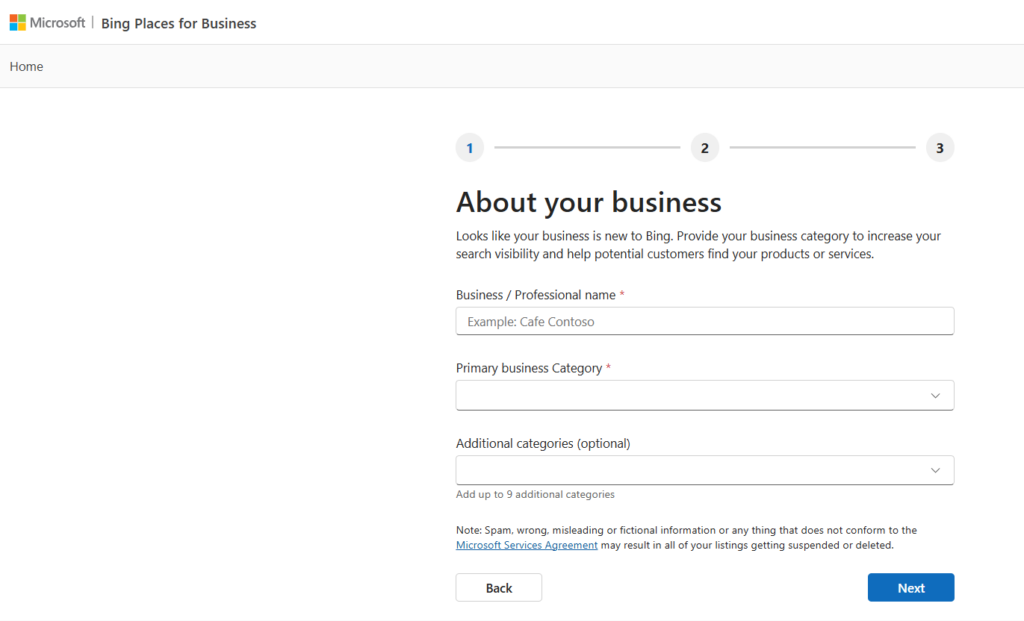
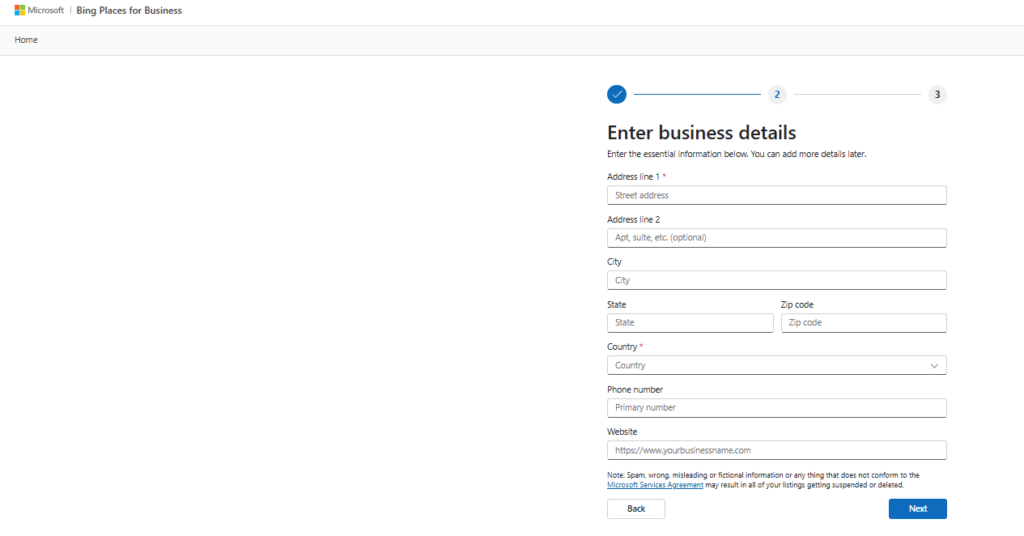
If you prefer to add your business manually, select your business type from the dropdown menu in the dashboard. Enter your business name, address, phone number, website, and category. This path works well for new businesses or those without a Google Business Profile.
Step 4: Complete your profile
A complete profile performs significantly better in both Bing search results and Microsoft Copilot’s AI-powered recommendations. According to the official Bing Places announcement, the following details have the highest impact on listing engagement:
- Business categories: Select up to 10 relevant categories. Choose the most specific category that fits your business first, as Bing treats your primary category as the strongest relevance signal.
- Photos: Upload a minimum of 10 photos at 480×360 pixel resolution or higher. Listings with high-quality photos consistently attract more clicks and calls.
- Business hours: Set your hours manually. Bing defaults to 24/7 if you leave this blank, which gives customers inaccurate information.
- Website and social profile URLs: Add your website link and social media profile URLs to give customers multiple ways to reach you and to strengthen your Bing Business Profile.
- Segment-specific links: If you run a restaurant, add your menu link and online order link. Bing now surfaces these directly in local search results.
Keeping your NAP (Name, Address, Phone) consistent across your website, your Bing business listing, and all other directories is critical. Microsoft Copilot cross-references your NAP data against other web sources. Any inconsistency reduces the likelihood of Copilot citing your business in AI-generated answers.
Step 5: Verify your business
After you complete your profile, Bing requires you to verify your business before your Bing Local listing goes live. Bing offers four verification methods:
- By mail: Bing sends a PIN to your business address. Postcards typically arrive within 3 to 5 days.
- By phone: Bing calls your business number and provides a PIN.
- By email: Bing sends a PIN to your registered email address.
- By questions: Bing asks you a series of questions to confirm your identity and ownership.
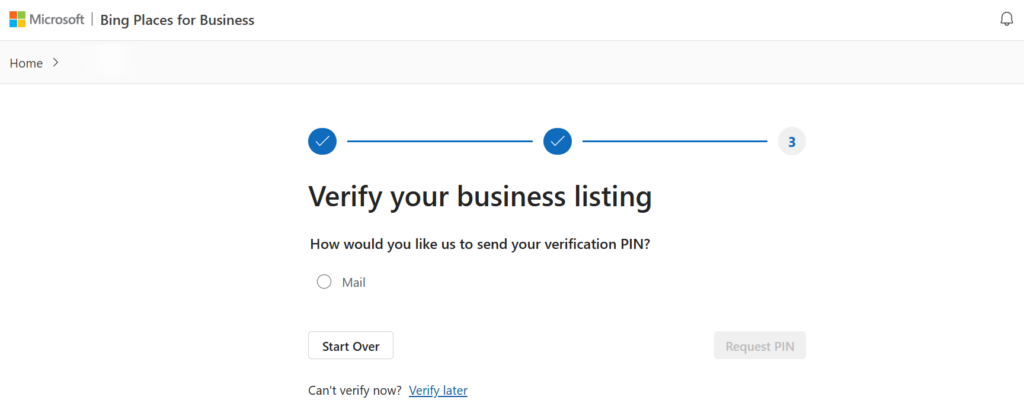
All businesses must provide a valid address during verification. Service-area businesses, such as plumbers or mobile pet groomers, can choose to hide their physical address in public search results after verification.
Once verified, your Bing business listing becomes eligible to appear in Bing search results, Bing Maps, and Microsoft Copilot responses.
What is the Recommendation Tool, and how do you use it?
Microsoft introduced the Recommendation Tool as part of the October 2025 redesign of Bing Places for Business, announced on the official Bing blog. The tool analyzes your Bing business listing health and surfaces specific, high-impact actions you can take to improve your listing’s visibility and engagement.
What does the Recommendation Tool suggest?
Once you log in at bing.com/forbusiness, the Recommendation Tool reviews your Bing business profile and generates suggestions based on two factors: your listing’s current completeness and your business segment. Suggestions typically include:
- Add photos that attract attention and drive more engagement with your listing
- Fill in missing business details such as your website link, hours of operation, and social media profile URLs
- Segment-specific actions tailored to your business type, for example, adding a menu link or an online order link if you run a restaurant
These suggestions appear directly on your dashboard, so you can act on them immediately without leaving your account.
Why does the Recommendation Tool matter for new listings?
The Recommendation Tool works as a built-in local SEO checklist. It prioritizes the fields and actions that have the greatest impact on your Bing local listing’s performance, making it especially useful for business owners new to local search optimization.
Microsoft has confirmed that further enhancements to the Recommendation Tool are planned, including deeper integrations with Bing Maps and Microsoft Copilot, as noted in the official Bing Places announcement.
Acting on the tool’s suggestions as soon as you list your business on Bing gives your profile the strongest possible start in both traditional search results and AI-powered recommendations.
How do you manage multi-location and chain listings on Bing?
If your business operates across multiple locations, managing each Bing business listing individually is not practical. Bing Places for Business solves this with a bulk upload tool that lets you add and manage up to 10,000 locations from a single centralized dashboard.
How does the bulk upload tool work?
Instead of claiming or adding each location one by one, you can upload a spreadsheet containing the details for all your locations at once. Bing processes the file and creates or updates each Bing local listing automatically. This makes it significantly faster to get large chains and franchise networks live on Bing search results and Bing Maps.
The bulk upload tool supports up to 10,000 business locations in a single submission, making it one of the more scalable options available for enterprise-level Bing business listings.
What are the NAP consistency requirements for multi-location listings?
NAP stands for Name, Address, and Phone number. For multi-location businesses, NAP consistency is non-negotiable. Every location in your bulk upload file must use the exact same formatting for your business name, and each address and phone number must match what appears on your website and across other directories.
Here is why this matters: Microsoft Copilot cross-references your Bing Business Profile data against other sources on the web. If your NAP data is inconsistent across locations, Copilot is less likely to surface your business in AI-generated local recommendations. It also reduces your ranking strength across standard Bing search results.
Follow these NAP consistency rules when you list your business on Bing across multiple locations:
- Use the same legal business name across every location entry
- Write addresses in a consistent format, for example, always abbreviate “Street” as “St.” or always spell it out, but never mix both
- Use a unique, direct phone number for each location rather than a single corporate number
- Make sure every phone number and address in your bulk file matches your website’s location pages exactly
How do you keep multi-location listings accurate over time?
The centralized dashboard at bing.com/forbusiness lets you monitor the status of all your Bing Business listings from one place. You can track which locations are verified, which have incomplete profiles, and which need updated information.
For chains and enterprises managing hundreds or thousands of Bing local listings, maintaining accurate and consistent business information requires a systematic approach.
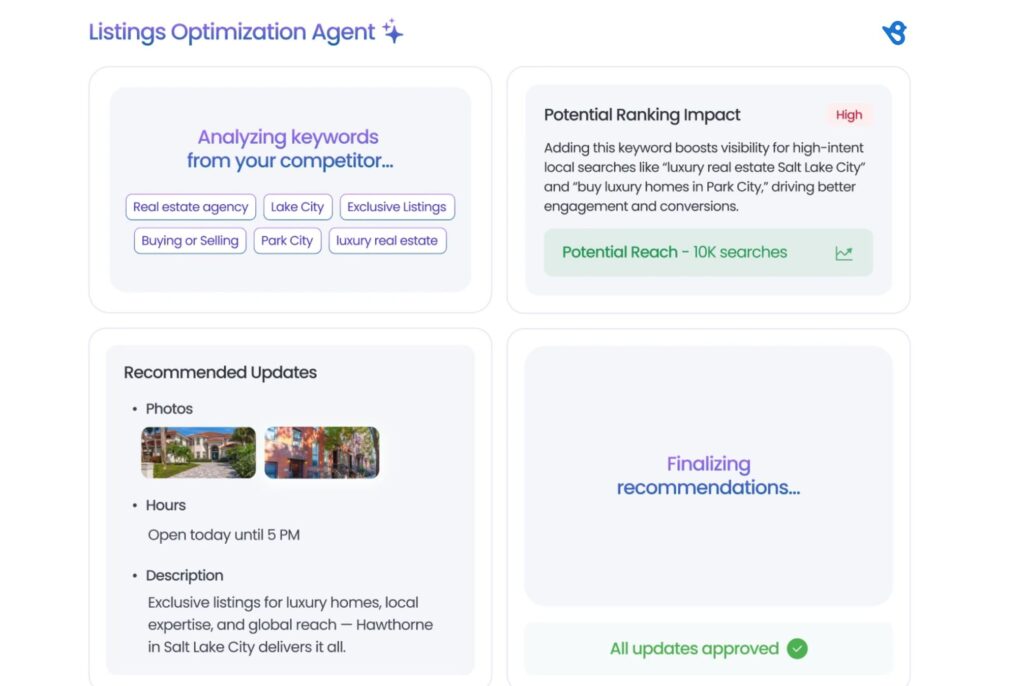
Birdeye Listings Optimization Agent automates this process by syncing business information across locations, continuously monitoring for inaccuracies, duplicate profiles, missing attributes, and optimization opportunities.
It helps businesses maintain accurate listings across 100+ directories and improve local visibility by optimizing categories, services, photos, and business details.
How does Bing Places for Business compare to Google Business Profile?
Both Bing Places for Business and Google Business Profile help customers find your business online, but they work differently in several important ways. Understanding those differences helps you make the most of both platforms and decide where to focus your optimization efforts.
The table below covers the key differences:
| Feature | Bing Places for Business | Google Business Profile |
| Market share | 4 to 5% global, ~9% U.S. desktop | ~90% global |
| Cost | Free | Free |
| Data sources | Pulls data automatically from the web | Relies primarily on manual input |
| Review sources | Syndicates from TripAdvisor, Yelp, and Facebook | Proprietary Google reviews only |
| AI surfaces | Microsoft Copilot, ChatGPT (Bing-grounded) | Google Gemini, Google AI Overviews |
| Verification methods | Mail, phone, email, or questions | Mail, phone, email, video, or live call |
| Multi-location support | Up to 10,000 locations via bulk upload | Bulk upload supported |
| Competition level | Lower, less optimized by businesses | Highly competitive |
Which platform pulls data differently?
One of the most important differences between a Bing Business Profile and a Google Business Profile is how each platform sources its data. Google Business Profile relies heavily on what you enter manually, along with user-suggested edits.
Bing, by contrast, pulls business information automatically from across the web and layers it with what you provide directly through your Bing business listing. This means your Bing listing can stay more current even when you do not update it manually, though maintaining direct control over your profile still produces the best results.
How do the review systems differ?
Google Business Profile operates a closed, proprietary review system. Customers must leave reviews directly on Google. Bing takes a different approach by syndicating reviews from TripAdvisor, Yelp, and Facebook automatically. This gives your bing local listing instant social proof from reviews you have already earned across other platforms, without requiring customers to leave a separate Bing-specific review.
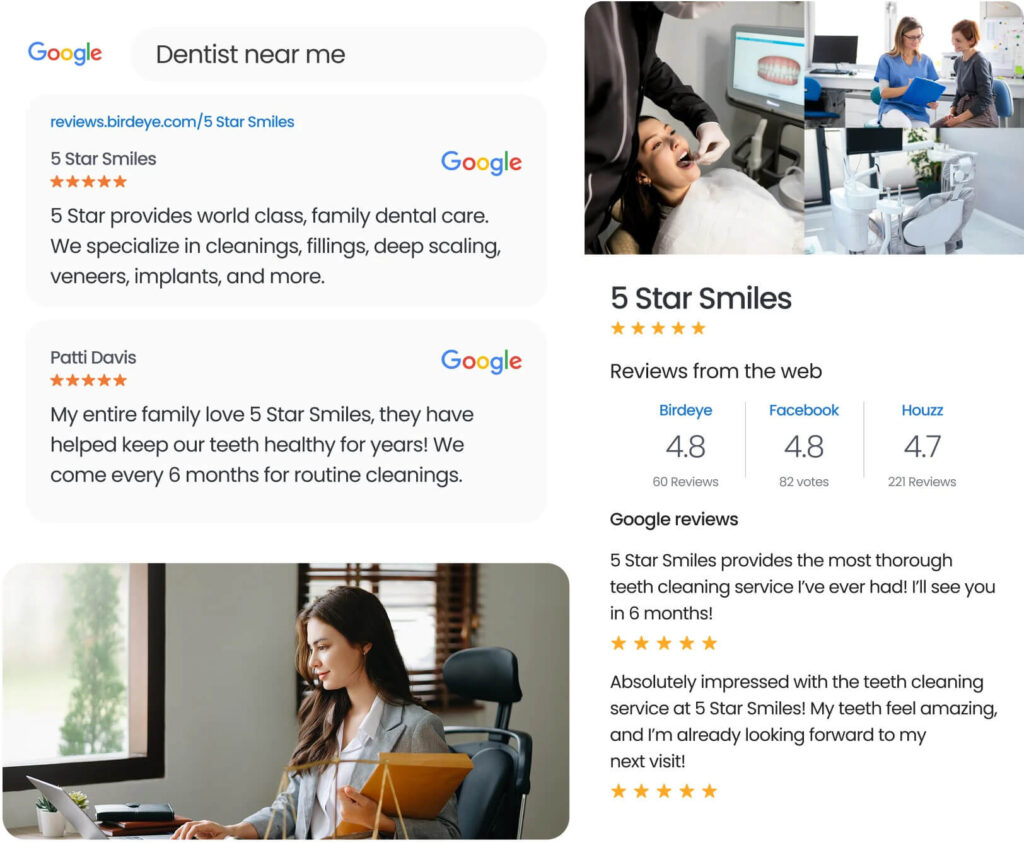
AI search platforms rely on different data sources. Optimized Bing Places listings power local recommendations in Microsoft Copilot and Bing-grounded ChatGPT responses, while Google Business Profile supports visibility in Gemini and AI Overviews. Maintaining accurate, optimized listings on both platforms helps businesses appear in AI-generated recommendations across today’s leading search and AI experiences. (Preformatted box content)
Should you choose one over the other?
No. Treat them as complementary, not competing. Google Business Profile gives you access to the largest search audience. Your Bing for business listing gives you visibility on Bing search, Bing Maps, Microsoft Copilot, and ChatGPT. Both are free, and both take roughly the same amount of time to set up. There is no strategic reason to skip either one.
How does a Bing Listing feed AI Search results on Copilot and ChatGPT?
This is the most important reason to optimize your Bing business listing in 2026. AI-powered search is no longer a future trend. It is the present reality.
According to Uberall, around 68% of local businesses, that is almost 7 in 10, appear incorrectly in AI results due to missing, inconsistent, or outdated listing data. For businesses that want to stay visible as search behavior shifts toward AI assistants, a complete and accurate Bing Business Profile is no longer optional.
How does Bing feed Microsoft Copilot?
Microsoft Copilot uses Bing’s index as its primary data source for local business queries. When a user asks Copilot “find a coffee shop near me open right now,” Copilot pulls business names, addresses, phone numbers, hours, and photos directly from Bing Places data. Your Bing local listing is the source of that information.
Businesses with verified, complete Bing business listings are the ones Copilot surfaces in those answers. Businesses with incomplete or unverified profiles get filtered out, regardless of how strong their presence is on other platforms.
How does Bing feed ChatGPT?
ChatGPT uses Bing’s web index to ground real-time local search answers. When a user asks ChatGPT for a local business recommendation, the response draws from Bing’s live data. This means your Bing for business listing directly influences whether your business appears in ChatGPT’s local recommendations, in addition to Copilot responses.
Maintaining an accurate and optimized Bing business listing gives your business the best possible chance of appearing across both AI surfaces simultaneously.
What actions improve your visibility in AI Search?
To maximize the chances of Microsoft Copilot and ChatGPT citing your business in AI-generated answers, focus on the following:
- Keep your NAP accurate and consistent. Your business name, address, and phone number must match exactly across your Bing Business Profile, your website, and every other directory where your business appears. AI assistants cross-reference this data and deprioritize listings with inconsistencies.
- Add high-quality photos. Listings with strong visual content perform better in both standard search results and AI-generated recommendations.
- Respond to syndicated reviews. Bing pulls reviews from TripAdvisor, Yelp, and Facebook. Actively responding to those reviews signals that your business is engaged and trustworthy to search engines and AI-powered search platforms.
- Complete every profile field. Missing details such as hours, website links, and business categories can reduce your visibility and the likelihood of your business being surfaced in AI-generated recommendations. The Recommendation Tool inside your Bing for business dashboard identifies exactly which fields need attention.
- Verify your listing. Unverified Bing business listings carry significantly less weight in both standard and AI-powered search results.
For brands managing multiple locations, maintaining complete and optimized listings manually can be difficult. Birdeye Listings Optimization Agent continuously identifies missing attributes, category gaps, inconsistent business information, and other factors that can limit visibility in both traditional local search and AI-generated recommendations.
Why does this matter more than ever in 2026?
Consumer search behavior is shifting rapidly toward AI assistants. Businesses that optimize their Bing local listing now build a compounding advantage as more users rely on Copilot and ChatGPT for local discovery.
Businesses that delay risk falling further behind as AI systems increasingly filter which businesses they recommend based on data quality and listing completeness.
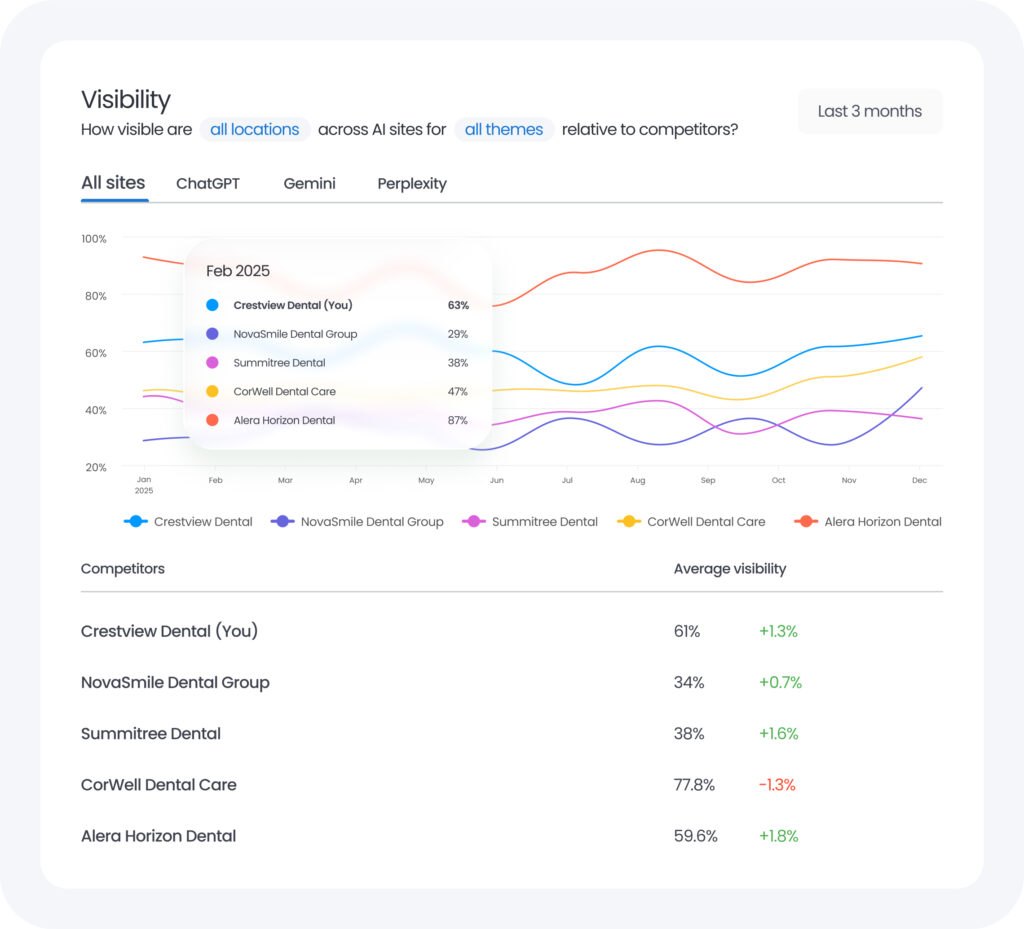
Birdeye Search AI helps businesses stay visible across AI-powered search surfaces by keeping their listing data accurate, complete, and optimized at scale across every location.
How do you monitor and update your Bing listing?
Setting up your Bing business listing is only the first step. Keeping it accurate and optimized over time is what drives consistent visibility in both Bing search results and AI-powered recommendations. Bing Places for Business offers several tools to monitor performance and update directly from your dashboard.
How do you edit and update your listing?
You can update your Bing Business Profile at any time by logging into your dashboard.
Common updates include:
- Changing your business hours for holidays or seasonal schedules
- Adding new photos as your business grows
- Updating your phone number, address, or website URL
- Adding or removing business categories
- Refreshing your social media profile URLs
Keeping this information current is critical. Microsoft Copilot and ChatGPT pull data from your Bing local listing in real time. Outdated information in your profile leads to inaccurate AI-generated answers, which directly impacts customer trust and foot traffic.
How do you use the Bing Places performance dashboard?
The Bing Places performance dashboard gives you a clear view of how your Bing business listing performs in search. According to Microsoft’s official Q&A documentation, the Bing Places Insights dashboard tracks the following metrics:
- Total views: How many times your listing appeared in Bing search results and Bing Maps
- Total interactions: How many users clicked through to your website, requested directions, or called your business
- Competitor comparison: How your listing’s performance compares against similar businesses in your zip code
These insights help you identify gaps in your profile and understand which actions drive the most customer engagement with your Bing for business listing.
How do you use the announcements feature?
Bing Places includes an Announcements feature, which works similarly to Google Posts on Google Business Profile. You can use it to share time-sensitive updates directly on your Bing business listing, such as:
- Seasonal promotions or limited-time offers
- New products or services
- Temporary changes to your hours or location
- Upcoming events
Announcements give customers a reason to engage with your Bing local listing beyond basic contact information and keep your profile fresh and active in Bing’s index.
How do you use call tracking for your Bing listing?
If you want to measure how many phone calls your Bing business listing generates, consider using a call tracking number in your profile. A call tracking number forwards calls to your real business line while recording the source of each call. This lets you directly attribute phone conversions and measure the return on your listing optimization work.
Note that if you use a call tracking number, make sure it remains consistent across your website and other directories to preserve NAP consistency.
How do you monitor AI Visibility beyond Bing Places?
In February 2026, Microsoft launched AI Performance inside Bing Webmaster Tools, as announced on theofficial Bing Webmaster blog.
This dashboard shows how often your content and business information appear as citations inside Microsoft Copilot and AI-generated Bing summaries. It tracks citation counts, specific URLs referenced in AI answers, and how citation activity changes over time.
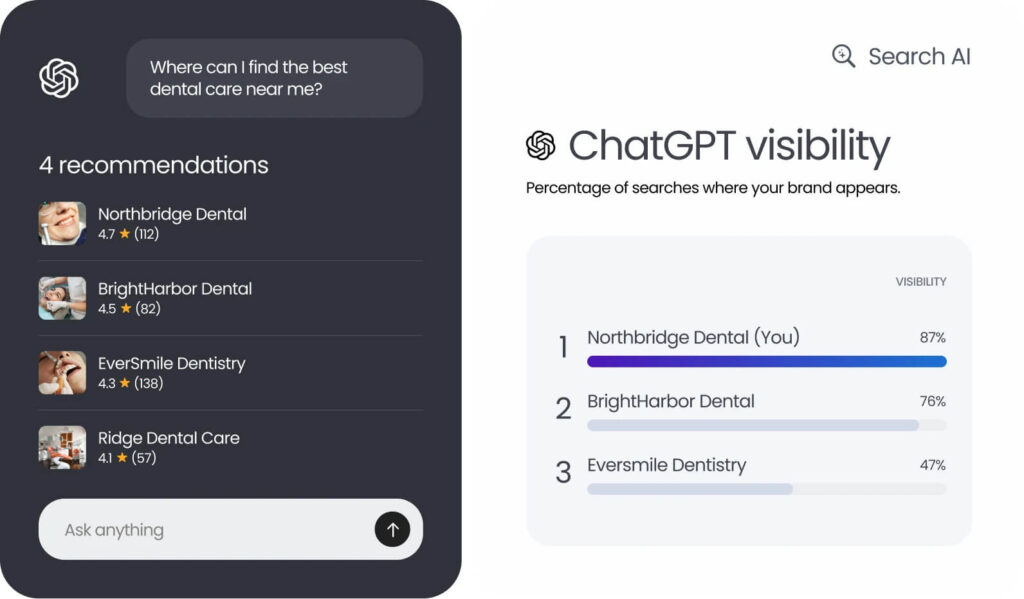
While Bing Webmaster Tools provides visibility into Microsoft’s ecosystem, businesses increasingly need to understand how they appear across multiple AI search platforms. Birdeye Search AI helps brands monitor AI search rankings, citations, sentiment, and brand mentions across platforms such as ChatGPT, Gemini, and Perplexity.
This provides a broader view of AI search visibility and helps identify opportunities to improve discoverability as customer search behavior continues to shift toward AI-powered experiences.
For brands that want full visibility into how their Bing business listing and website content perform across both traditional search and AI-powered answers, pairing Bing Places insights with Bing Webmaster Tools gives the most complete picture available.
FAQs about Bing business listings
Yes. Creating and managing a Bing business listing through bing.com/forbusiness is completely free. There are no setup fees or subscription costs involved.
Once you complete verification, your Bing local listing typically goes live within a few days. PIN verification by mail takes 3 to 5 days. Phone, email, and question-based verification methods are faster and can go live sooner.
Yes. Service-area businesses such as plumbers, cleaners, or mobile pet groomers can create a Bing business listing and choose to hide their physical address in public search results after verification.
If your business is already claimed by another user, you can request access through the Bing Places for Business dashboard. Microsoft will guide you through the ownership transfer process.
Add a minimum of 10 photos at 480×360 pixel resolution or higher. Listings with more high-quality photos consistently attract more clicks and customer interactions.
Bing pulls some data automatically from the web, but you should not rely on this alone. Always log in and verify that your business name, address, phone number, and hours are accurate inside your Bing Business Profile dashboard.
Yes. The bing.com/forbusiness portal is accessible from any browser on a mobile device, allowing you to update your Bing for business listing on the go.
Manage your Bing Business listing with Birdeye
Instead of manually updating each location and chasing down inconsistencies across directories, Birdeye automates the entire process so your Bing Business Profile stays accurate, complete, and optimized across 100-10,000+ locations, all the time.
Birdeye’s platform is built around a structured Consolidate, Think, Act, and Outcomes framework:
Consolidate
Bring your Bing business listings, reviews, photos, customer interactions, and location data into a single source of truth across every location, eliminating the inconsistencies that hurt your visibility in both traditional search and AI-powered recommendations.
Reason
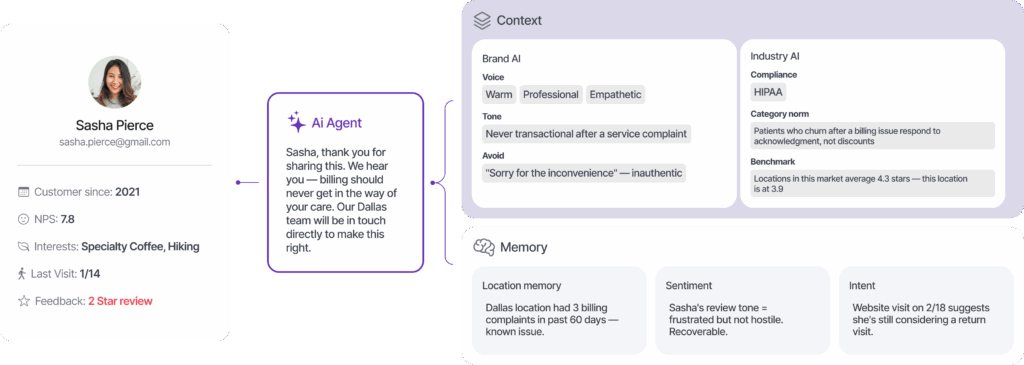
Use AI-powered memory and local context to identify visibility gaps in your Bing local listing, monitor your reputation, analyze competitor performance, and understand exactly how your business appears across AI search platforms, including Microsoft Copilot and ChatGPT.
Act
Birdeye’s autonomous and supervised AI agents automate listing updates, reputation management, and optimization workflows across every location. They strengthen your presence on Bing for business, traditional search, and emerging AI-driven discovery channels while maintaining brand consistency and governance at scale.
Outcomes
Turn listing data into measurable performance. Track your localized visibility, analyze shift patterns in consumer intent (such as direction requests or clicks), and see the direct impact your optimized Bing listings have on revenue for individual branches.
Businesses that keep their Bing business listings accurate and optimized are the ones that appear in AI-generated recommendations, drive more foot traffic, and stay ahead of competitors who treat Bing as an afterthought.
Ready to take control of your Bing Business Profile and every other listing in one place? Book a demo with Birdeye today.
About the Author

Sudeepta Bora
Originally published