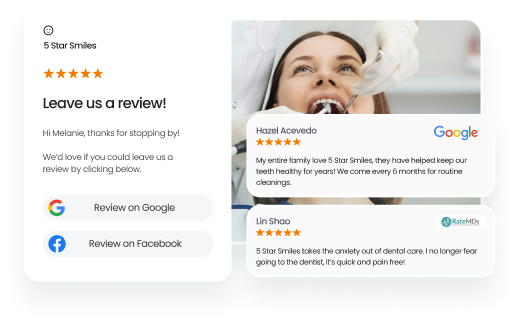
Google Seller Ratings are aggregated customer review scores that appear in Google Ads and organic search listings, reflecting real shopping experiences from verified buyers. Businesses use these ratings to understand how customer feedback influences ad performance, trust, and purchase decisions.
Summary
The impact of Google Seller Ratings directly affects how users interact with ads and brand listings. Strong ratings improve click-through rates, increase conversions, and build trust in paid search results, while weaker ratings reduce ad performance and lower customer confidence.
This blog explains the impact of Google Seller Ratings by breaking down how they influence key performance metrics, including CTR, conversion rate, cost per acquisition, and revenue. It also shows how review volume and sentiment shape visibility and advertising results on Google.
Table of contents
What are Google Seller Ratings?

Google Seller Ratings (GSR) is an automated Google Ad extension that displays reviews on your Google Ads. With Google Seller Ratings, your ads are more appealing. They’ll show potential leads that customers trust your business. Google Seller Ratings displays the number of collective reviews your business has along with a star rating. The bright yellow stars will also make your ads more visually appealing, which can translate into more clicks.
"Google Seller Ratings" is now called "Google Store Ratings." It's the same feature with a new name that better highlights the focus on rating a store's overall customer experience, not just the seller. You can see these ratings next to search results on Google Shopping and organic search results.
What are the benefits of Seller Ratings?
Seller Ratings make your ads stand out, and they can ultimately lead to a higher number of leads clicking on your ads instead of your competition. According to Google, Seller Ratings can increase your click-through rate (CTR). A higher CTR improves the quality score of your ads, which then lowers your pay-per-click (PPC) or the amount of money you spend per click from a potential customer.
How to calculate the impact of Seller Ratings on your Google Ads
If you want to see exactly how much of an impact Google Seller Ratings can have on your ad campaigns, here’s how you can figure it out.
1. Go to “Search campaigns,” then click the “Ads & extensions” tab
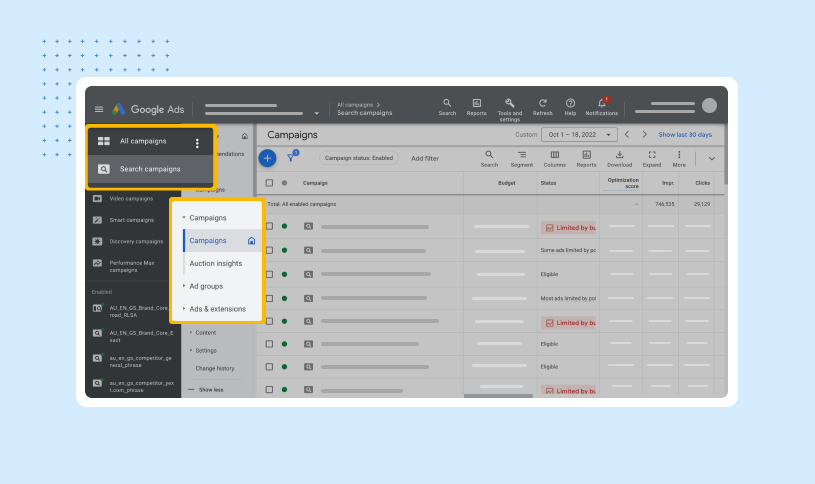
First, find a campaign you’d like to measure. Remember, not all of your ad campaigns will have Seller Ratings – so if you don’t find Seller Ratings on one campaign, check your other campaigns.
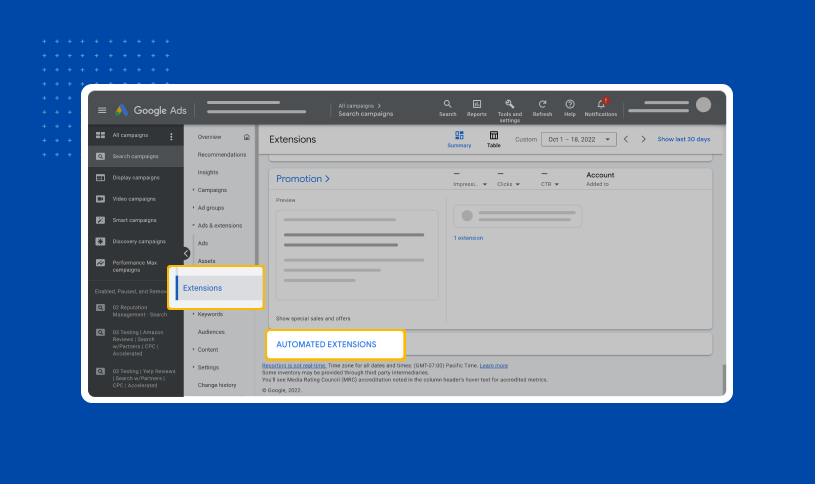
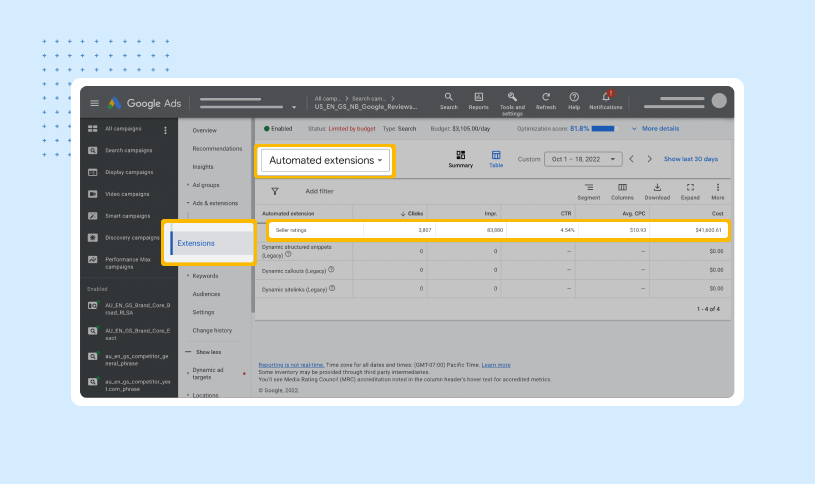
2. Click “Extensions” and Scroll down on the page and to find “Automated Extensions”
3. Under “Automated Extensions,” find “Seller Ratings”
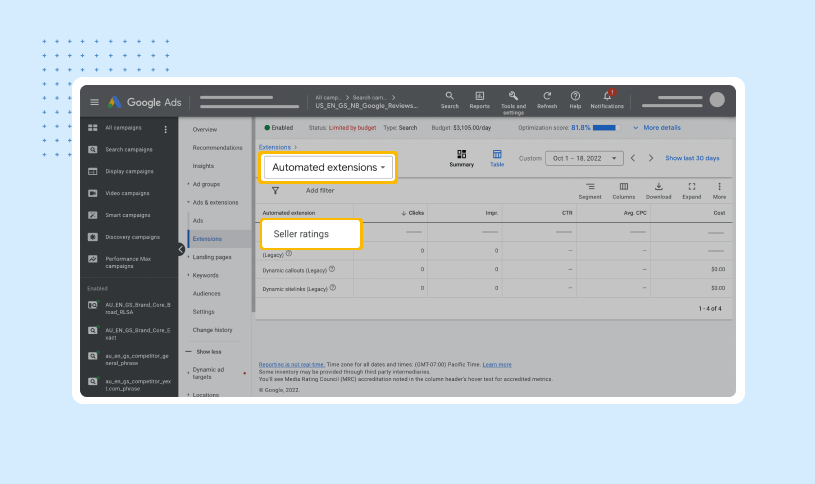
4. Organize your ads with and without Seller Ratings
After finding your ad campaign data, you’ll notice data from both your ads with and without Seller Ratings enabled. If you want to calculate the performance of your ads with Seller Ratings compared to those without, you’ll need to separate and organize them.
We have a free template you can use to organize your ad campaigns and calculate the impact of your Seller Ratings. Just download or make a copy in Google Sheets and put your data in to calculate your results.
Get your free Seller Ratings calculator template here.
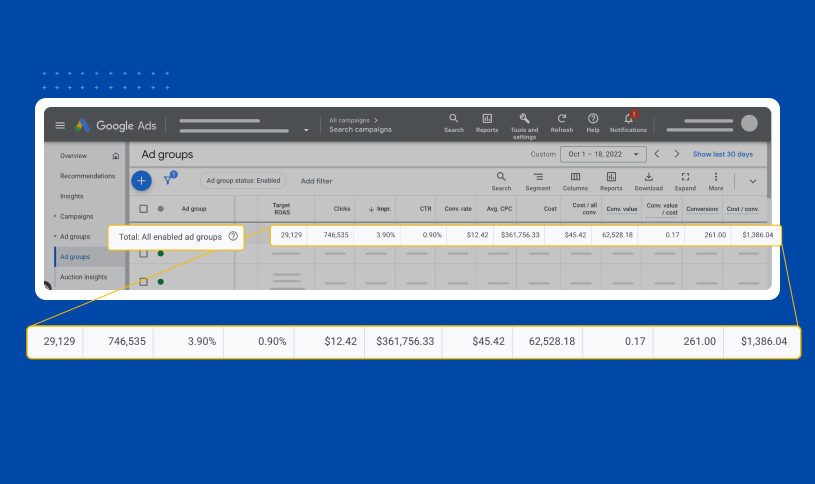
Once you have your template, add your data from the “Total – all ad groups” into the corresponding row in the template.
Then, enter your “Seller Ratings” data into the same row in the template
5. Get your campaign performance results with Seller Ratings enabled
After you add all of the necessary data into the spreadsheet, you will automatically see the calculated performance of your ad campaigns. You will be able to see a comparison of your ad campaigns with and without Seller Ratings enabled. This is how you can determine the overall impact of Google Seller Ratings on your ads.
6. Calculate the results of Seller Ratings on your ad campaigns
Take a look at this example from our calculator of one ad campaign:
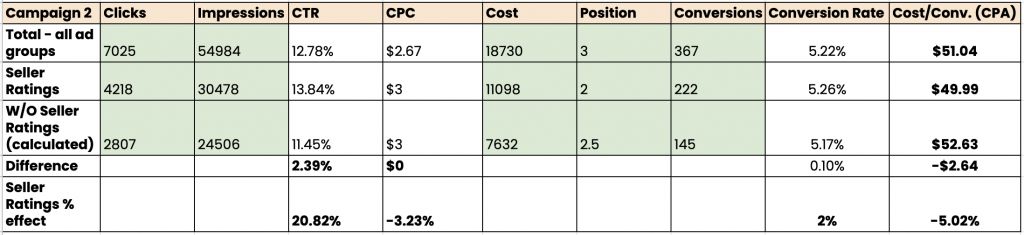
In this campaign, the average click-through rate for ads with Seller Ratings increased by 20.82%, and cost-per-click decreased by 3.23%. The ads with Seller Ratings enabled also had a 2% increased conversion rate leading to a decreased cost-per-acquisition (CPA) of 5.02%.
7. How to calculate the ROI of your Google Seller Ratings
Using the template provided, you can enter data from up to five campaigns to get an average calculation of the impact of your Google Ads. The template can also help you calculate your ROI for your Seller Ratings based on your yearly ad spend. You’ll just need to add your annual ad spend at the bottom of the spreadsheet. If you see positive figures, your Seller Ratings are saving you money, and if they are negative, your Seller Ratings are costing you money.
If you’d like to see a fully calculated five-campaign example, click the “Example” tab in your template.
Use Google Seller Ratings to your advantage
If you have yet to add Google Seller Ratings to your Google ads, you’re likely missing out on lead conversion opportunities. As we mentioned above, Google Seller Ratings can increase your click-through rate substantially. That increase can drive more customers to your business and give you a significant advantage over competing businesses.
That said, enabling Google Seller Ratings requires some strategy. You can’t just turn on Seller Ratings whenever you’d like – in fact, you need to meet Google’s requirements first.
One requirement is getting 100 reviews. While you can try to gather those reviews on your own, the faster, easier option is to team up with one of the trusted Google Seller Rating partners specializing in review acquisition. That way, you can focus on running your business while getting the reviews you need on autopilot.
FAQs about the impact of Google Seller Ratings
No, Amazon reviews don’t count toward your Google Seller Ratings. They must be generated through a Google-trusted first-party site.
With Google Seller Ratings, your ads will feature your review count and average star rating. Your ads will be more appealing to potential customers, and you’ll likely have higher clicks. Google.
How Birdeye supports Google Seller Ratings
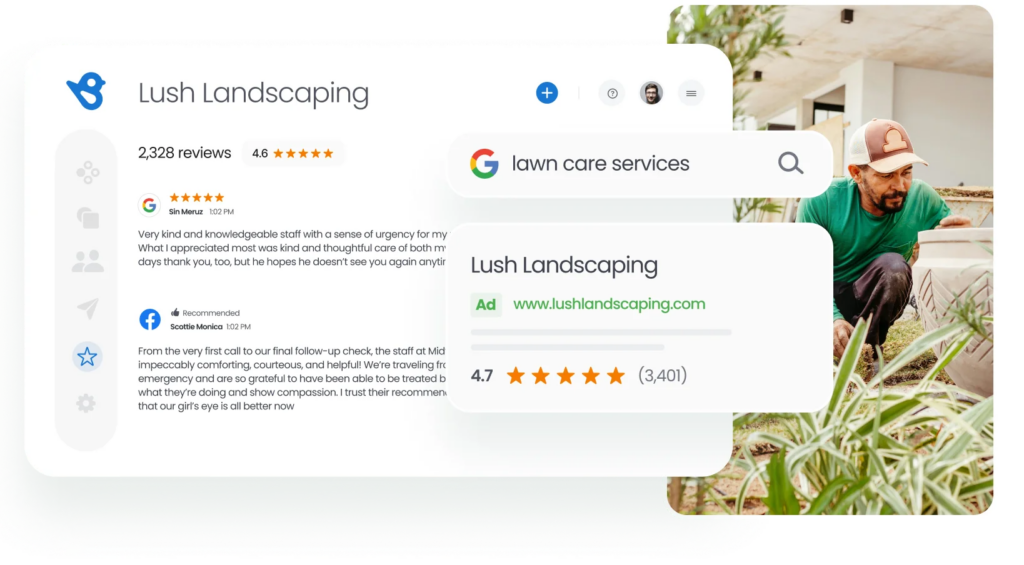
Unlike traditional tools that only surface data, Birdeye’s AI agents drive real business outcomes by automating the full marketing flywheel across awareness, conversion, and customer experience. Powered by BirdAI and a unified data platform, Birdeye replaces fragmented marketing tools with a single system that helps brands manage the customer journey at scale, strengthen local presence, and deliver consistent experiences across 100-1000+ locations.
Here’s how Birdeye helps businesses unlock and maximize Google Seller Ratings.
Supercharge Google Ads performance with Seller Ratings
Birdeye helps businesses unlock Google Seller Ratings, which display star ratings directly on search ads.
- Increase trust at the point of search
- Improve click-through rates
- Drive higher revenue from paid search campaigns
- Certified Google Seller Ratings partner
As a certified Google Seller Ratings partner, Birdeye integrates directly with Google to help businesses qualify faster and start showing ratings within weeks, not months.
Faster qualification with consistent review flow
Faster qualification with consistent review flow
To qualify for Google Seller Ratings, businesses need:
- At least 100 verified reviews
- A 3.5+ average rating
- Reviews collected within the last 12 months
Birdeye supports this through its Review agents:
- Review Generation Agent helps brands continuously build fresh review volume and strengthen trust signals by ensuring a steady flow of authentic customer feedback.
- Review Response Agent drafts and publishes personalized responses that maintain brand consistency and improve customer engagement at scale.
Together, these agents help maintain consistent review velocity and rating stability required for eligibility.
Tools that support Seller Ratings success
- Centralized reviews microsite to manage all feedback in one place
- Survey-to-review conversion to turn customer responses into Google-ready reviews
- Ongoing review tracking to ensure consistent rating performance
- AI-driven review management workflows powered by Review Generation Agent and Review Response Agent
Business impact
By combining Birdeye AI agents + Google Seller Ratings, brands can:
- Maximize return from paid search spend
- Improve Google Ads performance
- Strengthen brand credibility in search results
- Increase click-through rates and conversions

About the Author

Ruchika Batra
Originally published