Google Posts allow local businesses to share updates, promotions, and announcements directly on their Google Business Profile. Posting regularly helps businesses reach potential customers when they search, provide timely information, and encourage engagement that can turn interest into action.
Summary
Creating effective Google Posts requires crafting compelling visuals, writing clear calls to action, and selecting the right post type to achieve your goals. Then, monitor performance and adjust your strategy to ensure your content resonates with your audience. Finally, post consistently to maintain visibility and reinforce your brand message.
In this blog post, we walk you through step by step how to create, publish, and optimize Google Posts to increase engagement, boost search presence, and drive customer actions.
Birdeye – One platform for Reviews, Reputation & Listings Management
Want to see the impact of Birdeye on your business? Watch the Free Demo Now.
Table of contents
What is a Google post?
A Google Post, also called a GBP post, is a free feature in Google Business Profile (GBP) that lets verified businesses publish updates directly on their business listing. These posts appear on your profile in Google Search and Google Maps, helping customers discover timely information while searching for your business.
Businesses can use Google Posts to:
- Promote offers
- Announce events
- Highlight products or services
- Share company news
- Publish important updates
Only businesses with a verified Google Business Profile can create Google Posts. Each post can include up to 1,500 characters of text, along with photos or videos and a call-to-action (CTA) button that directs customers to a relevant landing page, such as your website, booking page, or online ordering page.

Why use Google Posts?
Google Posts help you share timely updates with customers directly through your Google Business Profile. They increase your visibility in Google Search and Maps, encourage customer actions, and keep your business information up to date.
Here are the key benefits of using Google Posts for your business:
Increase visibility in Google Search and Maps
Google displays your posts on your Business Profile in Search and Maps, giving potential customers more information while they compare local businesses. Regular posts also make your listing appear active and provide fresh content for customers to view before contacting your business.
Drive more website traffic and customer actions
Each Google Post can include a call-to-action (CTA) button that directs customers to your website, booking page, online ordering page, or product page. Clear CTAs encourage more clicks, bookings, purchases, phone calls, and inquiries.
Promote offers, events, and important updates
Use Google Posts to announce special offers, seasonal promotions, new products, upcoming events, business milestones, or service updates. Customers can view these updates directly on your Business Profile without leaving Google.
Keep your Google Business Profile fresh
Publishing new posts regularly keeps your Business Profile updated with relevant and timely content. An active profile reassures customers that your business is operating and paying attention to its online presence.
Support customer engagement and AI Search visibility
Google Posts encourage customers to interact with your Business Profile by clicking, calling, requesting directions, or booking services. Fresh, accurate updates also give AI search experiences current business information that may help them generate more relevant summaries about your business.
In a nutshell, regular Google Posts help you keep customers informed, strengthen your online presence, and create more opportunities for people to discover and choose your business through Google Search and Maps.
What are the types of Google Posts and when to use each
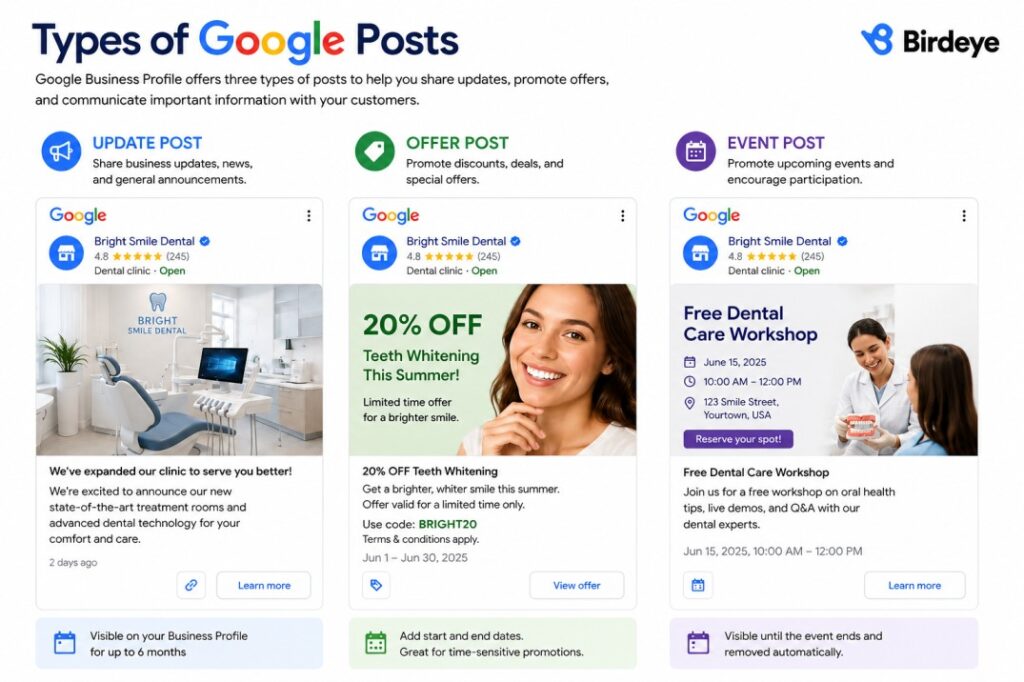
Google Business Profile offers three types of Google Posts, each designed for a specific purpose. Select the right post type to share business updates, promote offers, and communicate important information more effectively.
Here are the current Google Post types and the best ways to use each.
Update Posts
Update Posts, also called What’s New posts, let you share general business announcements and timely updates with your customers. Use this post type to publish:
- Business news and announcements
- Blog or resource promotion
- New product or service launches
- Changes to business hours
- Seasonal updates and company milestones
An Update Post supports text, photos or videos, a link, and a CTA button. Use “Learn more” as the CTA to direct customers to additional information on your website. Google displays What’s New posts on your Business Profile for up to six months.
Offer Posts
Offer Posts let you promote discounts, limited-time deals, and special promotions that encourage customers to act quickly. Use this post type for:
- Percentage or fixed-amount discounts
- Seasonal sales and promotional campaigns
- Coupon or promo code offers
- Service packages and bundled deals
- First-time customer offers
An Offer Post requires a start date and an end date. You can also add a coupon code, offer details, terms and conditions, photos or videos, and a link. Google automatically adds the “View offer” CTA button to eligible posts. If you run recurring promotions, create an evergreen offer with a rolling 12-month validity period and update it whenever the promotion changes.
Event Posts
Event Posts let you promote upcoming events and encourage customers to participate. Use this post type for:
- Workshops and webinars
- Product launches
- Community events
- Holiday celebrations
- Grand openings and open houses
An Event Post includes the event title, start and end date/time, event description, photos or videos, and an optional CTA button. Google displays the post until the event ends and automatically removes it after the event’s end date.
Choose the Google Post type that matches your goal. Publish Update Posts for business news, Offer Posts for promotions, and Event Posts for scheduled activities to keep customers informed and engaged.
Where do Google Posts appear?
Google displays your Google Posts across several Business Profile surfaces, making them visible to customers during different stages of their search journey. These are the places where customers can find your Google Posts in 2026.
Desktop Search
Google displays the most recent Google Post in your Business Profile’s Knowledge Panel on desktop search results. Customers can find it below customer reviews and above the social profile links, and they can select “View all” to open a pop-out window displaying your recent posts. Offer Posts do not currently appear on Desktop Search, so you should not rely on them for desktop visibility.
Google Maps (Desktop)
Google displays your posts under your primary business information on the desktop version of Google Maps. Customers can click any post to view it and scroll through your complete post history without leaving your Business Profile.
Mobile Search
Google shows your posts within your Business Profile on mobile search results. Customers can scroll below sections such as photos, reviews, and Q&A to find your latest posts and browse older updates.
Google Maps App
Google displays your Google Posts in the Overview and Updates tabs of the Google Maps app. Customers can browse your recent announcements, offers, and events while viewing your business listing on mobile devices.
Social Media Updates Carousel (2026)
Google now displays a Social Media Updates carousel on eligible Business Profiles by pulling recent posts directly from connected social media accounts. This feature gives customers another way to discover your latest business updates alongside your Google Posts and other Business Profile content.
Note: Offer Posts do not currently appear on desktop Google Search results. This behavior is a known Google limitation and may change in future updates.
How to create a Google Post (step-by-step)
Google lets you create and publish posts directly from your Business Profile in Search or Maps. Follow these steps to create and publish a Google Post.
STEP 1. Sign in to your Google Business Profile
Sign in to the Google Account that manages your Business Profile. Then search for your business name on Google or open your Business Profile in Google Maps to access the management panel.
STEP 2. Click Posts or Add Update
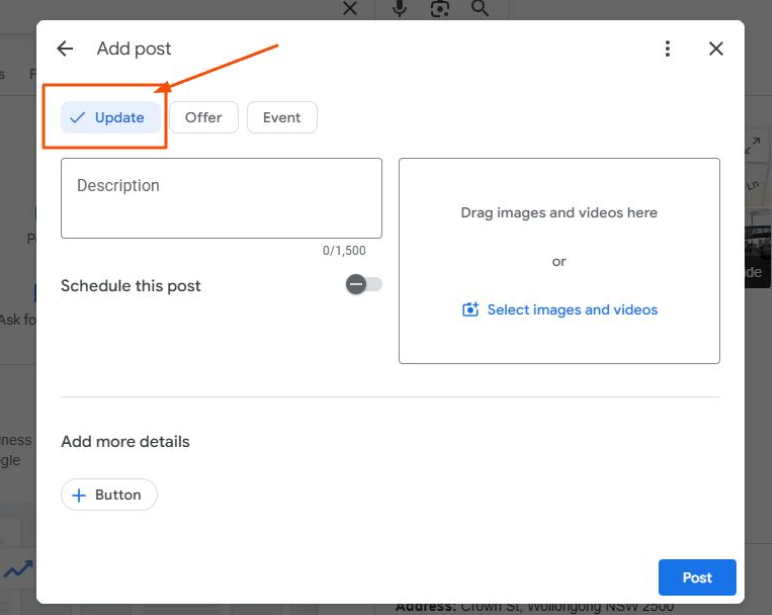
From your Business Profile management panel, open the Posts section or click Add update to create a new Google Post.
STEP 3. Choose a Post type
Select the post type that matches your goal: Update, Offer, or Event. Google automatically displays the fields required for the selected post type.
STEP 4. Fill in the Post details
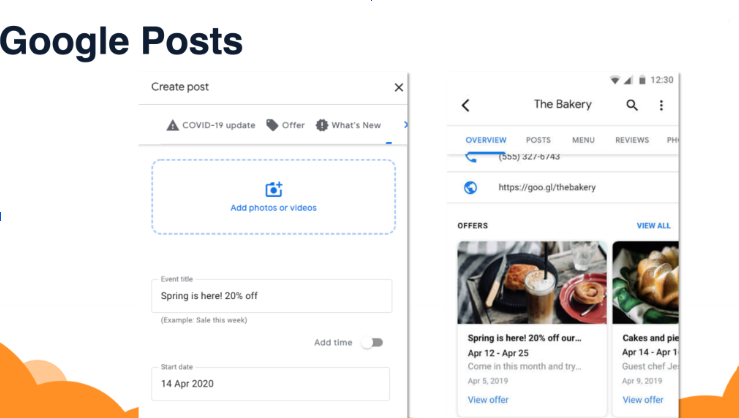
For Update Posts, add a description (up to 1,500 characters), a photo or video, a CTA button, and a destination link. For Offer Posts, add an offer title, start and end dates, description, coupon code, and terms. For Event Posts, add an event title, start and end dates, description, and CTA button.
STEP 5. Preview and publish
Click Preview to review your post, then click Post to publish it. Google typically reviews posts within a few minutes, and you can check your Business Profile to confirm the post is live.
Review every post before publishing to ensure your text, media, links, and CTA accurately represent your business.
What if my Google Post is rejected?
Google reviews every Google Post before publishing it. If your post is rejected, check the reason, update the content, and resubmit it. Common reasons for rejection include:
- Phone numbers in the post text: Remove phone numbers from the post description and use your Business Profile’s Call button or CTA button instead.
- Prohibited content: Remove misleading claims, spam, restricted products or services, or any content that violates Google’s Business Profile policies.
- Offensive imagery: Replace images or videos that contain offensive, inappropriate, or policy-violating content with clear, business-related visuals.
- Regulated industries: Follow Google’s content policies if your business operates in regulated industries such as healthcare, financial services, alcohol, or gambling, as certain promotional content may not be eligible.
To resubmit a rejected post: Edit the content to address the reason for rejection, click Preview, then select Post again. If Google rejects the post by mistake, request a review through Google Business Profile Support.
Google Post image & video specifications
Using the correct image and video specifications helps your Google Posts display properly across Google Search and Google Maps. Follow these recommended requirements before publishing your content.
| Specification | Recommended Requirement |
| Image formats | JPG, JPEG, or PNG |
| Image file size | 10 KB to 5 MB |
| Recommended image resolution | 1200 × 900 pixels (4:3 aspect ratio) |
| Minimum image resolution | 400 × 300 pixels |
| Video duration | Up to 30 seconds |
| Video file size | Up to 75 MB |
| Supported video formats | MP4, MOV, AVI, FLV, WMV, MKV, and other common formats |
| Minimum video resolution | 720p |
Tip: Create a reusable 1200 × 900 px design template that includes your brand colors, logo, and typography. Using a consistent template helps you publish professional-looking Google Posts faster while maintaining a recognizable brand identity.
What are Google Posts best practices?
Follow these best practices to create Google Posts that attract attention, encourage customer actions, and support your Google Business Profile strategy.
Write for action, not awareness
Keep your message between 150 and 300 characters so customers can read most of the post without expanding it on mobile. Lead with the main offer or benefit in the first 100 characters, and link every CTA to a relevant landing page instead of your homepage.
Use high-quality, non-stock photos
Choose original photos of your products, services, team, or business location instead of stock images. Authentic visuals build trust and attract more engagement. Sterling Sky found that Google Posts with non-stock images receive 5.6× as many clicks as posts that use stock photography.
Use the right CTA button
Select the CTA button that matches the action you want customers to take. Use Book for appointment pages, Order online for ordering pages, Buy for product pages, Learn more for informational content, Sign up for registration pages, and Call now when you want customers to contact your business directly.
Include local keywords
Include your city, neighborhood, or service area whenever it fits naturally within the post. Add local context to offers, events, and announcements so customers immediately know the update applies to their location.
Post consistently
Publish Update Posts every one to two weeks to keep your Business Profile current. Maintain one or two active Offer Posts throughout the year, and publish Event Posts as soon as you announce upcoming events. Refresh expired posts regularly so customers always see current information.
Add UTM parameters to every CTA Link
Add UTM parameters to every CTA link so Google Analytics 4 (GA4) can accurately track traffic and conversions from Google Posts. Use a consistent naming convention, such as utm_source=google&utm_medium=organic&utm_campaign=gbp-posts&utm_content=update, to compare the performance of different post types.
Localize posts for every business location
Create location-specific posts for each Business Profile instead of publishing identical content across multiple locations. Customize the copy with local promotions, events, landmarks, or community updates to make every post more relevant to nearby customers.
Pro Tip: Avoid publishing the same Google Post across every Business Profile. Birdeye's Social Publishing Agent automatically creates location-specific variations by adapting your content with local promotions, events, and community context, saving time while keeping each post relevant.
Apply these best practices consistently to create Google Posts that deliver clear messages, drive meaningful customer actions, and keep your Business Profile active year-round.
What are the best Google Posts examples by business type?
The best Google Posts match the customer’s intent and the business goal. Review the examples below to see how different industries use Google Posts to promote offers, announce updates, and encourage customers to take action.
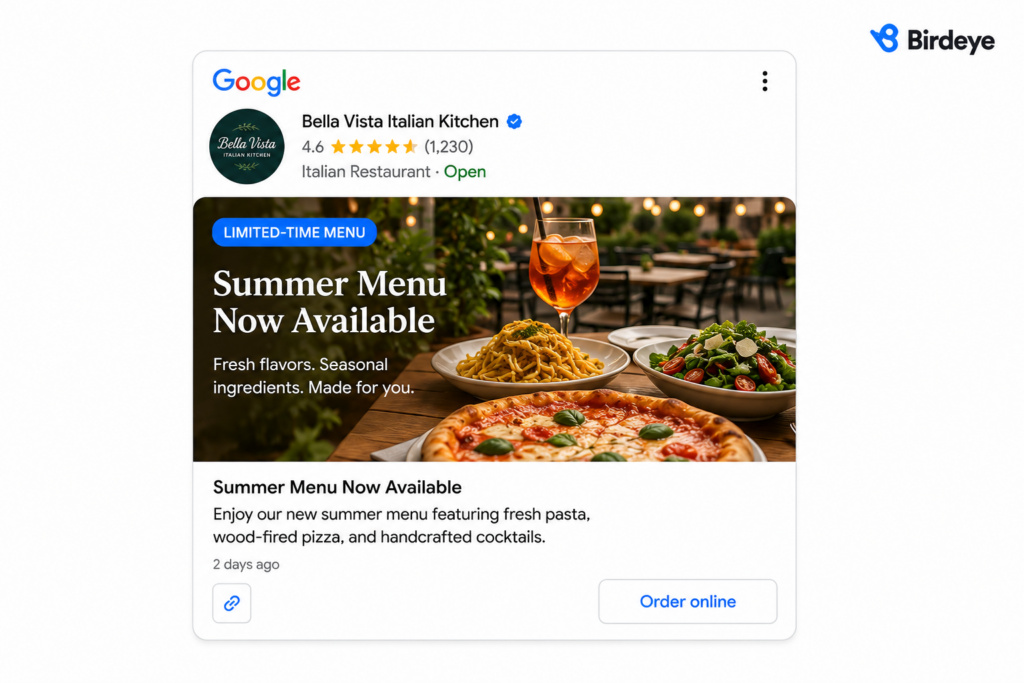
Restaurant
Restaurants can use Google Posts to promote limited-time offers, seasonal menus, special events, and online ordering.
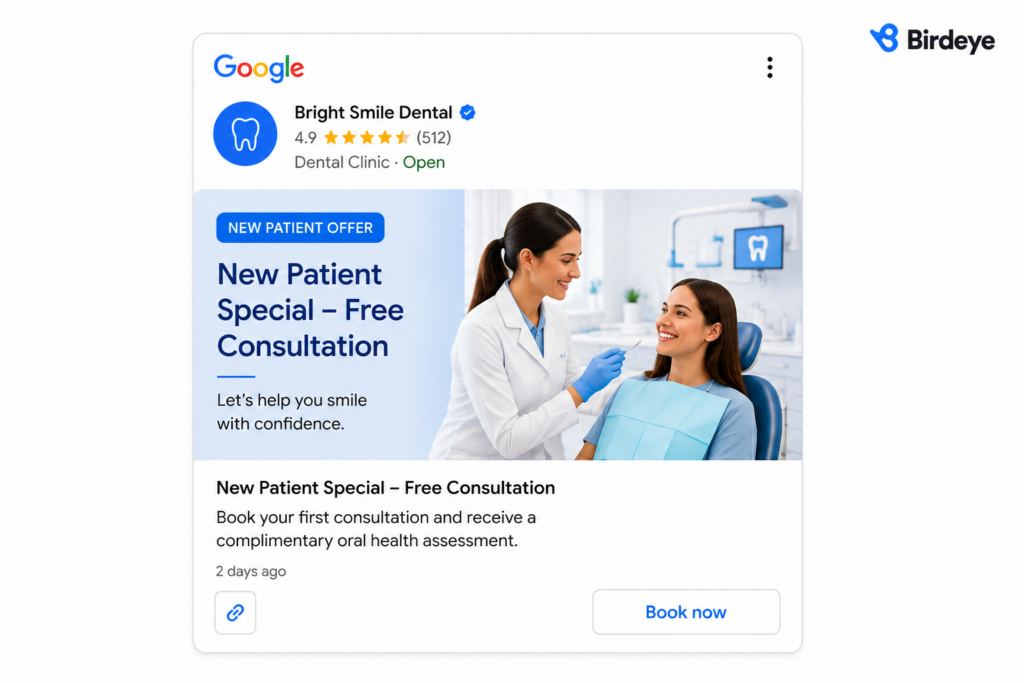
Dental practice
Dental practices can use Google Posts to highlight services, share oral health tips, announce new patient offers, and encourage appointment bookings.
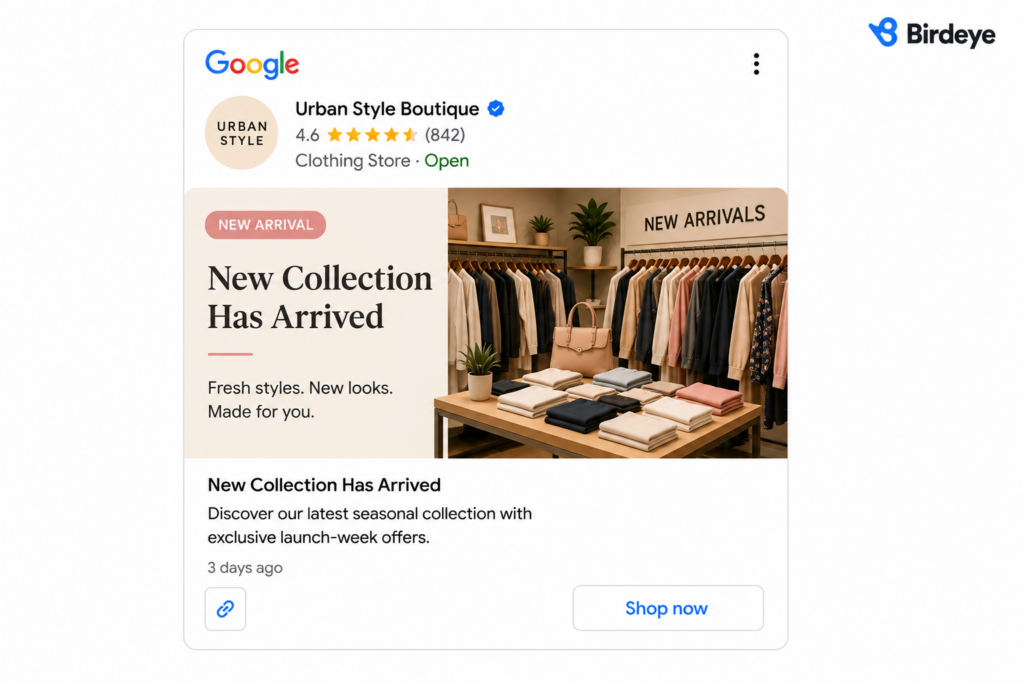
Retail Store
Retail stores can use Google Posts to showcase new arrivals, seasonal collections, product launches, and exclusive promotions.
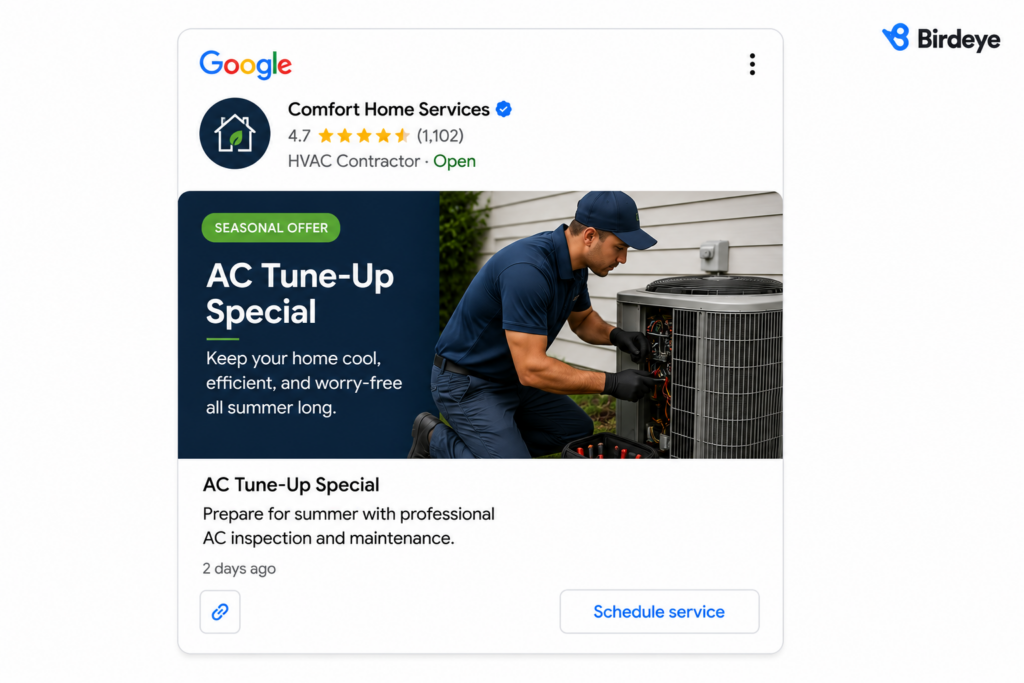
Home Services
Home service businesses can use Google Posts to advertise seasonal services, maintenance offers, emergency availability, and customer promotions.
Multi-location brand
Multi-location brands can use Google Posts to promote location-specific offers, company-wide campaigns, new store openings, and local events.
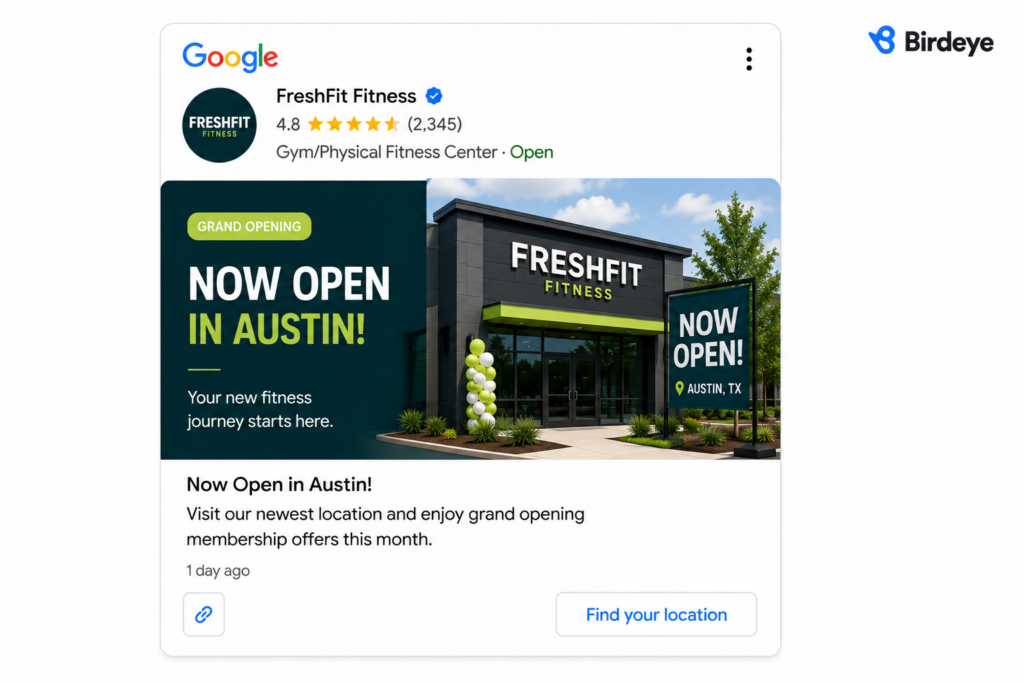
These examples demonstrate how different businesses adapt Google Posts to their marketing goals. Use the same approach for your Business Profile by matching the post type, CTA, and destination page to the action you want customers to take.
How to track Google Posts performance?
Tracking Google Post performance helps you measure what works and identify opportunities to improve future posts. Use GA4 for detailed conversion tracking and your Google Business Profile for overall engagement metrics.
Track Google Posts with UTM parameters
Append UTM parameters to every CTA URL before publishing your Google Post. Use a consistent format such as utm_source=google&utm_medium=organic&utm_campaign=gbp-posts&utm_content=offer, event, or update, depending on the post type. In GA4, go to Reports → Acquisition → Traffic acquisition and filter Session source/medium = google / organic and Campaign = gbp-posts. Compare the content parameter to identify which Google Post types generate the most sessions, conversions, and revenue.
Monitor overall engagement in Google Business Profile
Use the Performance tab in your Google Business Profile to measure overall activity on your profile. Since Google discontinued dedicated Post Insights in January 2023, you can no longer view metrics for individual posts. Instead, monitor Profile views, Website clicks, Call clicks, and Direction requests to understand how customers interact with your Business Profile after you publish new content.
Optimize future Google Posts using performance data
Review your performance data after every campaign and adjust your posting strategy accordingly. If a post receives high impressions but few CTA clicks, strengthen the opening copy, offer, or CTA, as the image attracts attention while the message fails to encourage action. If a post drives high CTA clicks but few conversions in GA4, align the landing page with the post’s offer and CTA. Use these insights to decide which post types, offers, images, and CTAs deserve more investment.
Track every Google Post, measure the results, and refine your strategy based on performance data. Consistent analysis helps you publish more effective posts and generate better business outcomes over time.
FAQs about Google posts
A Google Post is content you publish through your Google Business Profile to share business updates, promotions, events, or announcements with customers on Google Search and Maps.
Yes. Google Posts are a free feature of Google Business Profile that lets verified businesses publish updates, offers, and events on Google Search and Google Maps.
Update Posts remain visible for up to 6 months, while Offer Posts stay live until their expiration date, and Event Posts expire automatically after the event ends.
Google Business Profile currently supports three Google Post types: Update Posts, Offer Posts, and Event Posts.
Google Posts do not directly improve search rankings, but they keep your Business Profile active, increase customer engagement, and drive more traffic to your website.
Google may reject posts that include prohibited content, phone numbers in the post text, offensive images, or content that violates its Business Profile policies.
Yes. You can schedule Google Posts in advance through your Google Business Profile, and multi-location brands can automate publishing with social media management platforms.
Google displays Google Posts on your Business Profile in Google Search, Google Maps, and eligible Business Profiles may also show recent social media updates.
Open your Google Business Profile in Google Search or Google Maps and navigate to the Posts section to view your published and scheduled posts.
Yes. Google now displays a Social Media Updates section on eligible Business Profiles by pulling recent posts from connected social media accounts.
How to schedule & automate Google Posts at scale
Managing Google Posts across 100–1,000+ Business Profiles requires a scalable workflow. Birdeye gives your team Jay, a marketing AI coworker who employs specialized agents to help multi-location brands create, localize, publish, optimize, and manage Google Posts at scale.
Schedule Google Posts for a single location
For effective Google Business Profile management, schedule Google Posts directly from your Business Profile in Google Search or Google Maps. Use recurring Offer Posts with extended validity periods for evergreen promotions and update the offer details whenever the campaign changes.
Automate Posts across 100–1,000+ locations
Publishing Google Posts manually across 100–1,000+ locations is time-consuming and increases the risk of inconsistent messaging.
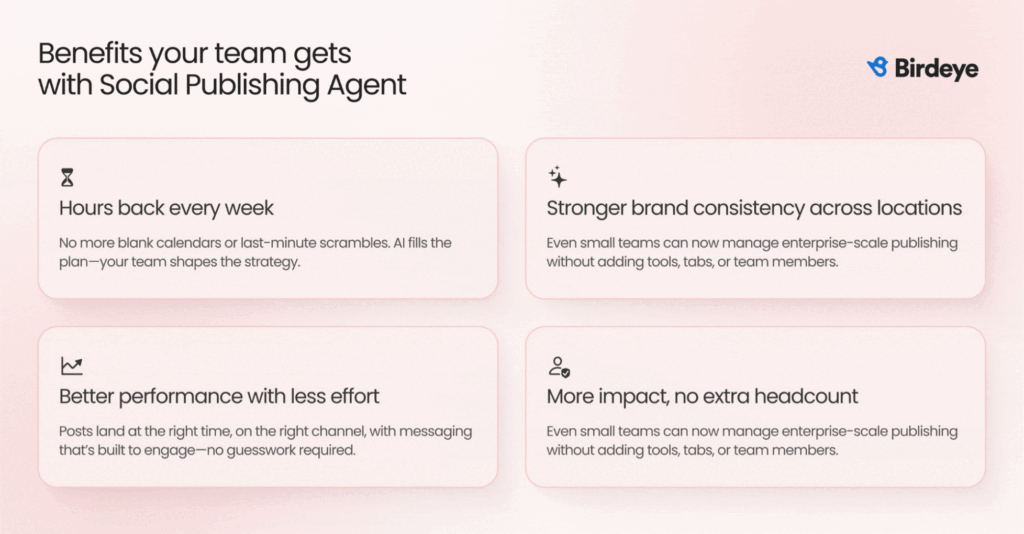
Birdeye’s Social Publishing Agent enables marketing teams to create, schedule, and publish Google Posts across every Business Profile from a single dashboard while generating location-specific content variations that incorporate local offers, events, and community context. After publishing, Birdeye’s Social Engagement Agent centralizes comments and messages across all locations, enabling teams to monitor conversations and respond consistently from a single inbox.
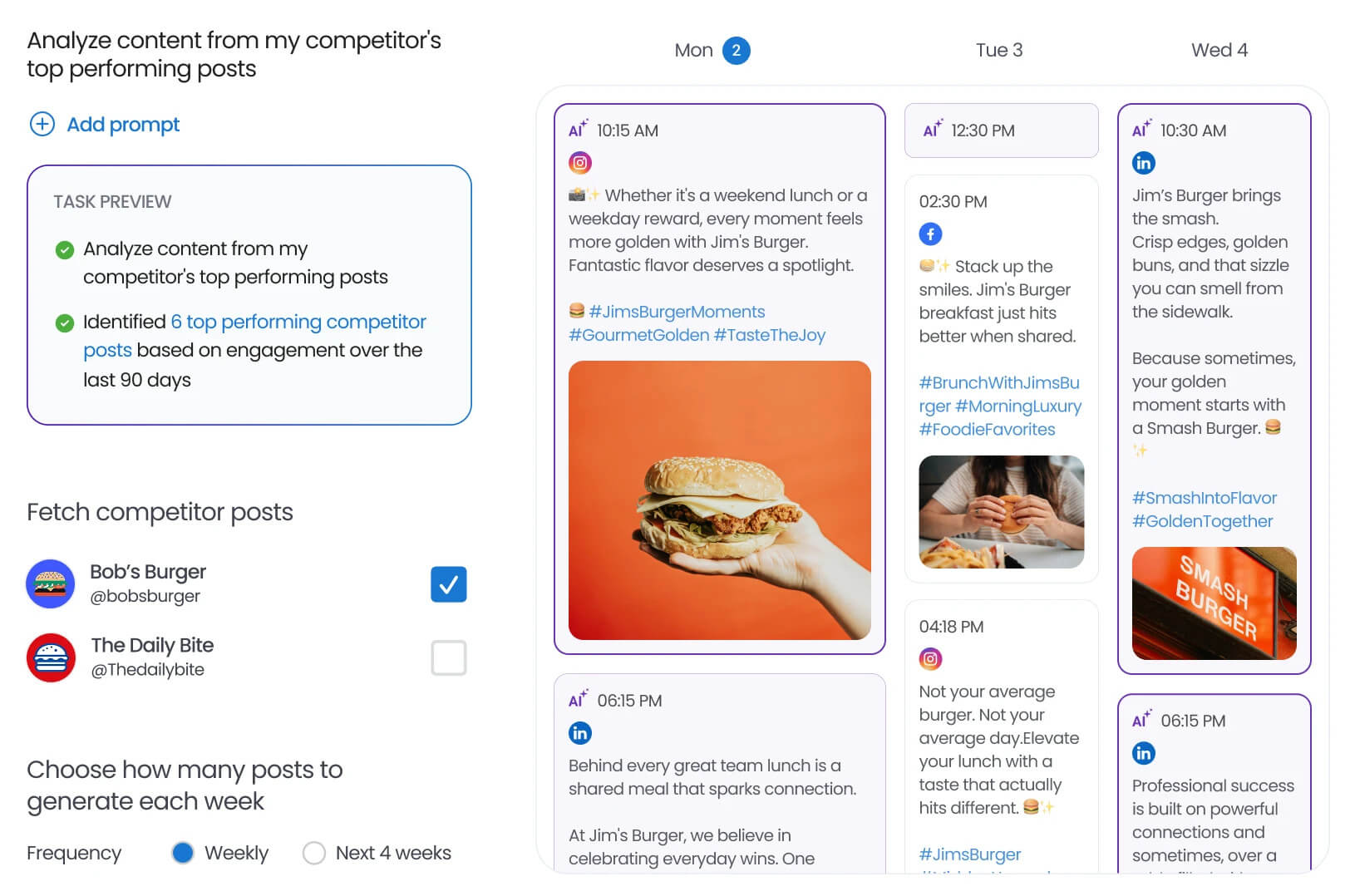
💡 Pro tip: Optimize every Business Profile before publishing at scale. Birdeye's Listings Optimization Agent analyzes your listings, recommends improvements to descriptions, categories, services, photos, and other profile details, helping every Google Post direct customers to an accurate, complete, and optimized Business Profile.
Automate publishing, create localized content, and optimize every Business Profile to maintain brand consistency and deliver relevant Google Posts across 100–1,000+ business locations from one centralized platform. Watch a Birdeye demo to see how you can simplify Google Post management across hundreds of business locations.
About the Author

Avtar Madan
Avtar Madan
Originally published