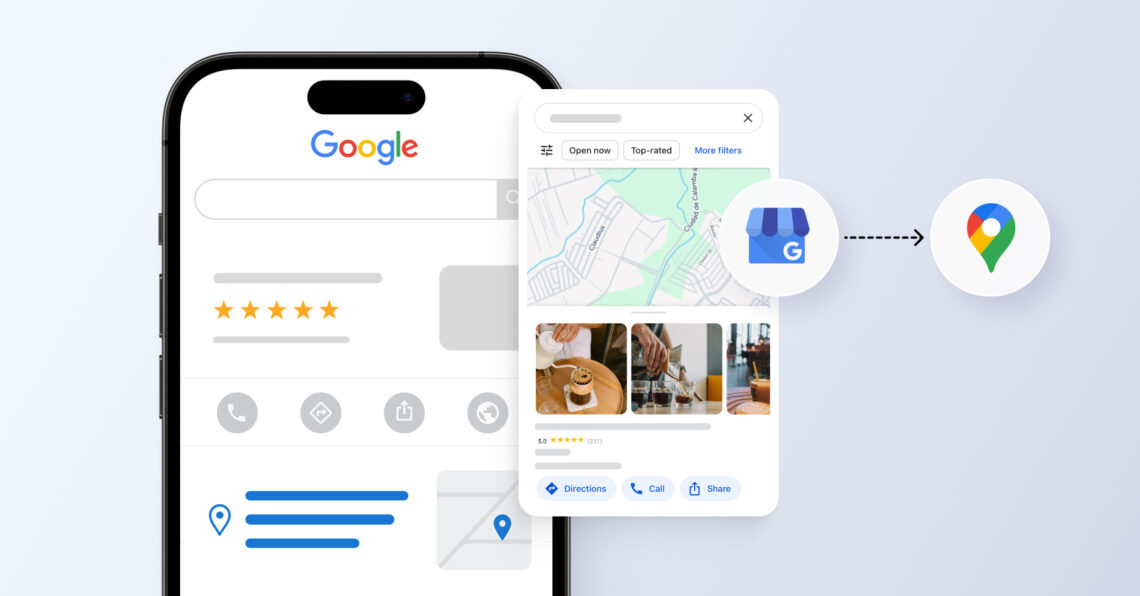
How to add your business to Google Maps starts with creating or claiming a Google Business Profile, adding accurate business details, selecting your business type, and completing verification. Once verified, your business can appear on Google Search and Google Maps when customers search for nearby products or services.
Summary
If your business is not showing on Google Maps, nearby potential customers may never find you in local search results. According to Birdeye’s State of Google Business Profile 2026 report, “86% of GBP impressions come from category-based ("near me") searches rather than branded searches.” It means most customers discover local businesses through searches like “dentist near me” or “coffee shop nearby,” not by searching for a specific brand name.
This guide explains how to add your business to Google Maps, verify your Google Business Profile, choose the right business setup, and avoid common listing mistakes that can hurt local visibility.
Quick answer:

A free Google business profile listing can turn your invisible business into a local favorite. Without it, you might be just a block away from customers who never knew you existed. To remedy this, all you have to do is go to Google Maps, set the location pin, right click, and choose “Add business to Google Maps”.
Table of contents
- What information do you need before adding your business to Google Maps
- How to add My Business to Google Maps
- What verification methods does Google Maps offer for businesses?
- How to add different business types to Google Maps
- What are the post-listing optimization tips for Google Maps?
- FAQs about how to add My Business to Google
- How to grow your business on Google Maps with Birdeye Listings AI
What information do you need before adding your business to Google Maps
Before setting up your Google Business Profile, keep a few basic business details ready. Having this information prepared makes the setup and verification process easier.
- Google account: A Gmail or Google-affiliated email address that can be used to manage your profile
- Business name: Your official business or trading name
- Business address: Your storefront address or service area if you provide services at customer locations
- Business category: A category that best describes your business, such as Restaurant or Plumber
- Phone number: A public contact number customers can use to reach your business
- Website: Your official website URL (optional but recommended)
Once these details are ready, you can start adding your business to Google Maps.
How to add My Business to Google Maps
Adding your business to Google Maps via a Google Business Profile helps customers find it on Google Search and Maps. Follow these steps to create and verify your listing.
Step 1: Go to Google Maps or Google Business Profile
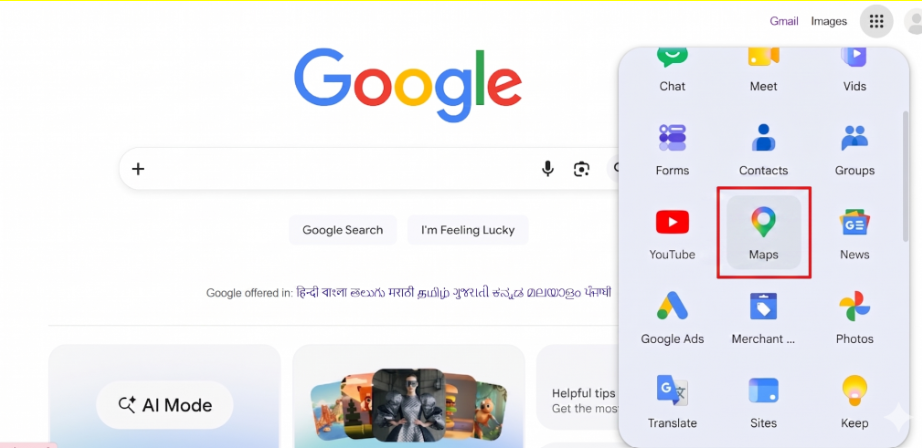
Open Google Maps or visit Google Business Profile while signed in to your Google account.
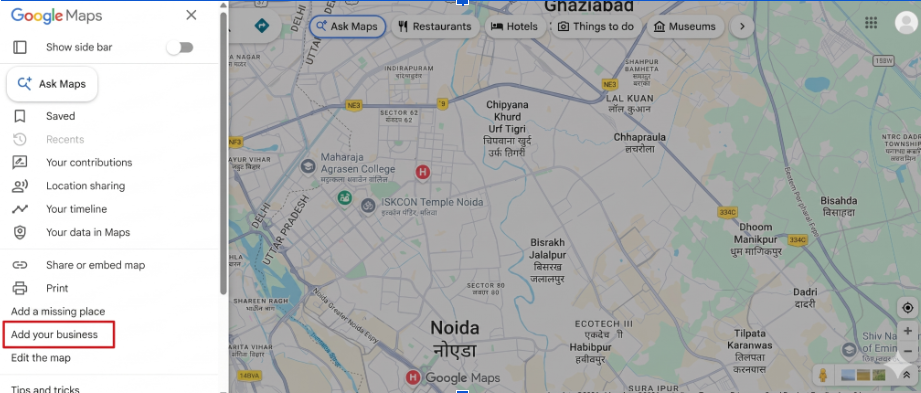
Step 2: Click “Add your business”
Select the option to add a new business listing to Google.
Step 3: Enter your business name
Add your official business name exactly as customers know it.
Step 4: Choose your business category
Select the category that best matches your business.
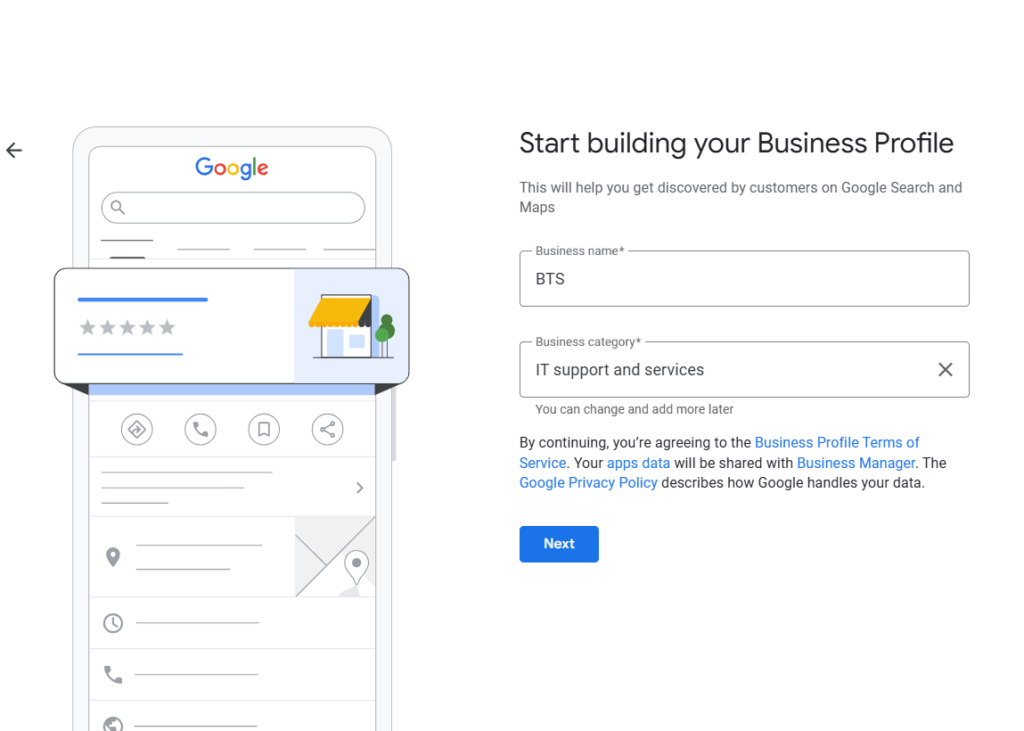
Step 5: Add your location (or service area)
Enter your storefront address or service area if you provide services at customer locations.
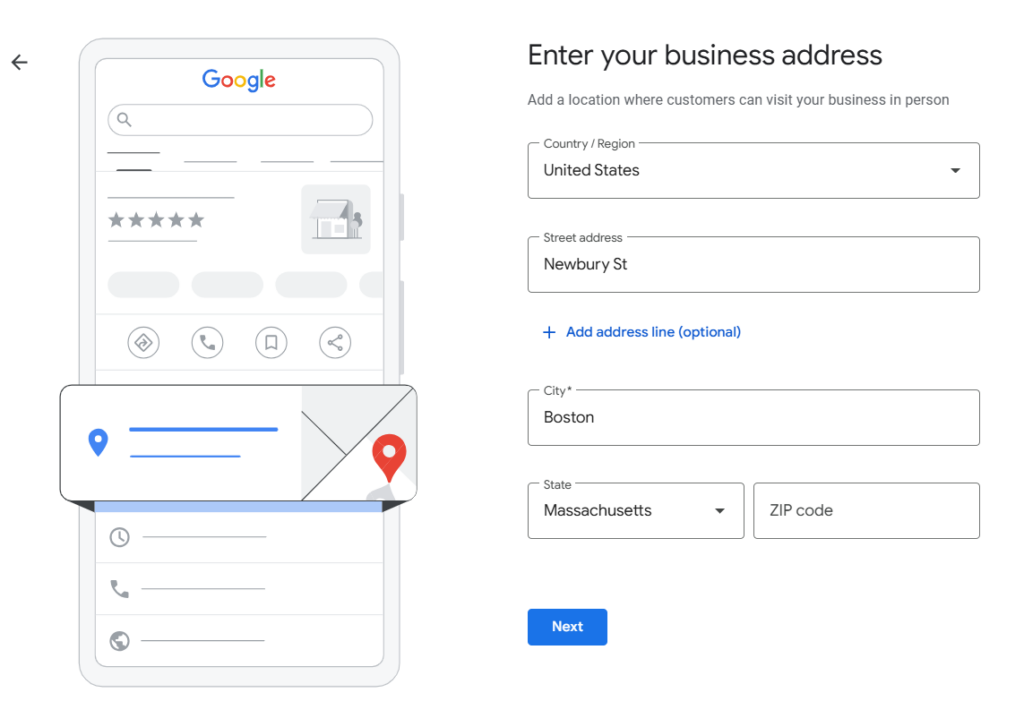
Step 6: Add contact details and website
Enter your business phone number and website URL.
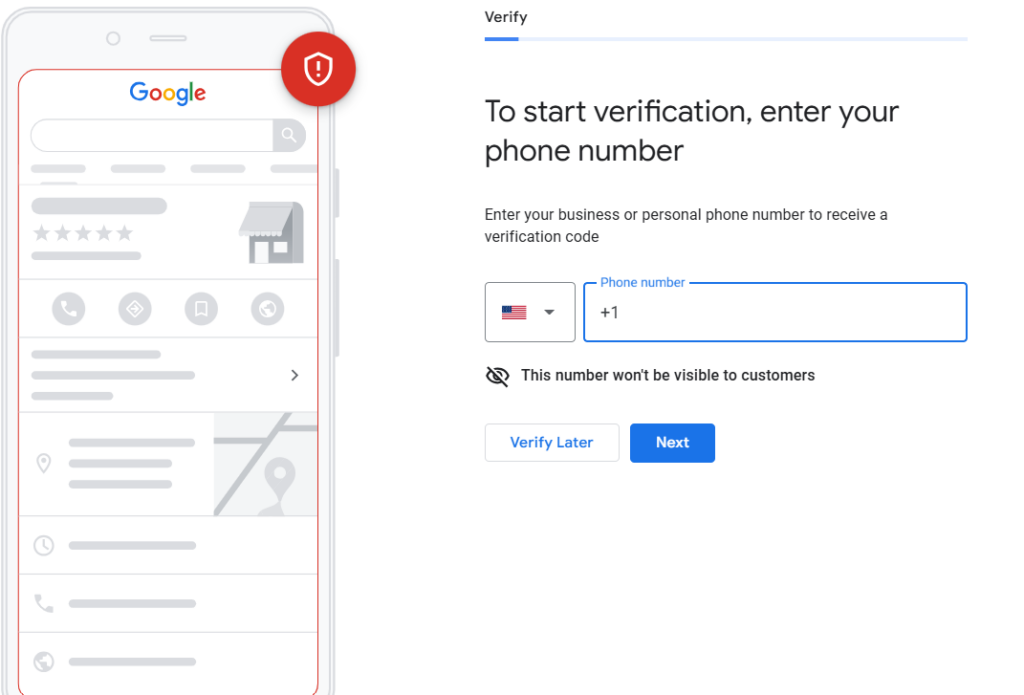
Step 7: Verify your business
Complete Google’s verification process using the available method, such as video, phone, email, or SMS.
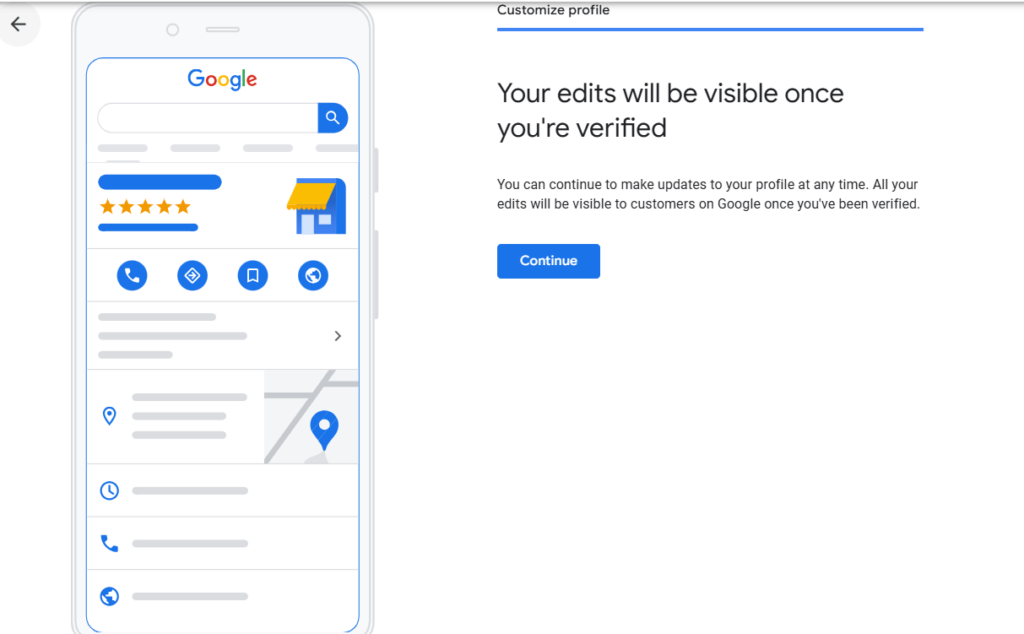
Once verification is complete, your business can start appearing on Google Maps and local search results.
What verification methods does Google Maps offer for businesses?
Google automatically determines which verification methods are available for your Business Profile. The available options depend on your business type, location, and profile information.
Verification methods explained:
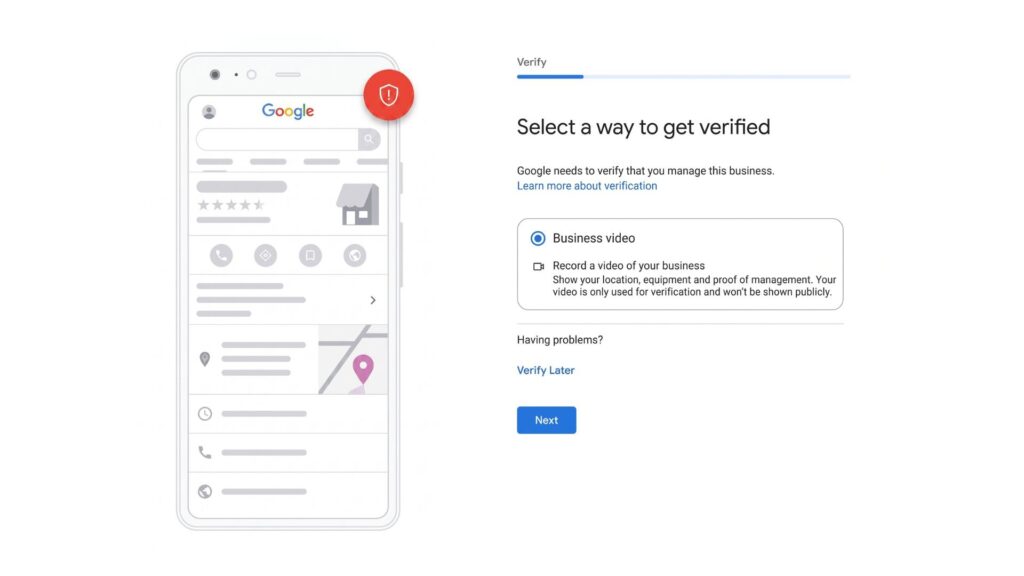
- Video verification: The most common verification method in 2026. Google asks you to record a video showing your business location, signage, workspace, or proof of management access.
- Phone or text verification: Google sends a verification code through a phone call or SMS to your business number.
- Email verification: A verification link or code is sent to your business email address.
- Live video call: Some businesses may need to join a live video call with a Google representative to verify ownership and location details.
- Postcard by mail: Google mails a verification code to your business address, which usually arrives within 14 days.
- Instant verification: Available for eligible businesses with a Google Search Console-verified website domain.
After verification is complete, your business can appear publicly on Google Maps and Google Search.
Tip: Your business will not appear publicly on Google Maps until the verification process is completed. Make sure you finish verification to make your profile visible to customers.
How to add different business types to Google Maps
Google Maps setup is different for storefront, service-area, and home-based businesses. Here’s how to choose the right setup based on how your business operates.
Physical storefront businesses
If customers visit your business location, select the option to add a physical address. Enter your exact storefront address and place the map pin accurately so customers can easily find directions on Google Maps.
Examples include:
- Restaurants
- Retail stores
- Dental clinics
- Salons
- Gyms
Service-area businesses
If your business travels to customers, choose the service-area business option. Google allows you to hide your street address and add the cities, ZIP codes, or regions you serve.
Examples include:
- Plumbers
- Electricians
- HVAC companies
- Cleaning services
- Locksmiths
Home-based businesses
If you run your business from home, use the service-area setup to keep your residential address private. This allows you to appear in local searches without displaying your home address publicly.
Examples include:
- Freelancers
- Online consultants
- Home bakeries
- Tutors
- Mobile repair services
Using the correct business setup helps avoid verification issues and ensures customers see accurate business information on Google Maps.
How to Add My Business to Google Maps? Step-by-Step Guide
Want to see the impact of Birdeye on your business? Watch the Free Demo Now.
What are the post-listing optimization tips for Google Maps?
Creating your Google Maps profile is only the first step. Here are the most important optimization updates businesses should focus on in 2026 to improve local visibility and customer engagement.
Complete all profile fields
Businesses with fully completed profiles are more likely to rank for discovery searches. Add services, attributes, products, FAQs, opening date, and secondary categories wherever relevant.
Add business hours
Keep regular and holiday hours updated throughout the year. According to Birdeye’s Google Business Profile 2026 report, direction requests now account for 38% of GBP customer actions, making accurate hours and operational details critical for driving foot traffic and conversions from Google Maps.
Upload high-quality photos
Upload real storefront, interior, team, and service photos instead of stock images. Birdeye’s 2026 Google Business Profile report found that most verified profiles still average fewer than one image per location, making fresh, high-quality photos a major opportunity to improve visibility and engagement.
Write a compelling business description
Use your 750-character business description to explain what your business offers, where you operate, and the services customers search for most frequently.
Enable messaging and booking features
Turn on messaging, booking, or appointment features if supported for your business category. These actions reduce friction and increase direct conversions from Google Maps.
Post regular updates through Google Posts
Publish weekly Google Posts for offers, events, seasonal updates, or announcements. Active posting signals business activity and gives customers fresh engagement points.
Collect and respond to reviews
Recent reviews and timely responses continue to influence customer trust and Google Maps visibility. Birdeye’s State of Online Reviews 2026 report found that 75.5% of reviews now receive a response, making active review management an essential local ranking and engagement signal.
Regular profile updates help keep your Google Maps presence accurate, active, and more competitive in local search results. Automate Google review collection, responses, and reputation management with Birdeye’s Reviews AI.
FAQs about how to add My Business to Google
Create or claim your Google Business Profile, add accurate business details, and complete Google verification. Your business can appear on Google Maps after verification is approved.
Yes, adding your business to Google Maps through Google Business Profile is completely free.
Sign in to Google Business Profile, add your business details, enter your address or service area, and complete the verification process.
Most verified businesses appear on Google Maps within a few days, although some verification methods may take longer.
Yes, service-area and home-based businesses can hide their address and show only the areas they serve.
How to grow your business on Google Maps with Birdeye Listings AI
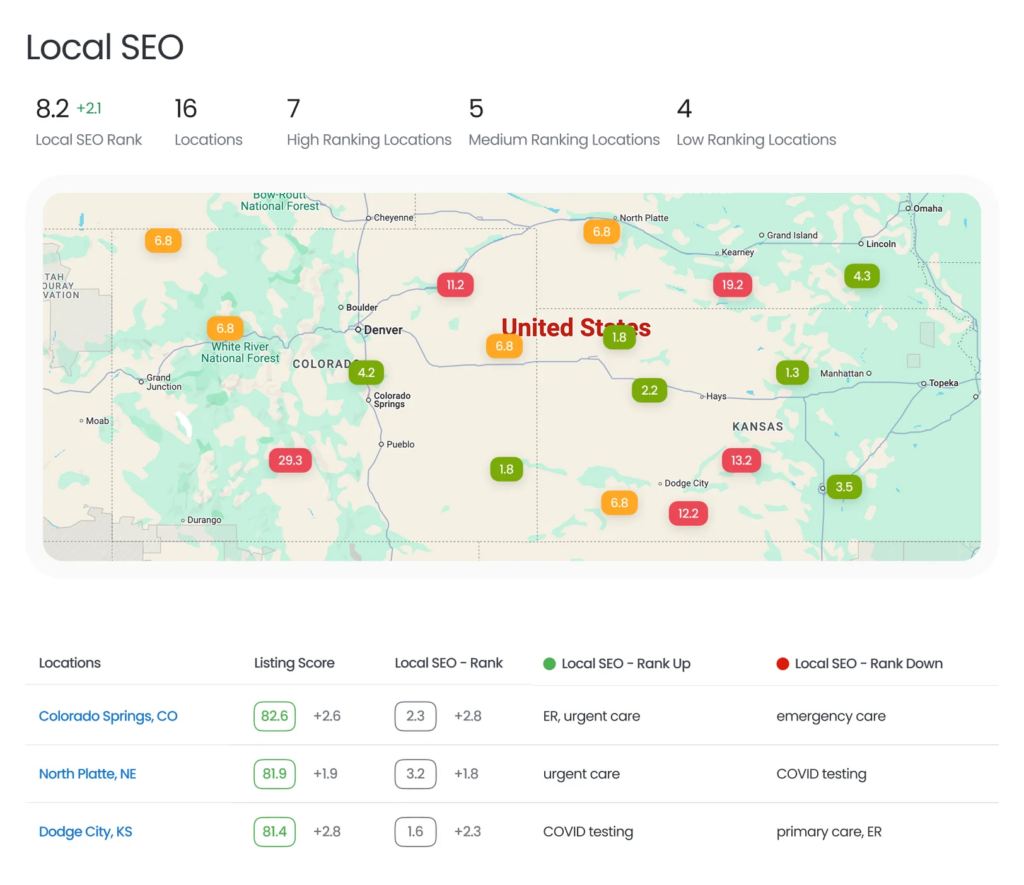
Adding your business to Google Maps is only the first step. Dropping your map pin lets local customers know you exist, but keeping your location data accurate, up to date, and highly active is what actually pushes your business to the top of Google Maps search results.
Birdeye Listings AI helps you grow your Google Maps presence by automating the entire optimization process. From a single dashboard, the AI continuously manages and protects your Google data footprint while instantly synchronizing those identical location details across 50+ other major directories.
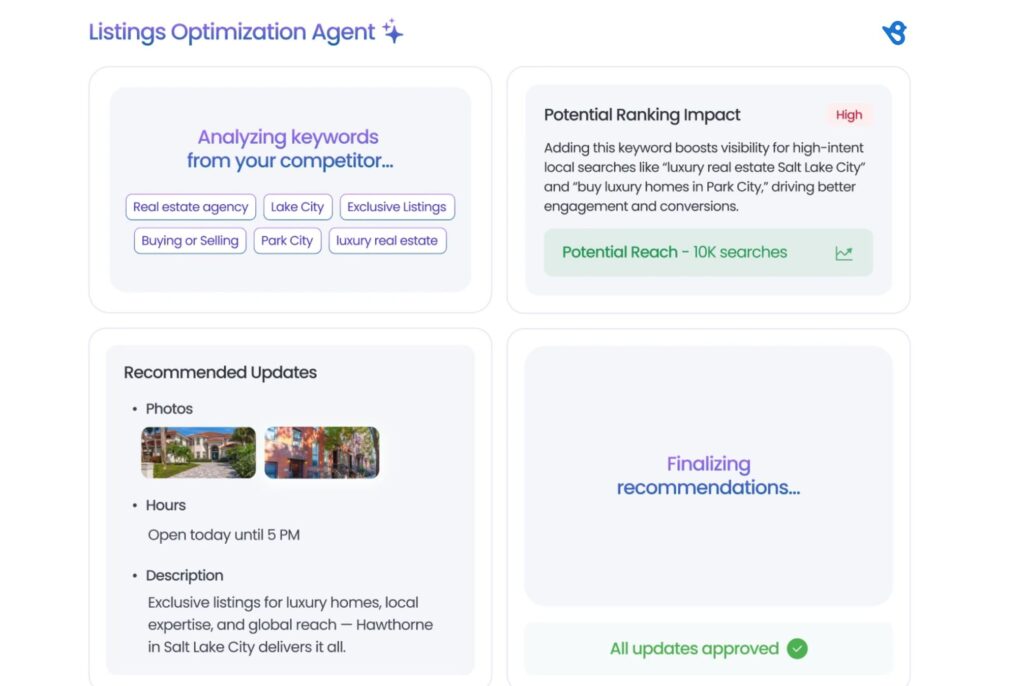
The Listings Optimization Agent continuously scans your business profiles and competitor listings across Google, Apple, Facebook, Yelp, and other major directories to identify gaps, inconsistencies, errors, and missed ranking opportunities in real time.
The platform follows Birdeye’s Consolidate, Think, and Act framework:
- Consolidate: Centralize business information, listings data, customer feedback, and location signals from Google and other major directories into a single source of truth across 100–10,000+ locations.
- Think: Analyze listing accuracy, competitor visibility, profile completeness, and local search performance to uncover optimization opportunities.
- Act: Use AI-powered recommendations and automation to fix inconsistencies, update profiles, enhance listing content, and improve local search visibility across locations.
Listings AI delivers high-impact recommendations that help improve local search visibility, traffic, and customer engagement. The Listings Optimization Agent proactively monitors listings across major search engines, maps, and directories, identifies gaps that may impact discoverability, and recommends or automates corrective actions. With configurable guardrails and approval workflows, brands can maintain accurate, optimized listings while preserving consistency and governance across locations.
“Birdeye Listings covers the major business directories, and when we need to update operating hours or a phone number for one of our shops, it only takes us a minute, and our profile gets automatically updated across all directories.”
Mary Rabalais
SEO Consultant and Web Design, Coleman Taylor Transmissions
By ensuring your business information is flawless and feeds directly into Google’s ranking ecosystem, Birdeye maximizes your local visibility and drives more foot traffic straight to your door.
See how Birdeye keeps your listing optimized across 50+ directories automatically. Watch a demo today to dominate Google Maps rankings.

About the Author

Vanjana Sharma
Originally published