Delete Google Business account when a listing no longer represents your brand, such as after a permanent closure, duplicate listing, or major operational change. Removing outdated profiles helps prevent confusion and ensures customers see accurate information when searching online.
Summary
Local listings play a major role in how customers discover and evaluate businesses. Research shows that 48% of consumers who view a business profile go on to visit the company’s website, demonstrating how strongly these profiles influence engagement and decision-making. Because of this impact, businesses must actively monitor and maintain their listings to ensure the information presented to customers remains reliable and consistent across search platforms.
In this blog post, we explain how to delete a Google Business account, outline situations where deleting a profile makes sense, and share steps to manage your Google Business presence effectively.
Table of contents
- Why do businesses deactivate their Google Business accounts?
- How to delete a business profile on Google
- How do you mark a business as permanently closed on Google?
- How do you remove content and managers from your Google Business account?
- How do you remove multiple business profiles?
- How do you remove a business from Google Maps?
- How do you reopen a Google Business account?
- Options to consider before deleting a Google Business account
- FAQs about deleting a Google Business account
- Manage your business listing with Birdeye
Why do businesses deactivate their Google Business accounts?
A business may want to delete a Google Business account for various reasons. Some of these reasons include:
- The business has closed: A fairly common reason businesses opt to delete a listing on Google is when the business is permanently closed. Deactivating a listing can help spread the word.
- Acquisitions: Transferring a business to a new owner through a sale can be another reason to delete a Google Business account. If you cannot negotiate an account transfer ownership to the new owners, your only option may be to delete the profile. Deleting the Google Business account helps maintain your privacy.
- Duplicate profiles: Google typically penalizes businesses with duplicate business account profiles. It can also get quite confusing for your customers to use multiple listings for the same business. If you own duplicate business profiles, you can merge or delete one of them.
- Unfavorable reviews: Although Google My Business can help us establish a positive online reputation, having several negative reviews could impact business credibility. There are times when deleting an adversely affected profile may make more sense.
How to delete a business profile on Google
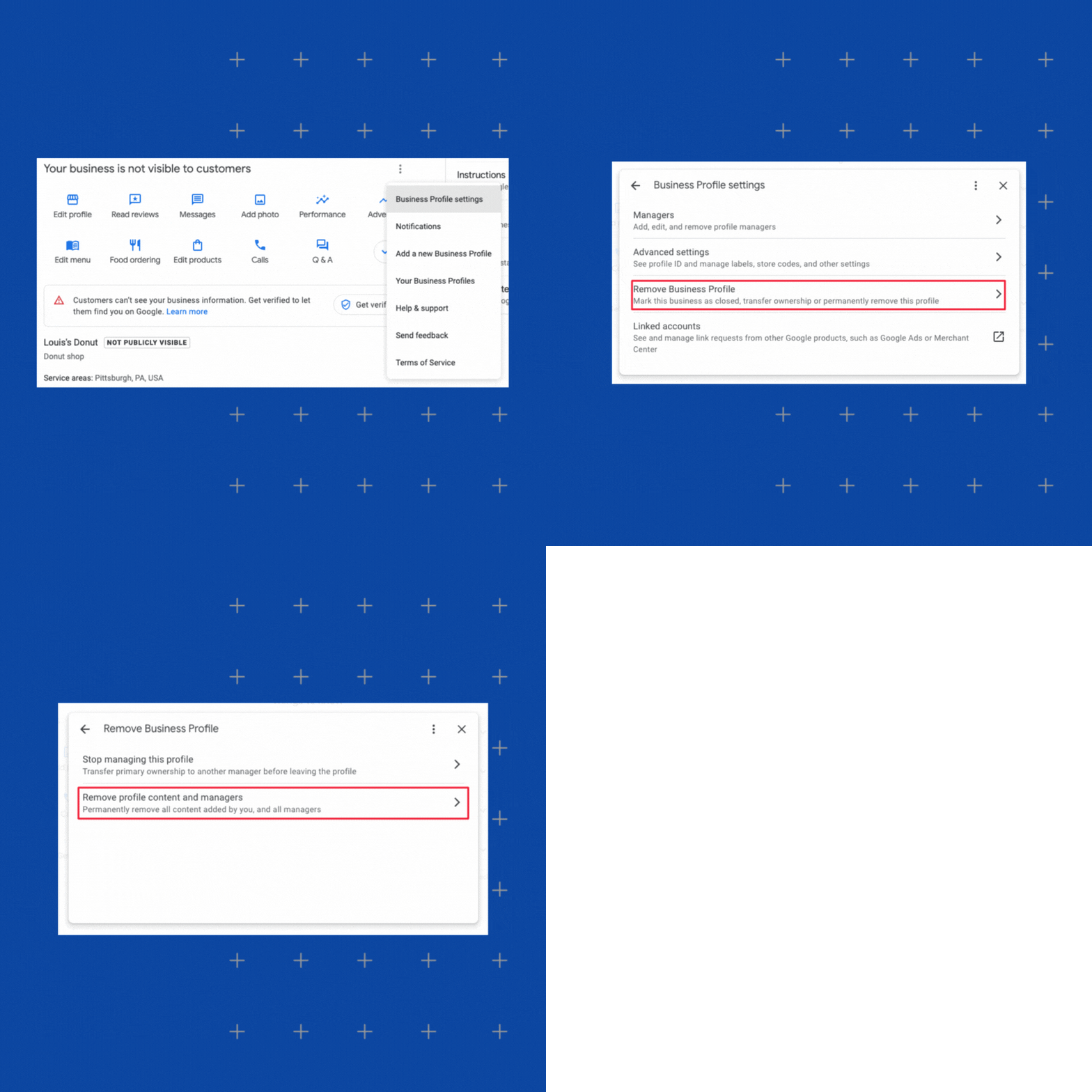
Here are a few simple steps to help delete a Google business account:
- Log into your Google My Business profile.
- Select More by clicking the 3 dots in the upper right corner.
- Click the Business Profile setting option.
- Then click, Remove Business Profile → Remove profile content and managers.
- Next, select Continue → Remove → Done.
Once you’ve followed all the steps on how to close a Google Business account, you won’t be able to recover the profile details in the account. If you want to use the service again, you must sign up for a new account.
Important note: When you delete your profile from Google, some information may still be online on the listing. Google does not completely remove a listing unless it is an incorrect address, does not belong on Google, or never existed.
Let’s explore a few other ways to delete your Google Business account or remove your listing from your Google.
How do you mark a business as permanently closed on Google?
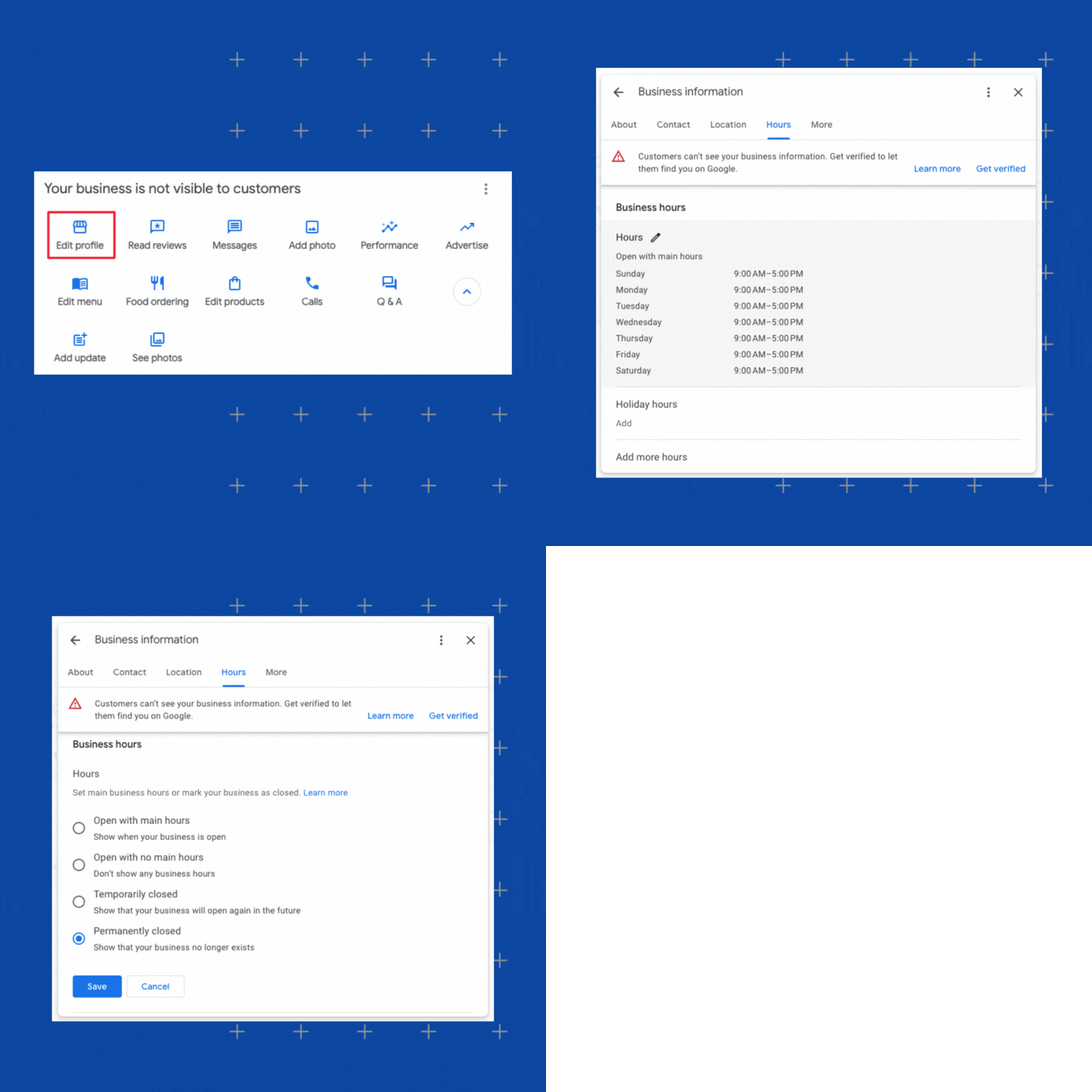
A good alternative to delete a Google Business account is marking the business as “permanently closed.” Although they have reduced visibility, permanently closed businesses still appear on Google. This allows you to reopen the business in the future should the need arise.
These steps will help mark your business as “permanently closed:”
- Navigate to your company’s profile.
- Choose Edit profile → Business information.
- If on a desktop, utilize Google Search and opt for Edit profile.
- Close to the top, click on the Hours tab.
- Beside Hours, choose the Edit option indicated with a pencil icon.
- Select the Permanently closed option.
- Click on Save.
When should you mark your business permanently closed instead of deleting the profile?
When you delete your profile, some information is retained within the listing and may appear for local business searches. This can be a negative experience for potential customers and harm future business opportunities.
Marking your business “Permanently closed” ensures that customers know you’re no longer operating from that location while retaining brand awareness.
Also, if the old business listing had many positive reviews, informational content, and so on, retaining that listing with a “Permanently closed” sign can do wonders for your business.
This option also helps you reclaim an older listing if you want to in the future.
How to mark a business as “Temporarily closed” on Google?
If your business is closing for more than seven days or is off for a particular season, you can avoid customer calls by marking it “temporarily closed”.
Use the following steps to do this:
- Login to your Google Business Profile.
- Choose the “Edit profile” option.
- Go to “Business information” and click “Edit”.
- Choose the “Hours” option and choose “temporarily closed”.
- Click “Save”.
How do you remove content and managers from your Google Business account?
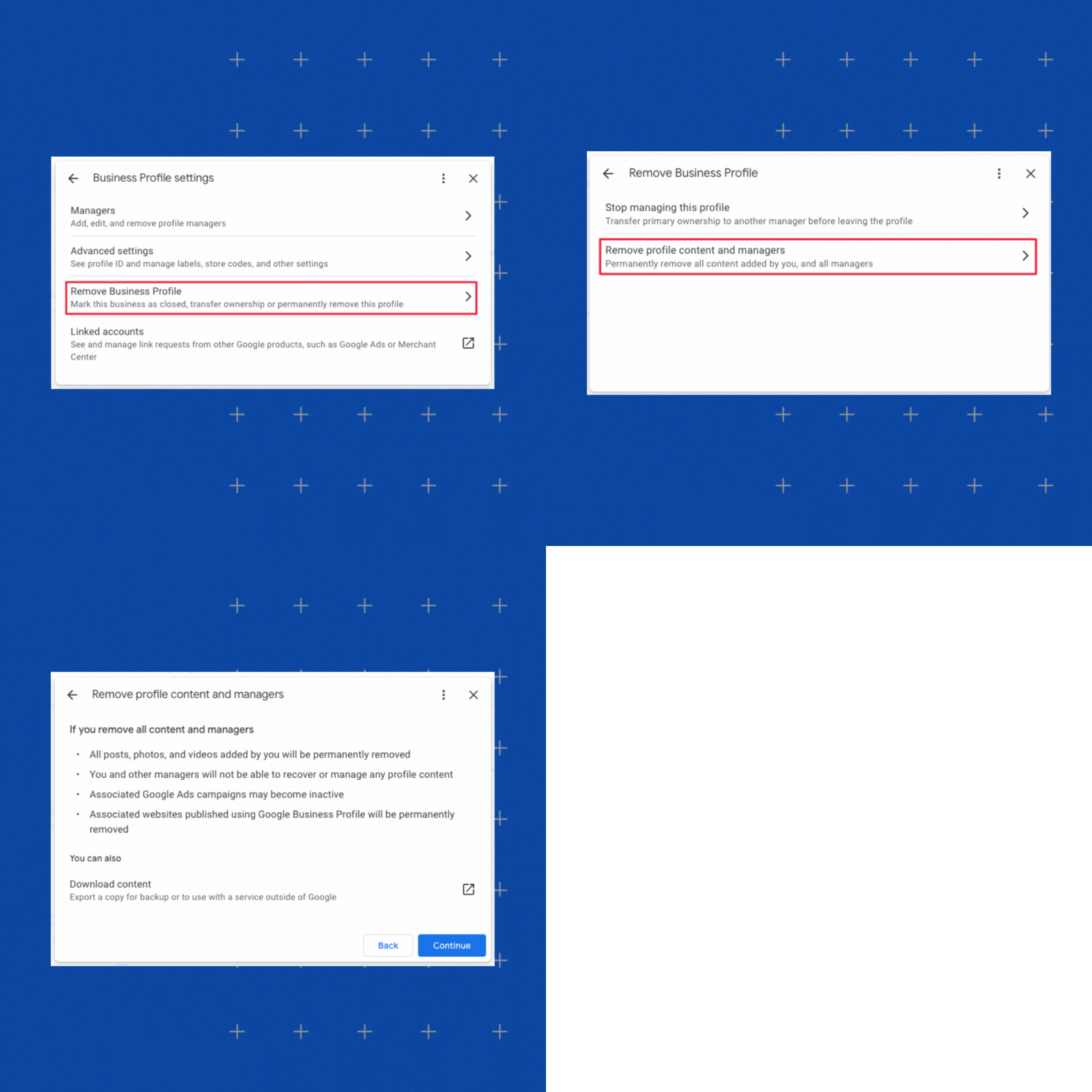
If you decide to delete your Google Business account or mark it as “permanently closed,” it’s a good idea to also remove the profile content and managers from the account, too. However, remember that this is a permanent action, and it will affect all profile owners and managers. Should you change your mind about managing the profile again, you must first undergo a Google verification process.
here are the steps for removing content and managers from your Google listing:
- Go to your official Business Profile account.
- Next, select More and then Business Profile settings.
- Go ahead and click on Remove Business Profile and select Remove profile content and managers.
- Choose Continue, and then click on Remove and Done.
How do you remove multiple business profiles?
Owning and managing duplicate business profiles can cause pretty big issues like Google suspending your profile for violating its rules and guidelines. Additionally, multiple profiles will be confusing to your customers, leading to possible loss of sales and revenue. Here are the steps to remove multiple business profiles on Google:
- Sign in to your Business Profile Manager.
- On the homepage, choose which profile(s) you want to remove.
- Then, head to the right side and click Actions.
- Finally, choose the Remove businesses option and follow the prompts to officially remove the business profile.
If you encounter error messages during the process, go ahead and remove the content and managers for each profile individually using the steps listed above.
How do you remove a business from Google Maps?
Adding a business to Google Maps is essential for potential customers to find your offerings with ease. But there are good reasons to remove a business listing from the platform. For example, when the business is not eligible to show on Google or has the wrong address, it makes sense to remove it. If you’ve wondered how to remove my business from Google Maps follow these steps:
- Go to Google Maps and sign in with the same account as your Google Business profile.
- From the map, choose the business you want to remove.
- On the left side of the screen, click Suggest an edit.
- From that list, select Close or remove. Expect a set of prompts to complete the Google Maps deletion.
After submitting the request, it will still need to go through a review process. Look for a status update email from Google with follow-up questions regarding your reasons for deleting the profile.
How do you reopen a Google Business account?
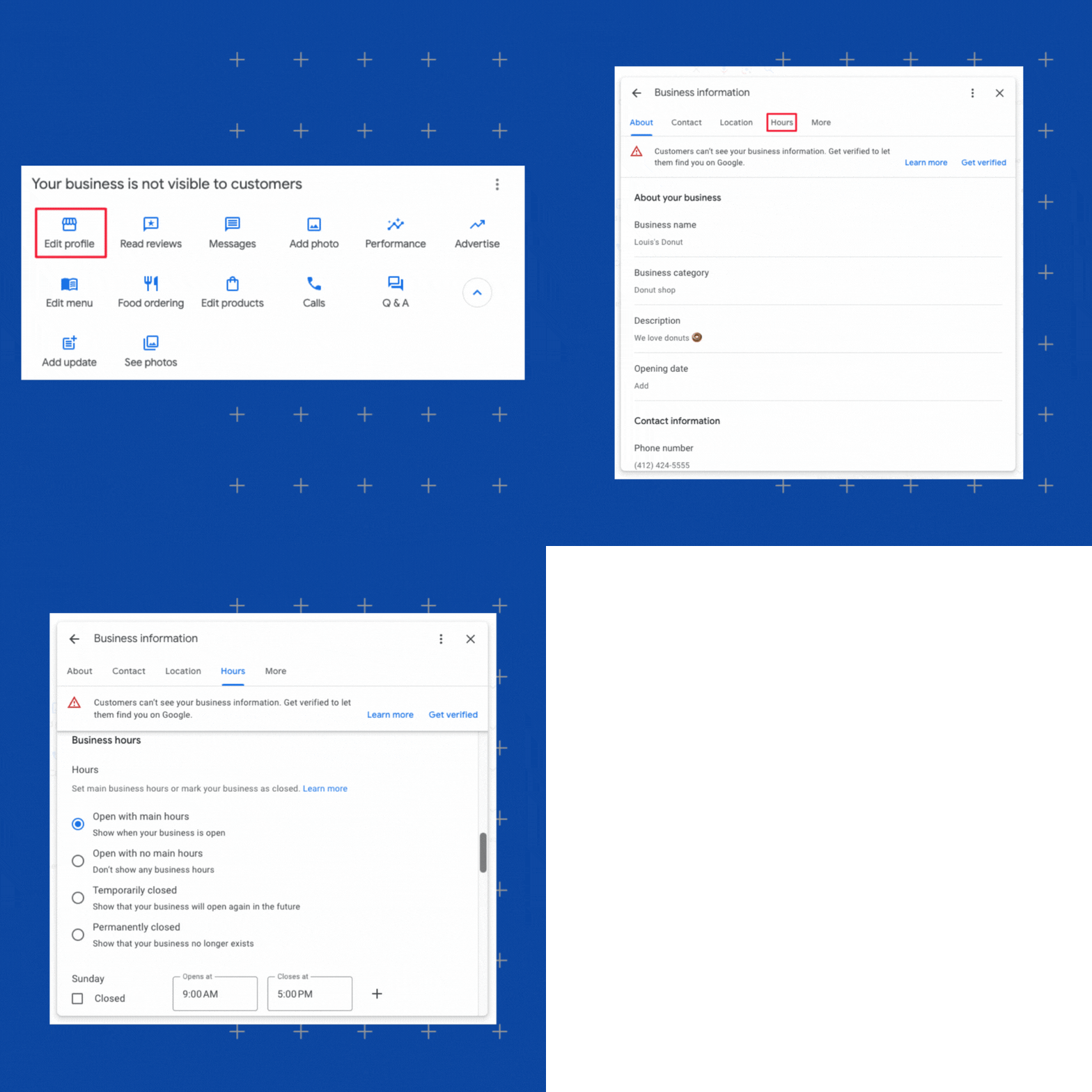
If you followed the steps to mark your business as “permanently closed” but the circumstances have changed, you still have the option to reactivate the account. Here’s how to remove “permanently closed” on Google:
- First, head over to your Business Profile.
- To begin editing your business information using Google Search select Edit profile.
- With Google Maps, select Edit profile → Business information.
- Toward the top, select the Hours tab.
- Next to Hours, select the pencil icon to edit.
- Choose the Open with main hours option.
- Set your business hours.
- After that, click Save.
If you can’t reopen or reactivate your Google Business profile listing this way, you will need to contact Google Support.
Options to consider before deleting a Google Business account
Removing a Google Business account deserves careful consideration and should be a last-resort option. Depending on your online reputation and business listing goals, consider these other options before taking that final step:
- Updating your business details so they are accurate and consistent.
- Responding to negative reviews timely and in a professional manner.
- Using a reputation management service, like Birdeye, to get help managing your online presence.
”After partnering with Birdeye, we saw a 3653% increase in the number of reviews, with higher star ratings.”
Kelly Palms
Director Of Business Development at Complete Emergency Care
 Case study
FAQs about deleting a Google Business account
After removing a Google My Business account, you’ll lose control of managing the account. However, all photos and reviews (both positive and negative) of the business will remain visible on Google.
To delete a Google Business service, sign in to your Google Business account and choose which service you want to delete from the dashboard. It may take a few weeks for the service to be deleted from Google.
To delete a Google account, visit the Google account deletion page and sign in to the account you want to delete. Click on Delete your account. Remember, too, back up any essential data before deleting.
Manage your business listing with Birdeye
Deleting or updating a Google Business Profile is only one part of managing your online presence. For enterprises and multi-location brands, keeping location information accurate across multiple platforms can quickly become complex. Inconsistent details across directories can confuse customers and reduce visibility in local search results.
Birdeye Listings AI helps brands maintain accurate, consistent listings across major platforms from a single dashboard. Instead of manually updating profiles, enterprises can centralize control and ensure that every location displays the correct business information.
Here’s how Listings AI supports business listing management at scale:
1. Centralized monitoring across major platforms
Listings AI continuously monitors business profiles across major networks, including Google, Apple Business Connect, and Yelp. This helps enterprises quickly identify missing details, outdated information, or duplicate listings that may affect search visibility.
2. Automated listing optimization
The platform analyzes location data and search trends to recommend updates that improve profile completeness. Businesses can update descriptions, attributes, and business details to ensure each listing reflects accurate and relevant information.
3. Brand-consistent content across locations
Listings AI helps generate location descriptions and updates that follow brand guidelines. This ensures consistent messaging across all locations while keeping profiles optimized for search.
4. Enterprise-level control and governance
Large organizations can manage thousands of locations while maintaining oversight through approval workflows and centralized controls. Teams can review updates before publishing or automate changes across listings when needed.
Traditional listing management tools often focus on distributing business data across hundreds of low-traffic directories. Birdeye Listings AI prioritizes the platforms that matter most for local discovery, such as Google, Apple Business Connect, and Yelp, where most customer searches occur. By using Listings AI agents, enterprises can maintain accurate listings, strengthen visibility across key platforms, and turn local search into a consistent source of customer discovery and revenue. Click the banner below and learn how to curate your business listing across all platforms.

About the Author

Birdeye Staff Writer
Originally published