How to claim a business on Google starts with finding your existing listing on Google Search or Maps, selecting “Claim this business,” and completing verification (usually through video, phone, or email). Once verified, brands can control how their listing appears, manage reviews, and keep information accurate for customers searching in real time.
Summary
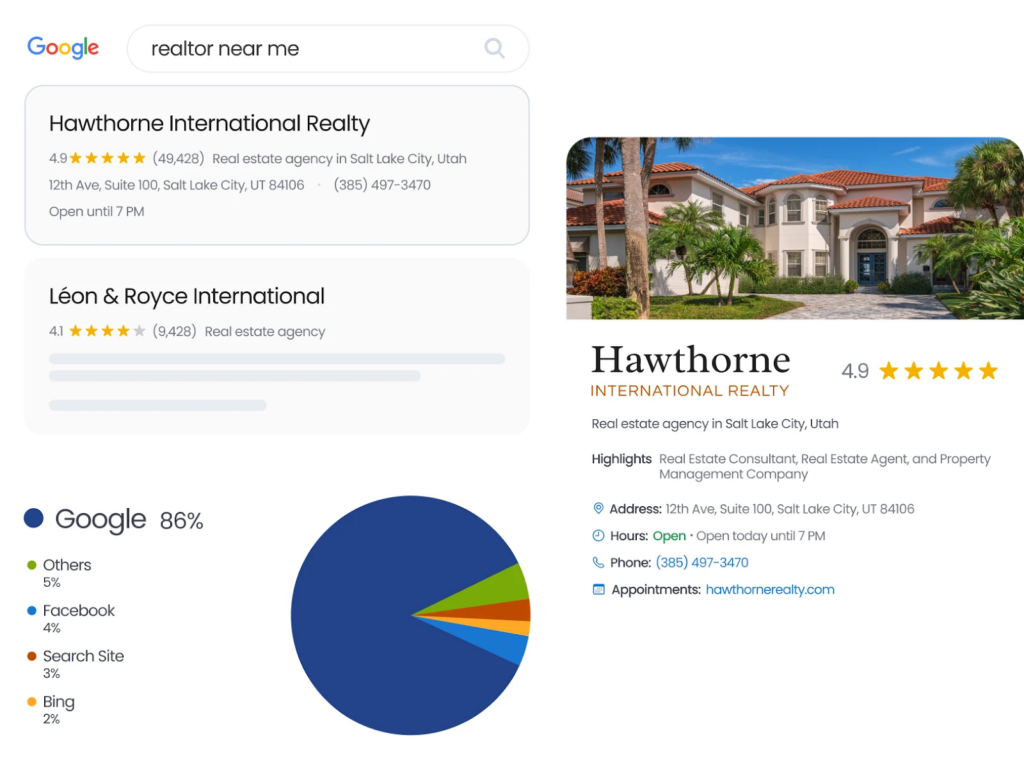
Google often creates listings using third-party data and user contributions, which means your brand may already appear online before you set up your profile. This can lead to duplicate listings, missing details, or unclaimed profiles that you don’t control. That’s a problem because visibility on Google is highly intent-driven. According to Birdeye’s State of Google Business Profile 2026 report, “near me” and category searches drive 86% of visibility, meaning customers often find your business at the exact moment they are ready to take action. If your listing is unclaimed or outdated, you risk losing those opportunities and should take steps to claim Google Business Profile early.
This blog walks you through how to claim, verify, and manage your business on Google step by step, including how to handle ownership conflicts and duplicate profiles, and the key steps for managing your profile effectively after claiming.
Table of contents
- What does it mean to claim a business on Google (and why it matters)
- How to claim and verify your business on Google (step-by-step)
- How to fix common issues when claiming a business on Google
- How Birdeye streamlines Google Business Profile management
- FAQs about claiming a business on Google
- Final thoughts
What does it mean to claim a business on Google (and why it matters)
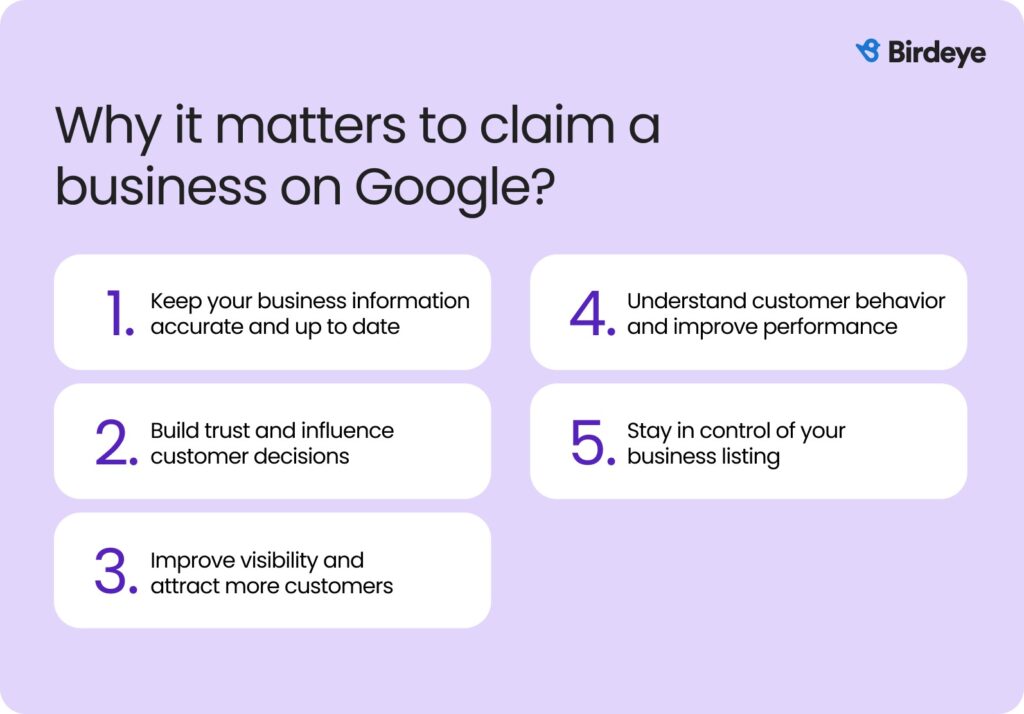
A Google Business Profile is a free listing that displays your business details, such as name, address, hours, and customer reviews, across Google Search and Google Maps. With 46% of Google searches driven by local intent, claiming your business is critical for visibility. It also ensures that you are the rightful owner or manager of the profile, allowing you to manage and update it.
Here is why it matters:
1. Keep your business information accurate and up to date
Claiming your profile lets you update key details, such as your address, phone number, hours, and website. This reduces confusion and helps avoid missed opportunities caused by incorrect or outdated information.
2. Build trust and influence customer decisions
Once your profile is claimed, you can read and respond to customer reviews. Engaging with feedback shows that your business is active and reliable, which can shape how potential customers perceive and choose your business.
3. Improve visibility and attract more customers
Verified businesses are more likely to appear in top local results, including the Google 3-Pack. Along with better visibility, you can enhance your profile with photos, services, and updates, making it easier for customers to understand your business and take action.
4. Understand customer behavior and improve performance
Claiming your profile gives you access to insights into how customers find your business and what actions they take, including calls, directions requests, and website visits. This helps you identify what is working and where adjustments are needed.
5. Stay in control of your business listing
Unclaimed profiles can still appear on Google, but you cannot manage them. Claiming and verifying your profile ensures you control your brand’s information, reviews, and updates, preventing inaccuracies or unwanted changes.
How to claim and verify your business on Google (step-by-step)
Claiming business on Google is now more streamlined, with most actions happening directly in Search or Maps. It’s a critical step because verified profiles appear up to 80% more often in search and drive significantly more customer actions than unverified listings, directly impacting how easily customers find and choose your business when you claim business on Google.
Below are the main ways to take ownership, claim Google Business Profile, and complete verification.
Method 1: Claim your business via Google Search (fastest method)
Step 1: Search for your business on Google
Type your business name in Google Search while logged into your Google account.
Step 2: Locate your Business Profile panel
If your business already exists, you’ll see a profile panel:
- On desktop: on the right-hand side
- On mobile: at the top of search results
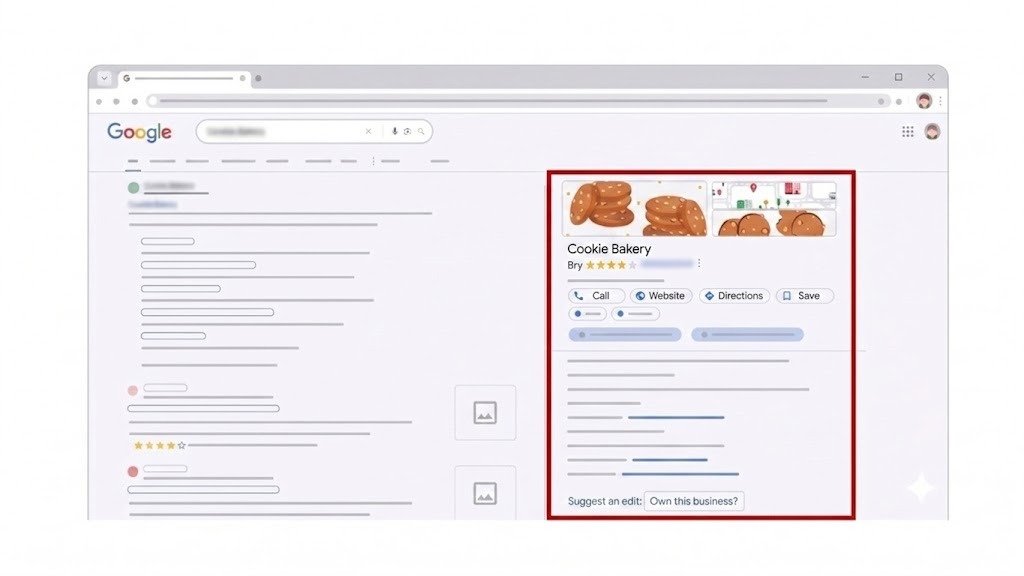
Step 3: On the Business Profile panel, click “Claim this business” or “Own this business”
This option appears if the listing is unclaimed. Click it to begin the process.
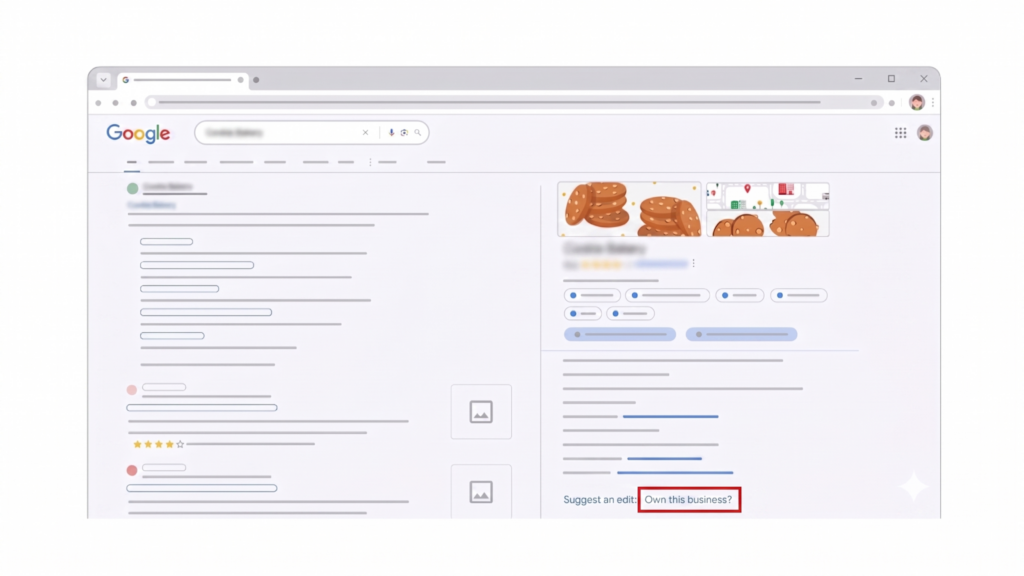
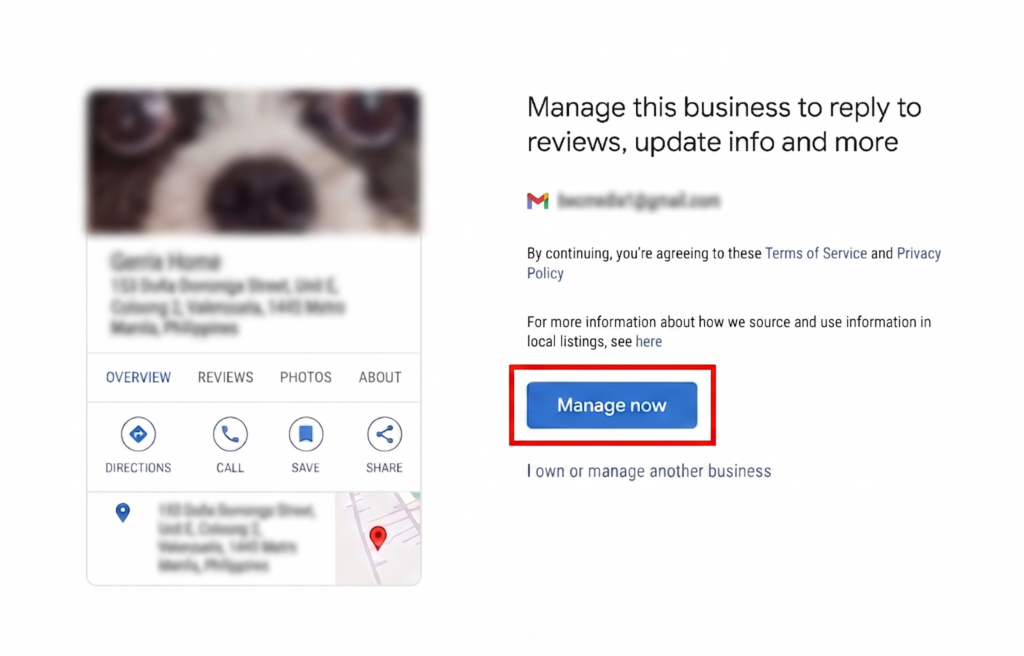
Step 4: Select “Manage now” and sign in
You’ll be prompted to:
- Sign in with your Google account
- Confirm that you want to manage the business
Step 5: Complete verification
Google will show available verification options, such as:
- Video verification (most common)
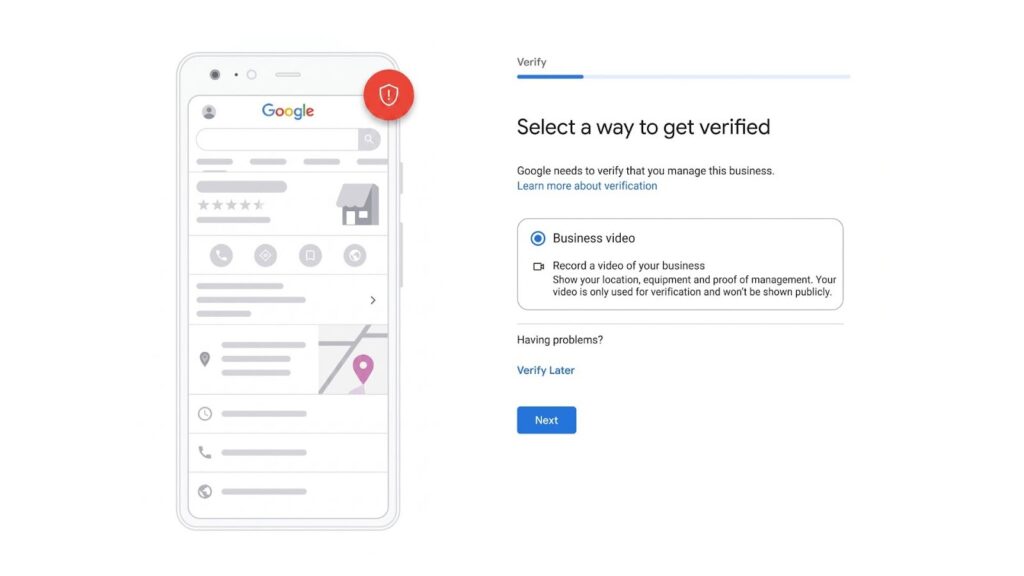
- Phone or SMS
- Postcard (less common now)
Complete the steps shown on your screen to finish verification.
What happens during video verification (most common method)

For many businesses, Google now requires video verification to confirm legitimacy. You’ll typically need to record a short video showing:

Your storefront, signage, or office location

Proof that your business exists at the location (street signs, surroundings)

Evidence you manage the business (e.g., access to tools, workspace, or equipment)

👉 Tip: Record everything in one continuous shot. Avoid cuts or edits, as this can cause verification to fail.
Method 2: Claim your business via Google Maps
Step 1: Open Google Maps and search for your business
Enter your business name in the search bar.
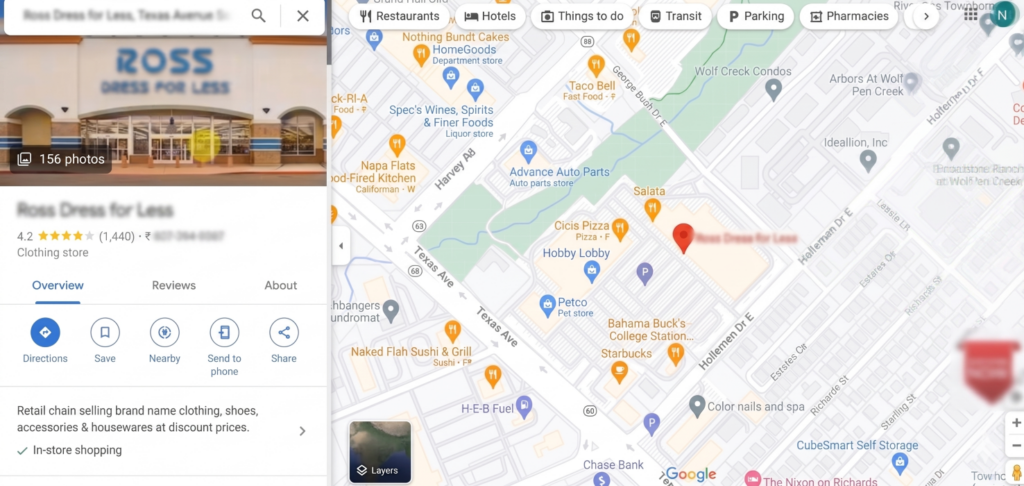
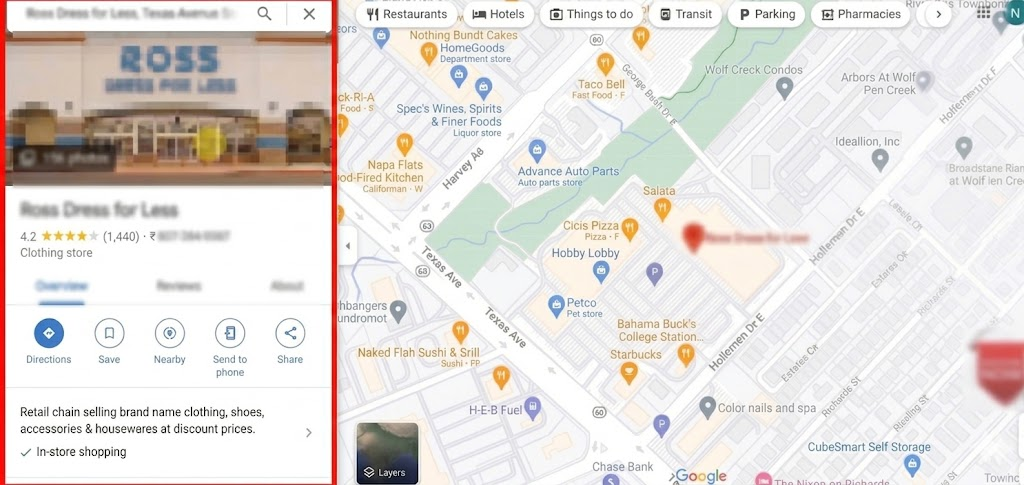
Step 2: Select your business listing
Click on your business name to open the profile.
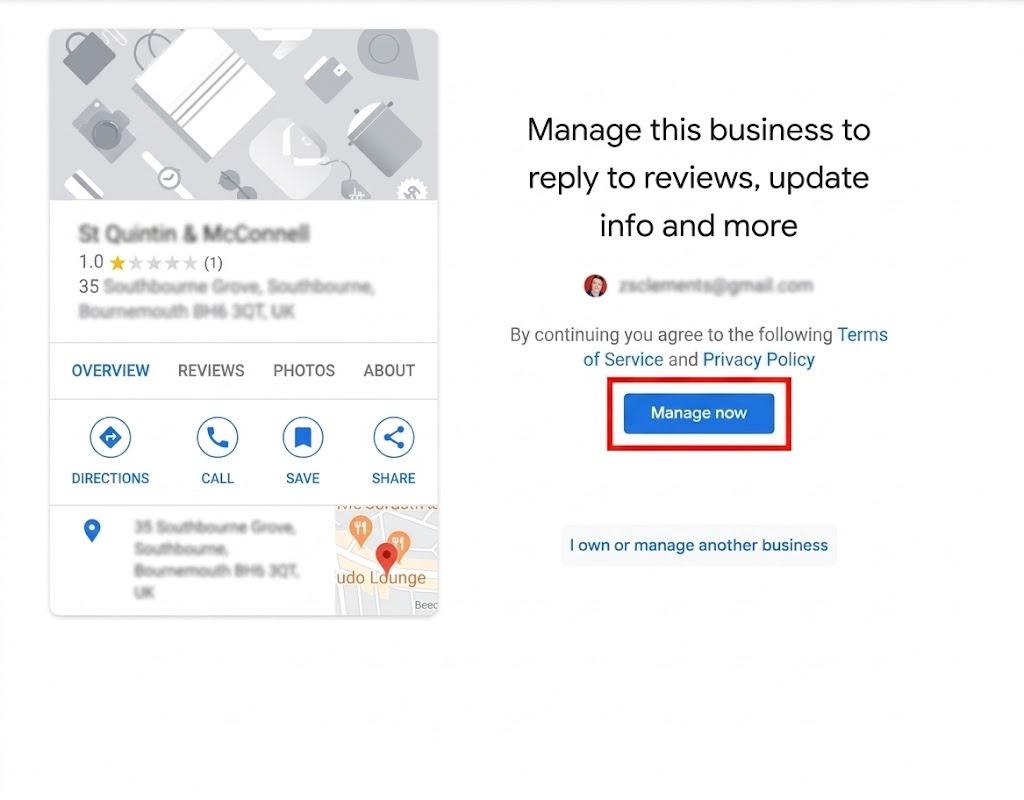
Step 3: Sign in with your Google account and click “Manage now”
If the listing is unclaimed, you’ll see the option to manage it.
Step 4: Sign in and start the claiming process
Log in with your Google account and proceed.
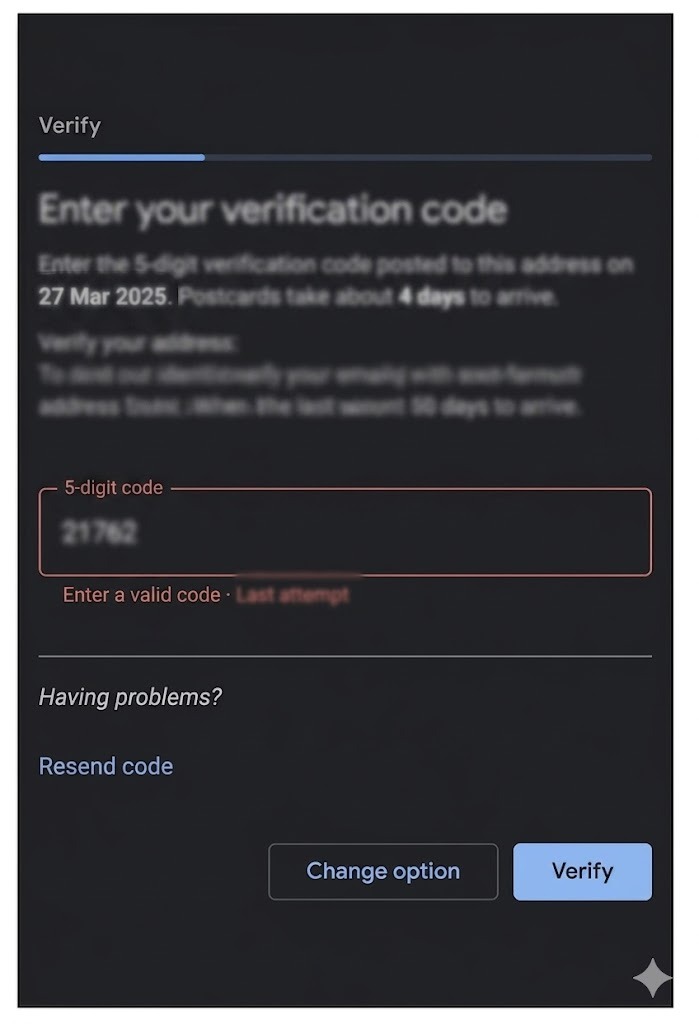
Step 5:Now, choose a verification method
Follow the same verification steps as in Google Search (video, phone, email, etc.).
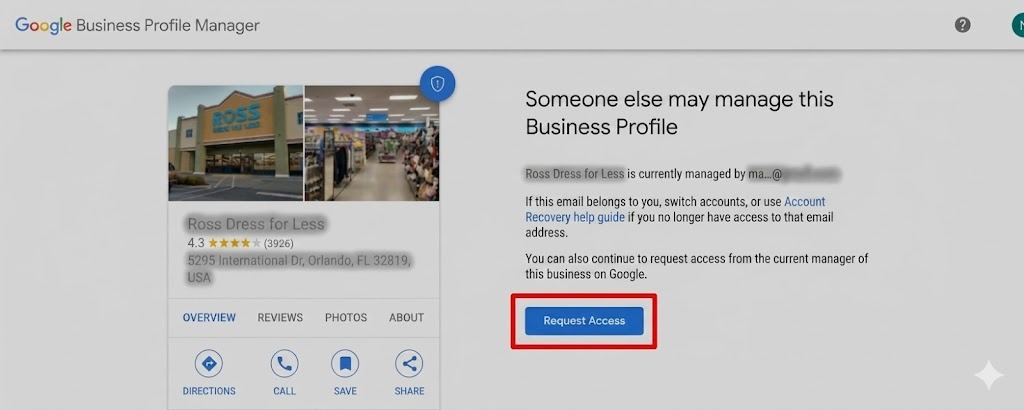
What steps to take if the business is already claimed by someone else
If you see a message that the profile is already managed, you’ll need to request access.
Step 1: Click “Request access”
This opens an ownership request form.
Step 2: Submit your details
Provide:
- Your name
- Your relationship to the business
- Your contact information
Step 3: Wait for the owner’s response
- The current owner typically has up to 3 days to respond. You’ll receive email updates on the status
What happens after verification
Once you submit a request to access a Business Profile, Google sends you a confirmation email. At the same time, the current owner is notified and given a short window (usually up to 3 days) to respond. You can track progress by signing into your Business Profile or using the link in that email.
If your request gets approved:
- You’ll receive a confirmation email granting access
- You can begin managing the profile right away
- This includes updating details, replying to reviews, and making changes
If your request is declined:
- You’ll be notified via email
- You can still suggest edits to the listing
- In some cases, you may be able to submit an appeal
If there’s no response after 3 days:
- Go back to the confirmation email and click “View request”
- If available, select “Verify” to continue
- Complete the verification steps shown on your screen
- You can also log in and check for a “Claim” or “Verify” option on the profile
Pro Tip for multi-location brands:
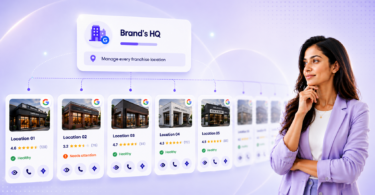
Managing multiple listings can make issues like duplicates, verification delays, and inconsistent details harder to track. Birdeye centralizes ownership across 100-10,000+  locations, monitors listings across directories, and quickly identifies gaps or errors.
How to fix common issues when claiming a business on Google
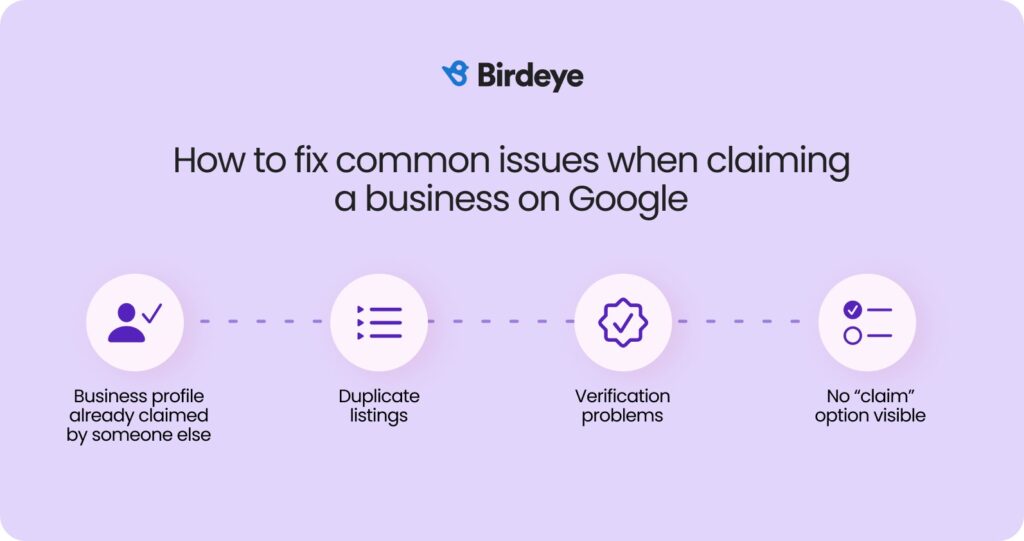
While the claiming process is straightforward, a few common issues can interrupt progress. Knowing how to handle them can help you complete the setup without delays.
Business profile already claimed by someone else
If the profile is already managed, you will need to request access from the current owner. Google notifies them and typically allows a few days to respond, after which you may get an option to verify and claim the profile.
Duplicate listings appearing in search
Duplicate profiles can appear when listings are created from different sources or are added multiple times. Identifying and resolving these duplicates helps prevent confusion and ensures customers see the correct information.
- For duplicates you don’t manage:
Suggest an edit → mark as “Duplicate” or “Permanently closed”
- For duplicates you control:
Keep one primary listing
Remove or merge others through your Business Profile dashboard
Learn How to Claim a Business on Google
Want to see the impact of Birdeye on your business? Watch the Free Demo Now.
Verification problems
Google Business Verification may fail if your details do not match or if proof of ownership is unclear. Reviewing your information and following the verification steps carefully, especially for video, can help avoid repeated attempts.
No “claim” option visible
In some cases, you may not see a claim option if the listing is already managed or tied to another account. Switching accounts or accessing the profile via a different entry point, such as Search or Maps, usually helps resolve this.
Resolving these issues early helps you avoid verification delays and ensures you can take full control of your business listing without interruption.
What are the best practices to be followed after claiming your business on Google?

Once your business is verified, ongoing GBP optimization determines visibility and performance.

Complete every section of your profile, including business details, categories, services, and media, as Google prioritizes fully filled profiles for relevance
Keep your name, address, and phone number consistent across your website and listings to avoid confusion and improve search performance
Respond to customer reviews regularly, as engagement and response quality are key trust signals in Google’s system
Post updates, offers, and photos frequently, since regular activity and fresh content are now strong ranking signals
Monitor insights such as searches, calls, and interactions to understand customer behavior and refine your profile over time

Consistent updates, accurate information, and active engagement help your Google business profile remain visible and aligned with how Google ranks local results today.
How Birdeye streamlines Google Business Profile management
Claiming your Google Business Profile is just the starting point. The real challenge begins after verification, when you need to keep information accurate, respond to reviews promptly, and maintain consistency across all locations.
As your brand grows, managing this manually becomes harder. Logging into multiple accounts, tracking duplicate listings, and keeping details up to date across directories can slow teams down and lead to errors.
Birdeye is the #1 agentic marketing platform that helps you move from basic profile ownership to structured, scalable management.
Keep listings accurate and continuously optimized
Listings AI helps you manage business information across your verified profiles from a single place, making it easier to maintain consistency in key details like name, address, and phone number. The Listings Optimization Agent continuously analyzes your listings, identifies missing or underperforming elements, and provides data-backed recommendations to improve visibility. These suggestions are prioritized by impact and can be reviewed before being applied, helping you stay accurate without relying on manual checks.
“Birdeye Listings is incredibly user-friendly and makes it easy to consistently update our Google Business Profile information, which is immensely important.”
Mary Rabalais
Respond to reviews with speed and consistency
Reviews centralizes Google reviews in a single inbox, so teams can monitor and respond without switching between accounts. It also generates AI-assisted, on-brand responses, helping maintain consistent communication while reducing response time across locations.
- Review Response Agent analyzes review text and photos, detects sentiment, and captures customer emotion to generate personalized, on-brand replies for your Google Business Profile, helping you respond in a way that feels thoughtful and consistent.
- Review Generation Agent helps you drive a steady flow of high-quality Google reviews through smart prompts and optimized request workflows.
“Not only are we able to see all our reviews in one place, but the dashboard also allows us to sort the reviews by source, sentiment, and time period so we can dig deeper. Birdeye saves us a lot of time, provides consistency, and streamlines our process so we can make data-driven decisions.”
Andre Gerasimov
Keep profiles active with regular updates
With Social AI, you can create and publish Google Posts, offers, and updates across multiple locations from one place. This helps maintain consistent activity across profiles, ensuring customers always see up-to-date information without requiring manual updates for each listing.
Track performance and identify what needs attention
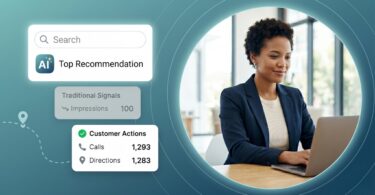
Insights AI aggregates key metrics like searches, clicks, calls, and direction requests into a unified view. This makes it easier to understand how customers interact with your listings and identify patterns or gaps that need attention across locations.
Managing a single listing is straightforward. Managing dozens or hundreds requires structure, visibility, and speed. Birdeye brings these together in one platform, helping you reduce manual work, avoid inconsistencies, and keep your Google presence accurate as your business grows.
FAQs about claiming a business on Google
Yes, creating and claiming a Google Business Profile is free, and you can manage your business listing on Google Search and Maps at no cost.
Yes, you can claim and manage multiple business locations under one Google account, including bulk location management for larger brands.
Yes, if your Google Business Profile is unclaimed, someone else can request access, but you can verify ownership and take back control of your listing.
If you do not complete Google Business Profile verification, you cannot manage your listing, respond to reviews, or update business information.
Can I edit details after claiming?
Yes, after you claim and verify your business on Google, you can edit details such as hours, address, services, and photos at any time.
Final thoughts
Managing your presence on Google is no longer a one-time task. It requires ongoing attention as listings change, customer interactions increase, and new updates roll out. Even small inconsistencies or missed actions can affect how your brand appears in search. Having a clear process in place helps you stay organized, reduce manual effort, and maintain control across locations. This becomes especially important as your brand scales and more profiles need regular updates.
Birdeye helps simplify this by bringing listings, reviews, and customer interactions into one place, making it easier to manage Google Business Profiles at scale.
Watch a free Birdeye demo to learn more.
About the Author

Vanjana Sharma
Originally published