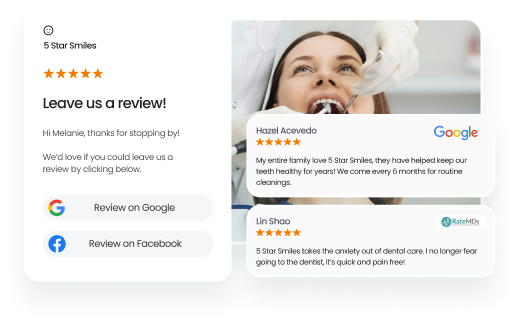
A Google review is a star rating and written feedback that customers leave on a business’s Google Business Profile. If you are wondering how to leave a Google review, you can do it on desktop, mobile devices(Android/iPhone), or through Google Maps using a Google account.
Summary
Google reviews shape business credibility and local search visibility, while helping customers evaluate businesses before making decisions. Birdeye State of Online Reviews 2026 report found that review volume rose 30.7% in 2025, and Google captured 79.4% of all online reviews, showing that Google continues to be the main place customers share and evaluate real experiences. That makes it even more important to know how to leave a Google review correctly, so feedback is clear, useful, and easy for others to trust.
This blog explains the exact steps on how to leave a Google review quickly and correctly. It also shares practical tips for writing a helpful review that reflects the real experience.
Table of contents
- How to leave a Google review on a desktop?
- How to leave a Google review on mobile (Android + iPhone)
- How to leave a Google review on iPhone
- How to leave a review on Google Maps
- How to leave a Google review anonymously
- How to leave a Google review without Google account
- How to leave a Google review without your full name
- What are the tips for writing a helpful Google review
- FAQs on how to leave a Google review
- How Birdeye helps businesses get more reviews
How to leave a Google review on a desktop?
You can leave a Google review on a desktop directly through Google Maps in a few simple steps.
Step 1: Sign in to Google Maps
Open Google Maps on your computer and sign in to your Google account.
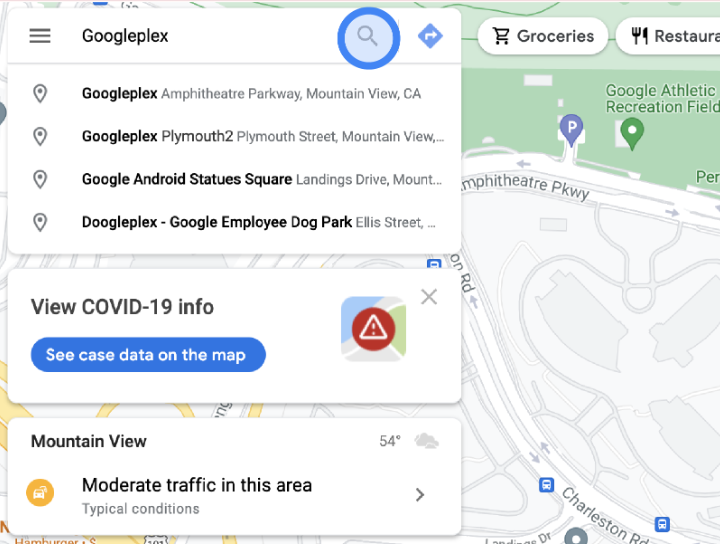
Step 2: Search for a business or place
Enter the business name in the search bar, then select the correct listing from the results.
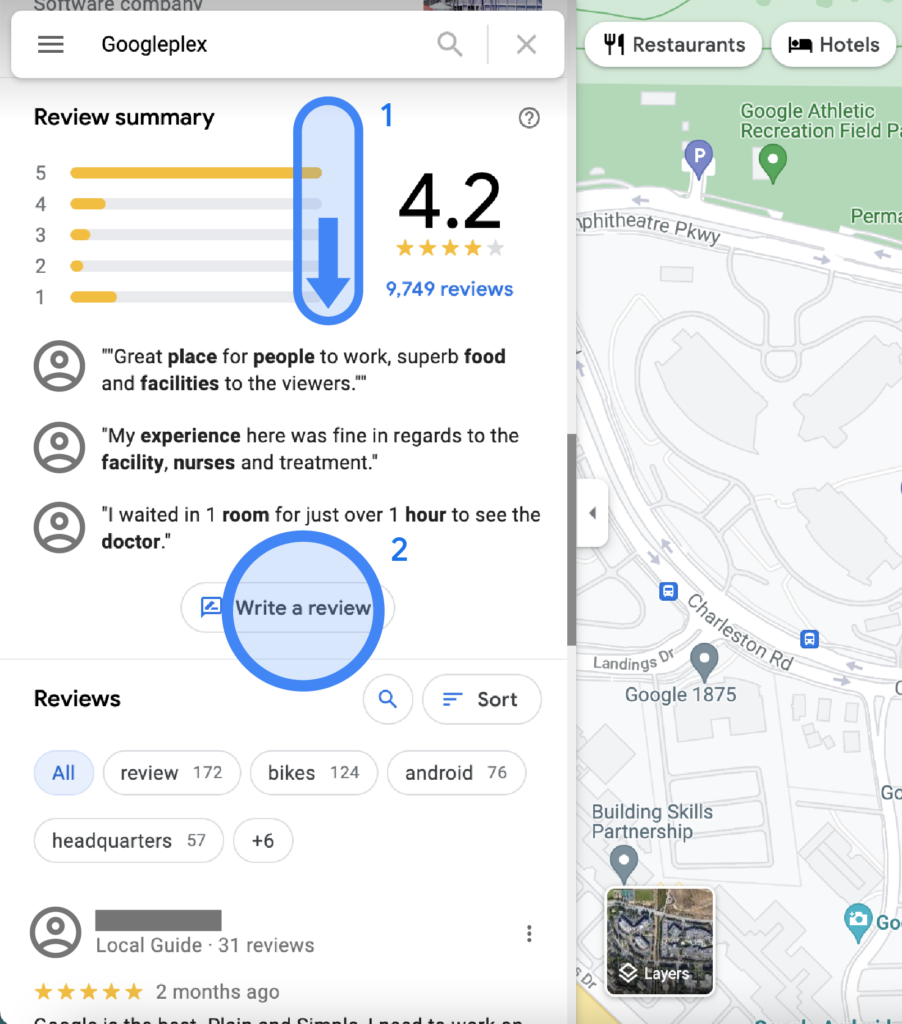
Step 3: Click “Write a review”
In the business profile panel, go to the Reviews section, scroll down and click the “Write a review” button to open the review window.
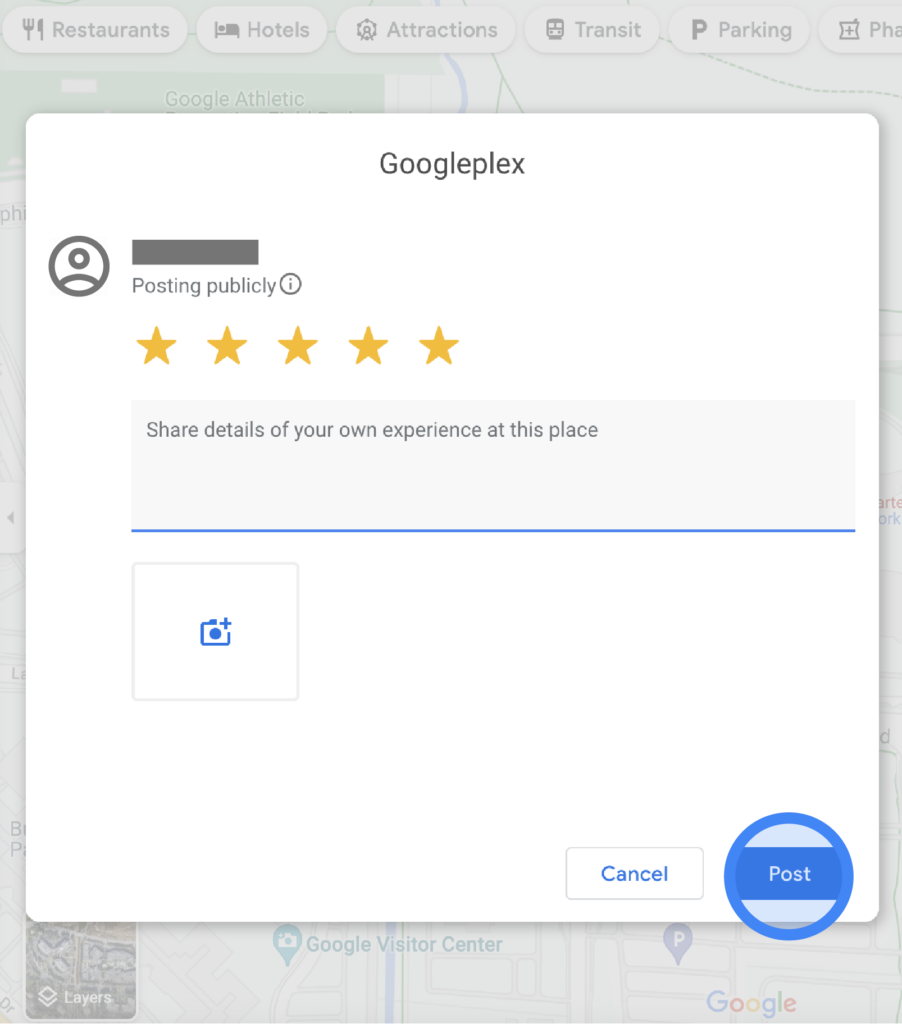
Step 4: Add your rating and review
Click the stars to rate the business, write your feedback, and upload photos if needed. Then, click “Post” to publish your review.
Once published, your review will appear on Google Maps until you remove it. You can also edit your review, rating, or photos later.
How to leave a Google review on mobile (Android + iPhone)
Your customers can also leave a Google review from their mobile devices. This process makes it easy for people to leave a Google review for a company on the go. If your business is not on Google Maps yet, check out our detailed article on how to add a business on Google Maps.
You can leave a Google review on both Android and iPhone using the Google Maps app. First, let us take a look at the steps to leave a review on Android.
Step 1: Open the Google Maps app
On your Android phone or tablet, open the Google Maps app.
Step 2: Search for a place
Search for a place or tap it on the map. If you get multiple locations in your search, tap the location you want to update.
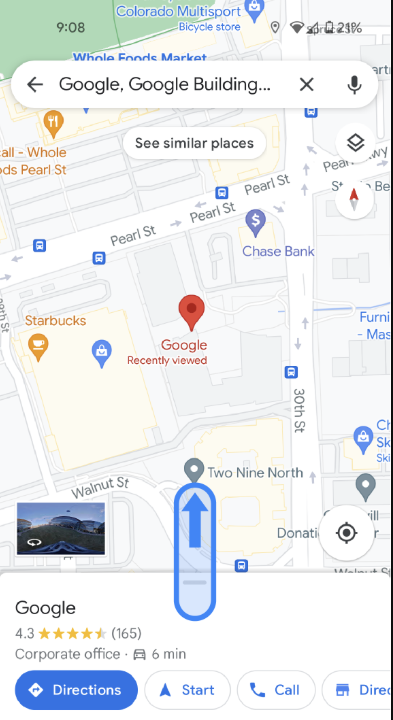
Step 3: Tap the place’s name or address
At the bottom, tap the place’s name or address.
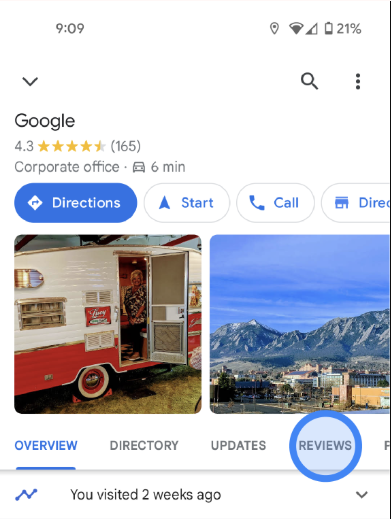
Step 4: Tap “Reviews”
At the top, tap the “Reviews” tab.
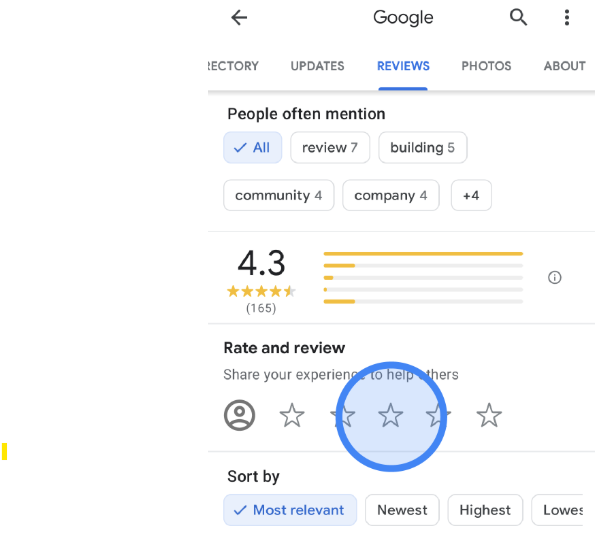
Step 5: Tap the 5 empty stars
Select the five empty stars under the “Rate & Review” section.
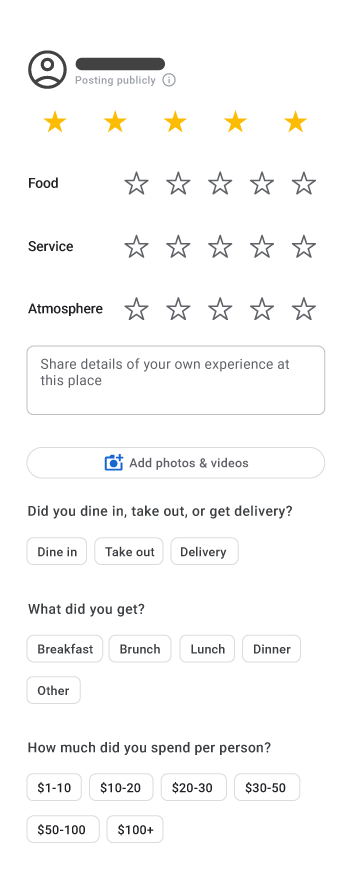
Step 6: Create your review
To score the place, tap the stars, and to write a review, enter your feedback under “Share more about your experience.” You can also answer additional questions and add photos before posting your review.
Now, let us take a look at the steps to leave a review on iPhone.
How to leave a Google review on iPhone
Step 1: Open the Google Maps app
On your iPhone or iPad, open the Google Maps app.
Step 2: Search for a place
Search for a place or tap it on the map. If you get multiple locations in your search, tap the location you want to update.
Step 3: Tap the place’s name or address
At the bottom, tap the place’s name or address.
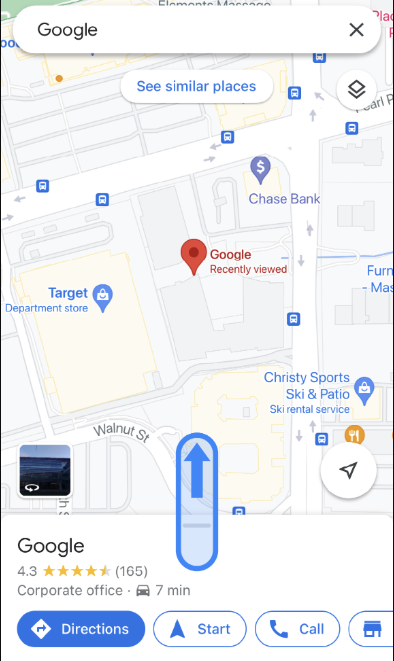
Step 4: Tap “Reviews”
At the top, tap the “Reviews” tab.
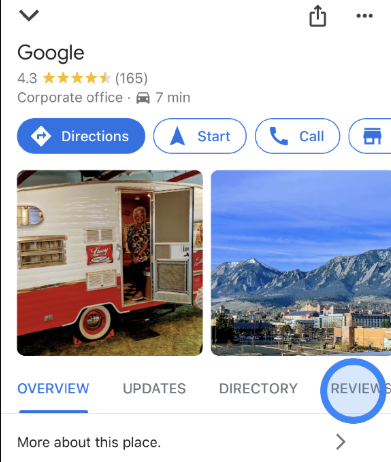
Step 5: Tap the 5 empty stars
Tap the five empty stars under the “Rate & Review” section.
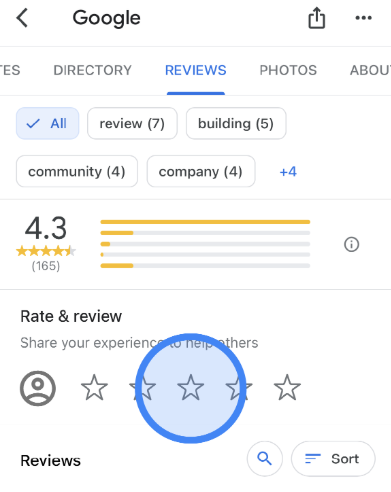
Step 6: Create your review
To score the place, tap the stars. To write a review, enter your feedback under “Share more about your experience.” You can also answer additional questions and add photos before posting your review.
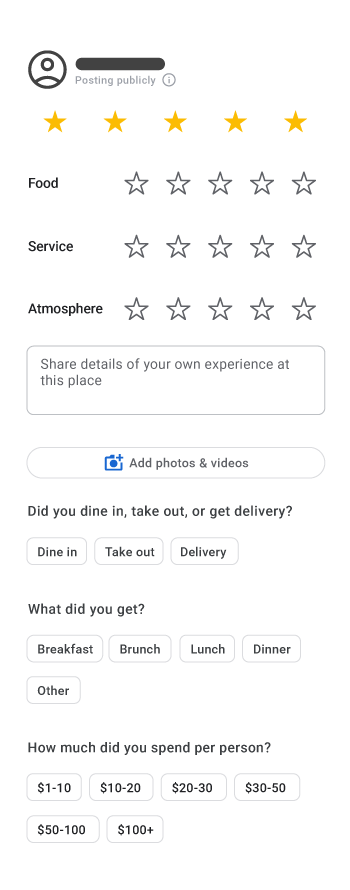
After your review is published, you can edit it or change the rating and pictures you included.
How to leave a review on Google Maps
To leave a review on Google Maps, follow these steps:
Step 1: Open the Google Maps app
On your Android phone or tablet, open the Google Maps app.
Step 2: Search for a place
Search for a place or tap it on the map. If multiple locations appear, tap the location you want to review.
Step 3: Tap the place’s name or address
At the bottom of the screen, tap the place’s name or address to open the business profile.
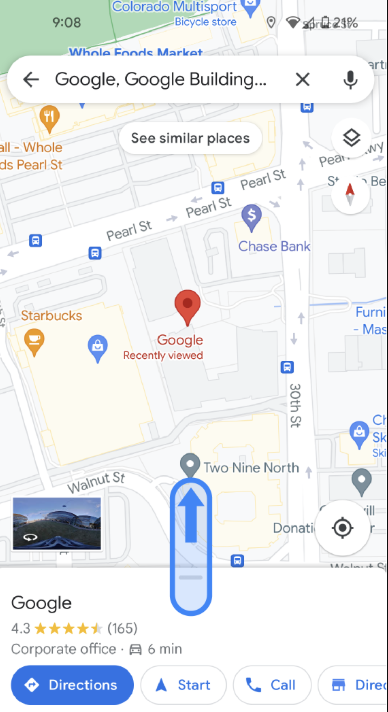
Step 4: Tap “Reviews”
At the top of the business profile, tap the “Reviews” tab.
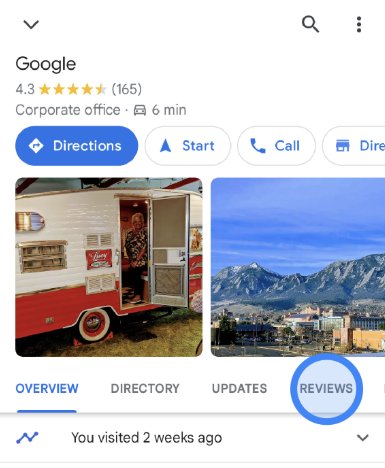
Step 5: Tap the 5 empty stars
Under the “Rate & Review” section, tap the five empty stars to begin your review.
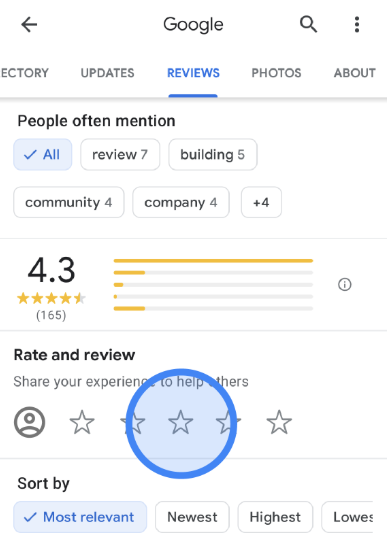
Step 6: Create your review
To score the place, tap the stars. Under “Share more about your experience,” enter your feedback. You can also answer additional questions and add photos to your review.
Step 7: Post your review
Once your review is ready, tap “Post” to publish it on Google Maps.
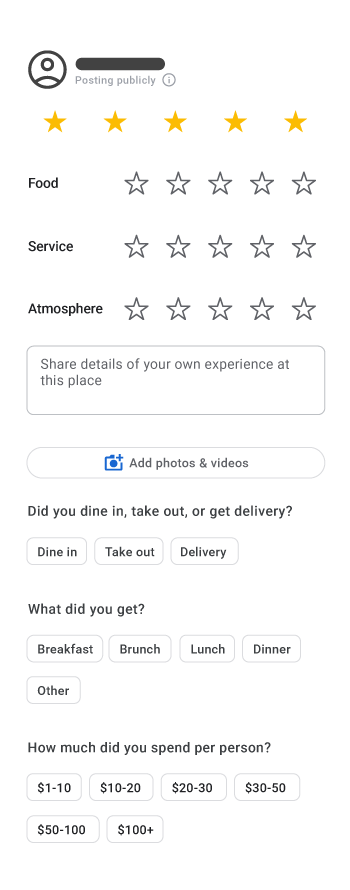
Your review, score, and photos will remain visible on Google Maps and your profile until you remove them. After publishing, you can edit your review, change the rating, and add or remove photos.
How to leave a Google review anonymously
You cannot leave a fully anonymous review on Google. Reviews usually display your first name and last initial publicly based on your profile settings. For more privacy, you can update your display name, use a custom nickname, and adjust your account visibility settings.
To make your review more private:
Step 1: Open Google Maps and tap your profile picture
Step 2: Go to Your Contributions → Edit Profile
Step 3: Turn on Use a custom display name & picture for posting
Step 4: Choose a nickname and profile picture
Step 5: Search for the business and post your review
You can manage additional privacy settings through Google Account settings.
Note: Enabling a custom name updates the display name shown across all your past and future reviews. You cannot apply a custom name to just one review.
How to leave a Google review without Google account
The short answer is: You cannot leave a Google review without a Google account. Google changed its policy a few years ago to fight spam and fake reviews. As a result, Google requires every review to be tied to an actual Google account.
However, you do not need a Gmail address to create a Google account. You can use an existing email address, such as Yahoo, Outlook, or iCloud, to create a Google account and leave a review without managing a separate Gmail inbox.
How to Leave a Google Review: Step-by-Step Guide
Want to see the impact of Birdeye on your business? Watch the Free Demo Now.
How to leave a Google review without your full name
If you want to leave a Google review but are not thrilled about your full name being plastered across the internet, you are not alone. Privacy is a valid concern, and fortunately, there are a few ways to handle this.
Here is how to review a business without compromising your full identity.
Method 1: Change your Google account display name
Google requires a name on your account to leave a review, but it doesn’t verify whether that name is legal or fictional. You can change your display name to just your first name, an initial, or a nickname.
Heads up: Changing this name will change how you appear across all Google services, including Gmail, YouTube, and Google Drive.
How to do it:
Step 1: Go to myaccount.google.com and sign in.
Step 2: Click on Personal info in the left-hand menu.
Step 3: Under the Basic info section, click on Name.
Step 4: Click the pencil icon next to your name to edit it.
Step 5: Change it to something more private (e.g., First Name + Last Initial, or a generic nickname).
Step 6: Click Save.
Method 2: Create a “Burner” Google account
If you use your primary Gmail for professional correspondence and can not change your display name, the best workaround is to create a secondary, anonymous Google account.
- Set up a new account using a generic username.
- Use a nickname or alias for the First and Last name fields during setup.
- Log in to this account on Google Maps whenever you want to leave a review.
Method 3: Hide your public profile history
While this won’t hide your name on the specific review you write, it will prevent people from clicking your name and seeing a map of every single place you’ve ever reviewed.
How to restrict your profile:
Step 1: Open Google Maps on your phone or browser.
Step 2: Click your profile picture or initial in the top right corner.
Step 3: Go to Your Profile > Profile settings.
Step 4: Toggle on Restricted profile.
⚠️ A Quick Warning on "Anonymous" Reviews
Google completely removed the option to post strictly as "A Google User" a few years ago to combat fake spam reviews. If you see an older review labeled "A Google User," it's because that user deleted their account after leaving the review, or it's a legacy post from the old system.
What are the tips for writing a helpful Google review
A well-written review helps others make informed decisions and gives businesses meaningful feedback they can use to improve. The most helpful reviews are clear, honest, and based on real experiences.
Here are the tips for writing a good Google review:
1. Be specific and useful
Include details about your experience, such as the service, atmosphere, product quality, or customer support. Mention what stood out and what future visitors or customers can expect.
2. Share an honest experience
Write about your personal interaction with the business and keep your feedback genuine. Mention both positives and areas that could be improved to make the review more balanced and trustworthy.
3. Keep your tone respectful
Even when sharing a negative experience, use polite and constructive language. Respectful feedback is more valuable and more likely to be taken seriously by businesses and readers alike.
4. Make your review easy to read
Use proper spelling, grammar, and simple sentences to keep your review clear. Avoid excessive punctuation, all caps, or overly long paragraphs that make reviews difficult to follow.
5. Protect personal and professional privacy
Avoid sharing phone numbers, private information, or promotional links in your review. It’s also best not to review businesses where you currently work or previously worked.
6. Focus on firsthand experiences
Keep your review centered on your direct experience with the business rather than public controversies or unrelated discussions. Readers find reviews more helpful when they describe real customer interactions.
7. Add photos with your reviews to accurately reflect your experience
Photos can make your review more helpful and trustworthy by giving others a clearer idea of what to expect. Share clear images that accurately represent your experience, such as the product, service, atmosphere, or overall visit.
Keep this in mind: Your Google review is not permanent. You can edit your rating, update your feedback with the business as experiences changes over time.
Helpful reviews build trust, guide potential customers, and encourage businesses to improve their services. A thoughtful and authentic review can make a real difference for both businesses and future customers.
FAQs on how to leave a Google review
No. Google requires a signed-in Google account to post reviews and reduce spam or fake feedback.
Open Google Maps, search for the business, tap “Reviews,” and select “Write a review.”
Your account may not be signed in, the business listing may be restricted, or Google may have flagged unusual review activity.
Open Google Maps, tap your profile photo, then go to “Your profile” to view your reviews.
You cannot post a review without a Google account, but you can create one using your Yahoo, Outlook, or iCloud email address instead of Gmail.
Copy your Google review link and use a QR code generator to create a scannable code customers can use to leave reviews quickly.
Google displays the name linked to your account, but you can edit your profile name before posting a review.
Most reviews appear within a few minutes, but some may take longer if Google checks them for spam or policy violations.
Google may remove reviews that violate its policies, such as spam, fake content, offensive language, or conflicts of interest.
How Birdeye helps businesses get more reviews
Birdeye is the #1 Agentic Marketing Platform for multi-location brands. Powered by BirdAI and a unified data platform, Birdeye helps businesses automate customer engagement, reputation management, and review generation across the entire customer journey.
Unlike traditional tools that only surface data, Birdeye’s AI agents help brands drive real business outcomes across awareness, conversion, and customer experience from a single platform. Trusted by leading enterprise brands globally, Birdeye helps organizations strengthen their local presence, manage reputation, and deliver consistent customer experiences at scale.
Here’s how Birdeye supports brands throughout the review management process:
- Birdeye Reviews AI helps multi-location brands monitor and manage reviews across 200+ review sites from one centralized dashboard. Birdeye customers achieve an average review response rate of 71%, helping brands show customers that feedback is acknowledged and valued.
“The AI review response capabilities are wonderful and provide innovative options for us. The entire process is extremely quick and user-friendly!”
Mary Rabalais
SEO Consultant and Web Design, Coleman Taylor Transmissions
- Birdeye Review Generation Agent automates review requests by optimizing send times and personalizing invitations through email and text.
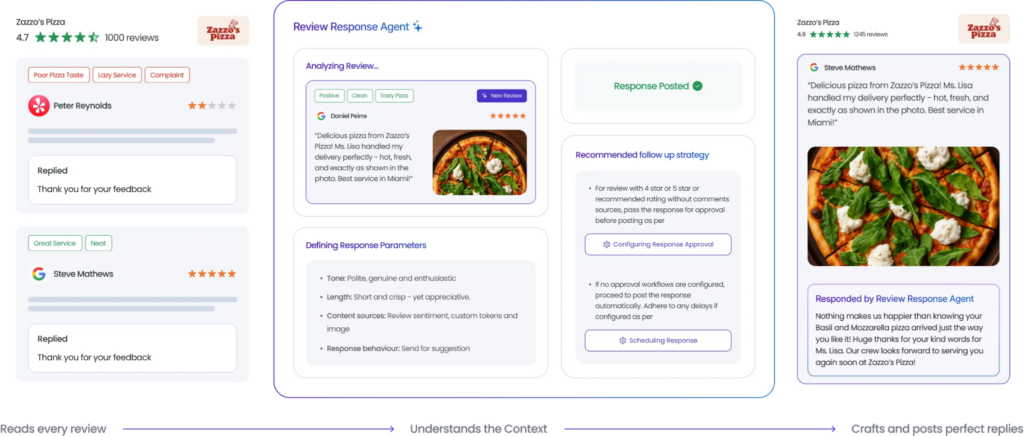
- Birdeye Review Response Agent helps teams draft empathetic, brand-aligned responses by analyzing sentiment, intent, customer context, and attached review content.
- Birdeye also gives brands visibility into customer sentiment and reviews trends across 100-10,000+ locations, making it easier to identify recurring concerns and improve customer experiences.
By simplifying review collection, responses, and monitoring, Birdeye helps brands maintain a stronger online presence across review platforms.
Watch the Birdeye demo to see how brands simplify review generation, responses, and reputation management from one platform.

About the Author

Vanjana Sharma
Originally published


![[Feature image] Buy Google reviews UK- The truth behind quick fixes and smarter reputation solutions](https://birdeye.com/blog/wp-content/uploads/Feature-image-Buy-Google-reviews-UK-The-truth-behind-quick-fixes-and-smarter-reputation-solutions-375x195.jpg)